WooCommerce Buyer Notifications: Setup and Best Practices - Wooninjas - The WooCommerce Ninjas
Back to Blogs
E-Commerce

WooCommerce Buyer Notifications: Setup and Best Practices

Set up action-triggered WooCommerce buyer notifications for cart, checkout, and scroll events. Covers trigger types and mistakes to avoid.

Zil Kifel Sarwar July 15, 2026 10 mins read
Image showing WooCommerce Buyer Notifications: Setup and Best Practices

A visitor adds a product to their cart, moves to checkout, or scrolls through a long product description. Each of these moments is a brief opportunity. A quick message can confirm the action, reduce doubts before payment, or highlight something the visitor might miss.

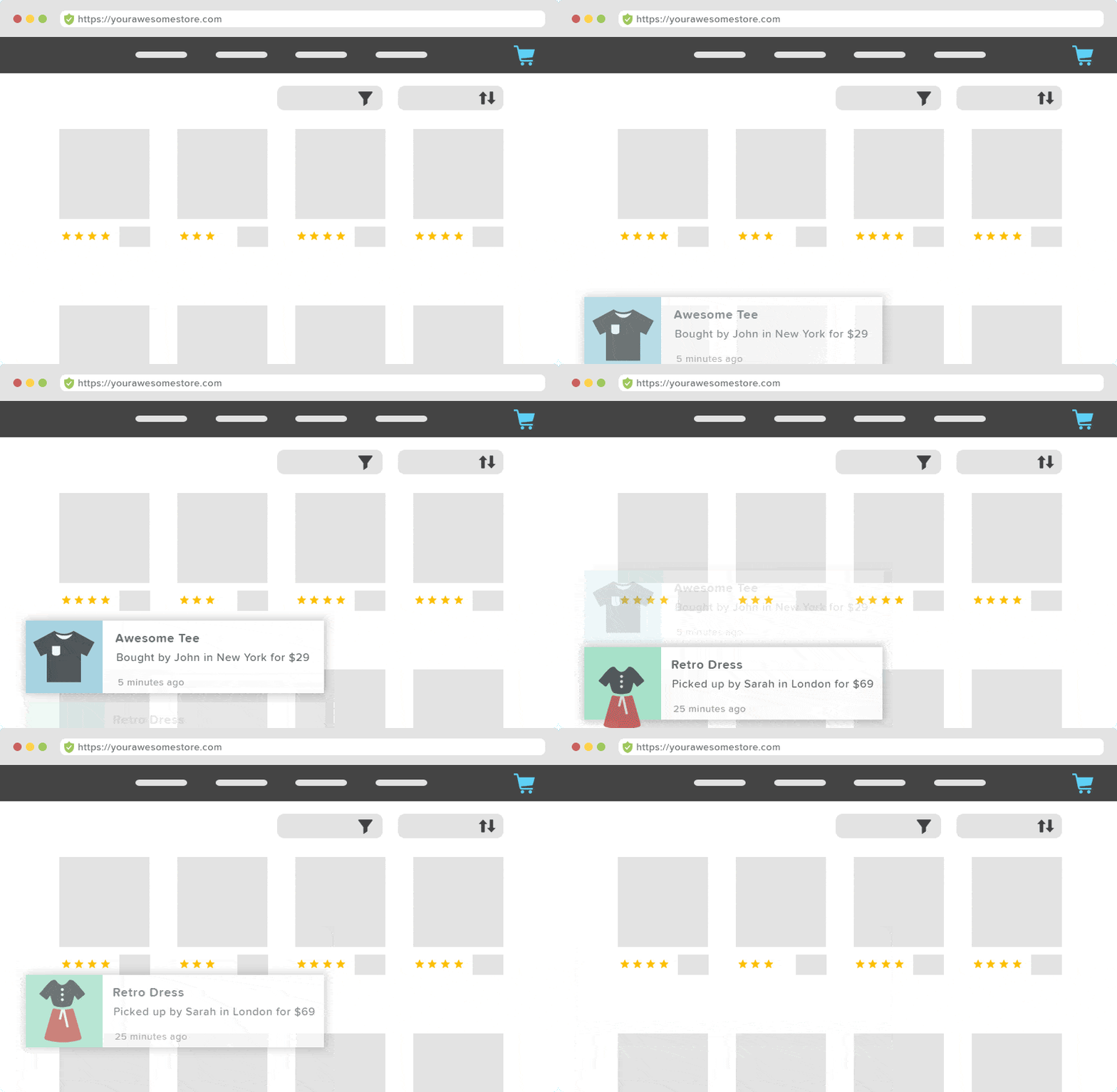
WooCommerce Browser Notify takes advantage of that opportunity. A small pop-up appears when a visitor adds an item to their cart, reaches checkout, places an order, or scrolls to a defined point. It disappears a few seconds later. It’s not a static banner shown on every page. It’s a message that responds to what the visitor is doing at that moment.

This guide explains what WooCommerce Browser Notify does, why timed, action-triggered pop-ups help instead of distract, how to set them up effectively, and how to configure each trigger type, from cart activity to checkout to scroll depth, in your own store.

What Are WooCommerce Buyer Notifications?

WooCommerce Browser Notify shows visitors a small, unobtrusive pop-up based on their recent actions in your store. When a product is added to the cart, a pop-up confirms the addition. At checkout, a pop-up reassures customers that the process is moving along smoothly. Once an order is completed, a pop-up thanks them or guides them on what to do next. 

The notification shows up for a few seconds and then disappears on its own. It doesn’t block the page, ask the visitor to interact with it, or disrupt the browsing or shopping experience. Its purpose is to confirm that the action was registered. 

Interaction designers refer to this as a microinteraction: a small response triggered by a specific user action. Research from the Nielsen Norman Group explains why this works. It shows the system status, so the visitor knows their click had an effect. It also helps avoid the moment of doubt that comes after an action without a visible response. Plus, it allows you to reinforce your store’s tone at exactly the moment the visitor is most attentive.

Why Buyer Notifications Work: The Psychology

The value of these pop-ups comes down to two things: reducing hesitation and showing that your store is responsive. 

Reducing hesitation: 

When an action has no visible response, it creates a moment of doubt. Did that really work? A pop-up that confirms the cart addition, checkout step, or completed order addresses that doubt immediately, right when the visitor is paying attention. 

Signalling responsiveness:

A store where clicks do not provide feedback feels static, even broken. In contrast, a store that acknowledges each step feels active and trustworthy, and it doesn’t require a redesign to convey that.

Baymard Institute’s checkout research supports this point: cart abandonment averages about 70% across the industry. Their research on checkout-stage feedback consistently shows that confirming each step reduces the anxiety that leads people to leave mid-checkout. 

Notification Triggers: Beyond Purchase Events

Cart confirmations are the most common use of Browser Notify, but they are one of five available triggers, each serving a different purpose.

The trigger table above demonstrates how the same notification system can achieve multiple conversion goals. Purchase triggers build social proof. Cart triggers create urgency. Page-open triggers direct attention. Scroll triggers capture engaged visitors. A well-configured store might use two or three of these trigger types at the same time, each with its own message and timing, covering different stages of the visitor journey.

Looking for a Ready-Made Solution?

Explore our WordPress, WooCommerce, and LMS plugins built to extend functionality without custom development.

Browse Our Products

Setting Up WooCommerce Buyer Notifications With Browser Notify

1: Install and activate

  • Install and activate the WooNinjas WooCommerce Browser Notify extension.
  • Enter your license key under WooCommerce → Browser Notify License.
  • The extension adds Browser Notify Pop Up and Browser Notify Triggers to your WooCommerce admin menu.
Image showing WooCommerce browser notify license.

2: Create the pop-up content

  • Navigate to WooCommerce → Browser Notify Pop Up → Add New.
  • Write the notification message using the WordPress editor. Shortcodes are supported if you want to pull in dynamic content.
  • Publish the pop-up.
Image showing browser notify popup on place order.

3: Create a trigger and attach the pop-up

  • Navigate to WooCommerce → Browser Notify Triggers → Add New.
  • Add a title for the trigger (internal reference only, not shown to visitors).
  • Select the trigger event from the dropdown: On Page Load, On Scrolling Through, On Add to Cart (Non-AJAX), On Proceed to Checkout, or On Place Order.
  • Select the pop-up you created in Step 2 to display for this trigger.
  • Set a delay in seconds before the pop-up appears. Leave it empty for instant display.
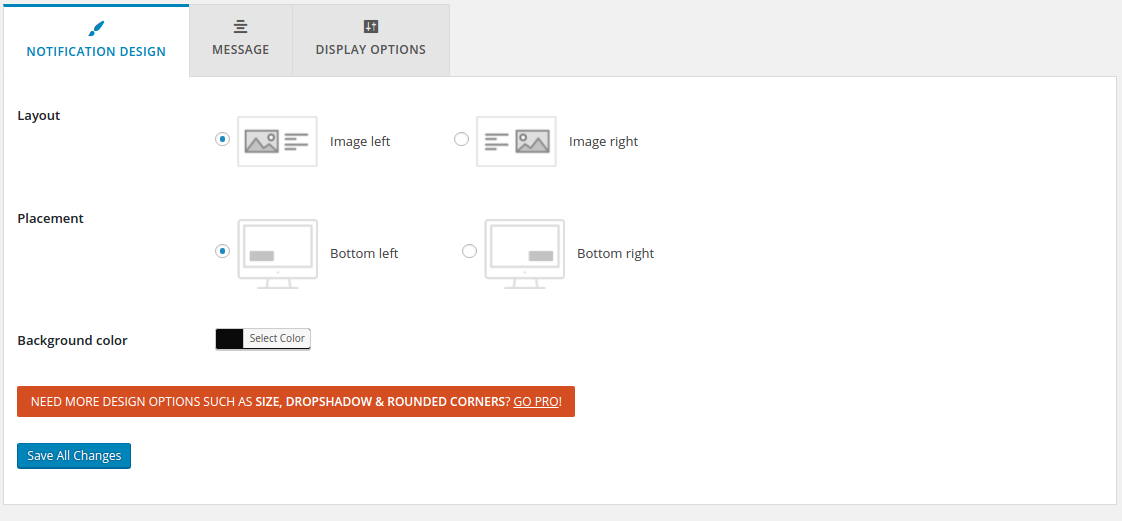
  • Configure the pop-up appearance: position, colour, and display duration.
  • Publish the trigger.
Image showing Create a trigger and attach the pop-up.
Every day your store runs without buyer notifications, you are leaving social proof on the table. The WooNinjas WooCommerce Browser Notify extension adds WooCommerce buyer notifications and event-triggered popups to your store without requiring custom development. It works out of the box with nearly every WordPress theme. Notifications are created in the WordPress editor, and triggers are configured in your WooCommerce admin.

Configuration Best Practices

The effectiveness of these popups relies on how they are set up. A poorly timed, oversized, or overly frequent notification can do more harm than having no notification at all.  

Keep messages short and specific.

The best popup messages are brief and clearly related to what just happened. “Added to your cart: Ceramic Pour-Over Coffee Set” is effective. “Something happened” is not. Use the WordPress editor to write messages that name the product or confirm the specific action. If Browser Notify allows shortcodes in the popup content, use them to incorporate dynamic product names instead of generic text.  

Set appropriate timing

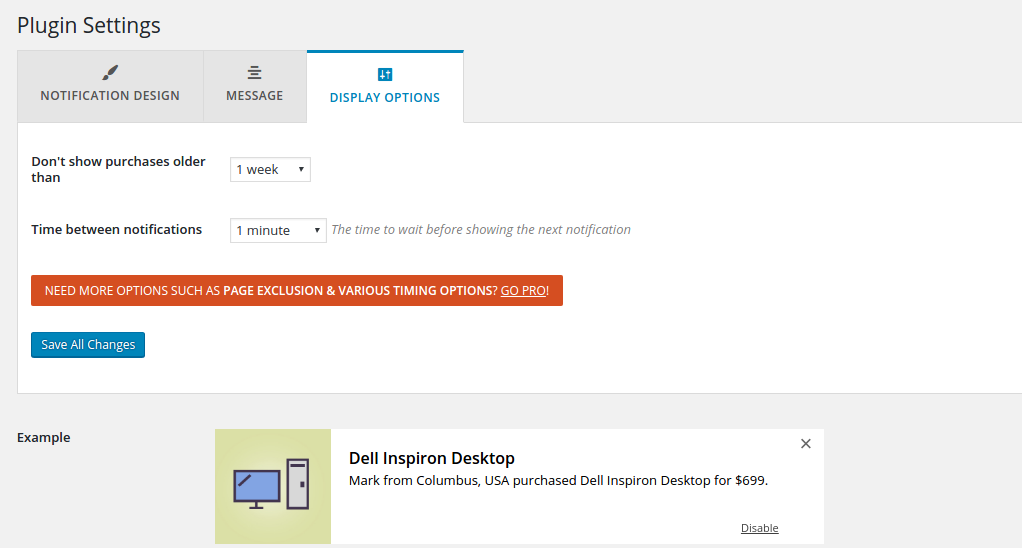
A display duration of three to six seconds is standard. This range is short enough not to annoy a visitor who doesn’t need the confirmation and long enough for someone mid-action to notice it. Include at least a 30-second gap between pop-ups to avoid stacking if multiple triggers are active on the same page.

Limit to relevant pages.

Cart and checkout confirmations should appear on product and category pages and during the checkout process, where visitors are making decisions. Showing the same pop-up on your privacy policy, about, or contact pages adds unnecessary noise. Set each trigger to activate only where it is helpful.  

Test before going live

Use a staging copy of your store to test popup timing, placement, and mobile behavior before you enable anything on the live site. Ensure that the popup does not overlap with the add-to-cart button, price, or product images on any screen size. A notification that covers the purchase button defeats its own purpose.

When Not to Use Buyer Notifications

Action-triggered popups aren’t suitable for every store or page. In some cases, they create more problems than they solve.

  • Pages with no actionable trigger: If a page lacks a cart, checkout, or product to add, there’s no user action to confirm. Displaying a page-load popup on your blog or FAQ page just to show something interrupts the user for no good reason. Keep popups limited to pages where visitors are engaged in actions that warrant confirmation.  
  • Over-triggered stores: If you have five different triggers active on every page, visitors will see a popup every few seconds. That stops being helpful and starts to feel overwhelming. Begin with one or two triggers on the most important pages, and add more only if the experience remains clear and manageable.
  • Mobile screens where the popup blocks key elements: A corner popup that takes up 10% of a desktop screen can cover 30% of a mobile screen. If it obstructs the add-to-cart button, product image, or checkout form, it’s counterproductive. Resize it for mobile, adjust its position, or turn off mobile popups until you’ve properly tested the layout.  
PRO TIP: Keep the WooCommerce buyer notification display duration between three and six seconds. Set a gap of at least 30 seconds between popups so multiple notifications don’t stack while a visitor is browsing. For mobile, test every popup on an actual phone screen before going live. If a notification covers anything the visitor needs to tap, disable it or shrink it. Getting the timing and sizing right is the difference between a popup that helps and one that gets in the way. 

Conclusion

WooCommerce Browser Notify is a straightforward conversion tool for any store. It doesn’t require changes to your product pages or a redesign of your checkout. Also, you won’t need to manage it continuously once the triggers are configured. It works by taking actions that already occur, like adding to the cart, reaching checkout, and completing an order, and turning them into visible confirmations for the visitor to see.

The key is restraint. Done well, a popup appears for a few seconds, confirms what just happened, and disappears. Done badly, it interrupts browsing and makes the store feel desperate. The configuration guidelines in this post are what differentiate the two. The WooNinjas WooCommerce Browser Notify extension handles the technical side. The configuration choices are yours.

Ready to add action-triggered popups to your store? The WooCommerce Browser Notify extension handles cart confirmations, checkout messages, page-load alerts, and scroll-triggered popups from a single plugin. Theme-compatible, mobile-configurable, and built to stay out of the way while doing its job. For stores that need custom popup logic, custom designs beyond the default settings, or a full WooCommerce conversion audit, the WooNinjas WooCommerce team handles custom builds. Reach out via the WooNinjas contact page.

Add buyer notifications to your WooCommerce store today. The WooCommerce Browser Notify extension handles purchase notifications, cart activity popups, page-open alerts, and scroll-triggered messages from a single plugin. Theme-compatible, mobile-configurable, and built to stay out of the way while doing its job. For stores that need custom notification logic, custom popup designs beyond what the default settings cover, or a full WooCommerce conversion audit, the WooNinjas WooCommerce team handles custom development. Reach out via the WooNinjas contact page.

Frequently Asked Questions

Do WooCommerce buyer notifications use real purchase data?

Yes. Browser Notify pulls from actual WooCommerce orders, so product names and timestamps in each notification reflect real transactions. Nothing is fabricated. If your store has low order volume, page-load and scroll triggers can run alongside purchase-based WooCommerce buyer notifications to keep popups active without waiting for sales.

Will buyer notifications slow down my WooCommerce store?

No. The popups render client-side as lightweight JavaScript. Browser Notify doesn’t run heavy database queries on page load, so your page speed stays unaffected. As with any plugin, test on your theme and hosting setup to confirm no render-blocking scripts are introduced.

Can I show buyer notifications only on specific product pages?

Yes. Each trigger can be scoped to specific product pages, categories, or the site-wide level. If you want notifications only on your highest-value product pages, set the trigger scope to target those pages and leave the rest clean.

How do I prevent buyer notifications from appearing on mobile?

Each trigger has a setting to hide notifications on mobile and tablet screens. Use this if your popup covers product images or the add-to-cart button on smaller screens. If the popup sits cleanly in a corner without blocking anything, you can leave mobile notifications on, but test across multiple screen sizes first.

Are WooCommerce buyer notifications the same as sales pop-up plugins?

The terms overlap. WooCommerce buyer notifications, sales popups, and purchase alert plugins all describe action-triggered popups on a store. Browser Notify goes further by also supporting page-load and scroll-depth triggers, making it an event-triggered notification system rather than a purchase-only tool. See the full WooNinjas WooCommerce extensions catalog for other conversion-focused add-ons.

Need Ongoing WordPress Maintenance & Support?

We handle updates, performance monitoring, security hardening, and technical fixes so your WordPress and WooCommerce site stays stable and secure.

View Maintenance Plans

Scroll to Top