Online education is growing fast, but today’s students want more than just videos and slides. They want learning to be fun, hands-on, and personalized to their needs.
Modern learners like to study at their own pace. They want to focus on what they find hard and take control of their learning journey. That’s why self-directed learning tools are becoming more popular.
Interactive tools like quizzes, assignments, and simulations help students stay active and interested. Features like creating their own practice quizzes allow learners to test themselves, track progress, and feel more confident.
If you’re a course creator or educator, using interactive and self-directed tools is a must. It helps keep students engaged and improves learning results.
Make Learning Stick with the LearnDash Student Quiz Builder
LearnDash is one of the most popular and powerful Learning Management Systems (LMS) built specifically for WordPress. It enables educators, trainers, and businesses to create and deliver online courses with rich functionality, right from their WordPress dashboard. With features like advanced quizzes, course prerequisites, drip content, user management, and integration with tools like WooCommerce, LearnDash makes it easy to build a scalable and professional e-learning platform without needing extensive technical knowledge.
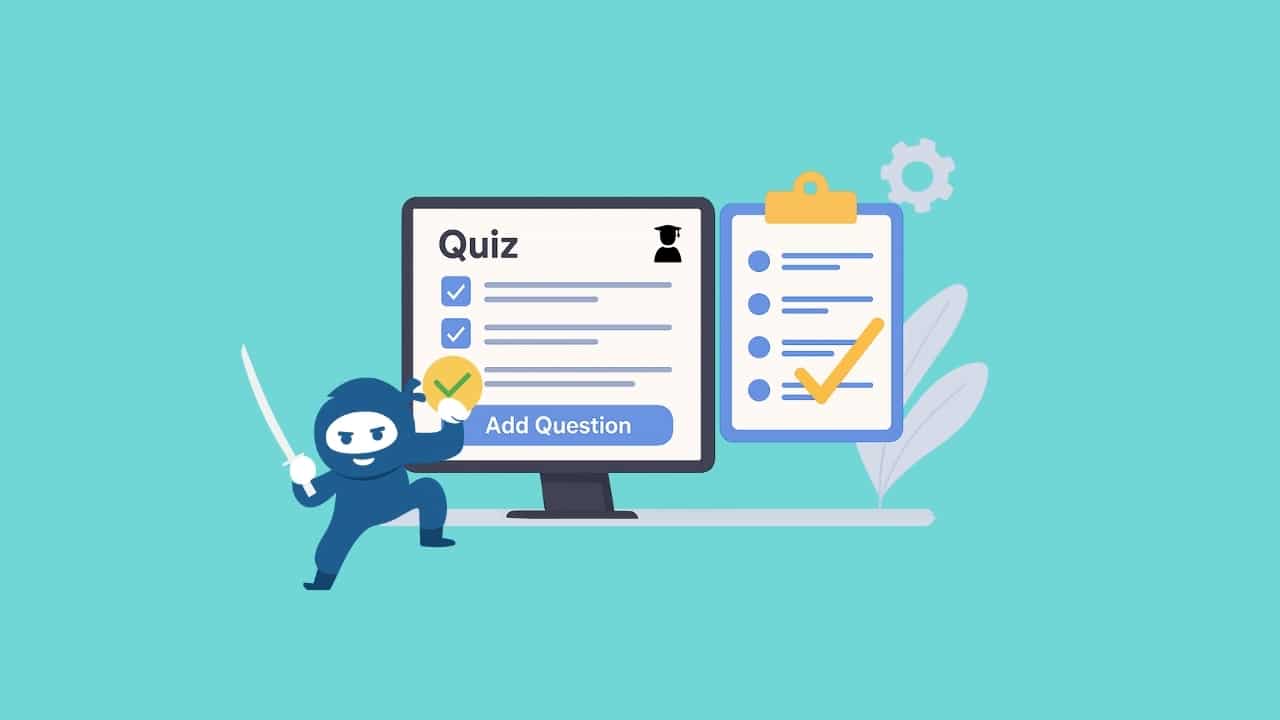
To meet the demand for more personalized and engaging learning experiences, LearnDash users can leverage powerful extensions, one standout being the WooNinjas LearnDash Student Quiz Builder add-on. This add-on is specifically designed to enable students to create their practice quizzes directly from the frontend of your WordPress site.
The LearnDash Student Quiz Builder Add-on lets students create their own quizzes based on what they find hard. They can pick question types, write custom answers, and practice in a format they already know.
It works smoothly with your LearnDash courses and gives learners a flexible way to study without breaking the rules or structure of your LMS.
Whether you’re running a certification course, test-prep program, or self-paced online class, this tool helps students stay engaged, learn actively, and understand better.
Why Let Students Create Their Own Practice Quizzes in LearnDash
In online learning, it’s important for students to take control of how they study. One great way to do this is by letting them create their own quizzes. The LearnDash Student Quiz Builder add-on makes this easy by giving students a simple tool to test themselves and learn better.
Here’s why it helps:
1. Makes Learning More Fun and Engaging
When students build their own quizzes, they stay active. They’re not just reading or watching, they’re doing. This helps them understand the content better and remember it longer.
2. Helps Students Find and Fix Weak Spots
By making and taking their own quizzes, students can see what they don’t understand. Then, they can spend more time studying those topics. This leads to smarter, more focused learning.
3. Encourages Self-Learning and Responsibility
Letting students build quizzes helps them feel more in control. They start managing their own learning and become more confident and independent.
4. Great for Practice, Not for Grades
These quizzes are just for practice and not official tests. They help students prepare, review lessons, and get better without worrying about grades.
5. Easy to Use (No Admin Access Needed)
Students can use the quiz builder right on the site. There’s no need to go into the backend or ask for admin help. It’s quick, safe, and student-friendly.
Key Features of the LearnDash Student Quiz Builder Add-On
The LearnDash Student Quiz Builder add-on equips your LearnDash site with powerful functionality that allows students to create their own practice quizzes directly from the frontend. Built with simplicity and student experience in mind, the add-on includes the following key features:
Frontend Quiz Creation via Shortcode
Students can access the quiz builder from any page or section on your site using a simple shortcode. This gives them the ability to create practice quizzes without accessing the WordPress admin area, ensuring ease of use and system security.
Automatic Quiz Generation by Category and Quantity
Instead of building quizzes question by question, students can generate a quiz automatically by selecting one or more question categories and defining the number of questions they want. The system pulls random questions from your existing question pool, streamlining the quiz creation process.
Support for Multiple Categories per Question
The add-on supports LearnDash’s ability to assign multiple categories to a single question. This allows for more flexible and accurate quiz generation, as students can build quizzes that span multiple topics or themes within a course.
Clean and Student-Friendly Interface
The user interface is designed specifically for learners. It’s intuitive, distraction-free, and mobile-responsive, making it easy for students of all technical backgrounds to create quizzes quickly and focus on their learning.

Focus on your business – We’ll handle your website’s speed, security, uptime, and updates.
Step-by-Step Guide On How to Set It Up on Your LearnDash Site
Getting started with the LearnDash Student Quiz Builder add-on is simple and requires just a few steps.
Here’s how to install and activate it on your LearnDash-powered WordPress site.
Step 1: Install and Activate the Add-On
Start by purchasing and downloading the Student Quiz Builder add-on from WooNinjas.
Then:
- Log in to your WordPress admin dashboard.
- Navigate to Plugins > Add New.
- Click Upload Plugin, then select the downloaded .zip file.
- Click Install Now and then Activate once the installation is complete.

Step 2: Create a Frontend Quiz Builder Page
To make the quiz builder accessible to your students, you’ll need to create a frontend page using a shortcode provided by the add-on.
Steps:
- Go to Pages > Add New in your WordPress dashboard.
- Give the page a Title name
- Paste the following shortcode into the content area:
[ld_student_quiz_builder] - Publish the page.

Step 3: Organize Your Question Bank by Categories
To make the automatic quiz builder feature work properly, you need to organize your quiz questions using LearnDash’s question category system.
Here’s how to do it:
- Navigate to LearnDash > Questions.
- Edit each question and assign it one or more question categories using the taxonomy panel.
- Categories can represent topics, lessons, difficulty levels, or exam objectives.
Students will later choose from these categories when generating their own quizzes, so use clear and intuitive naming (e.g., “Chapter 1: Basics” or “Grammar – Intermediate”).

Step 4: Test the Experience as a Student
Before launching the feature to your learners, it’s a good idea to test the process yourself using a test student account.
Here’s what a student will do:
- Visit the page you have created.
- Choose one or more question categories from the dropdown menu.

- Specify the number of questions you want in the quiz.

- Click Generate Quiz.
- The system instantly creates a quiz using random questions from the selected categories.
- The student can take the quiz immediately and review their answers for self-assessment.

The whole process is quick, easy to use, and distraction-free so students can stay focused and practice the topics they struggle with the most.

Build, Customize, and Scale Your LearnDash Store with WooNinjas
Best Practices for Educators
To get the most out of the LearnDash Student Quiz Builder, educators need to provide structure, guidance, and encouragement. When implemented thoughtfully, this tool can significantly improve how students engage with your course content.
Here are some best practices to ensure success:
1. Create Diverse Question Categories Aligned with Course Modules
Build out your question bank using a variety of categories that reflect the structure of your course. For example, organize questions by lesson, chapter, difficulty level, or topic. This helps students easily build targeted quizzes based on their study needs.
2. Add Clear Instructions on the Quiz Builder Page
Include simple, student-friendly instructions above or below the [ld_student_quiz_builder] shortcode. Explain how to use the tool, what to expect, and how it fits into their learning journey. A short video tutorial or step-by-step guide can also boost adoption.
3. Encourage Regular Use for Self-Assessment
Motivate students to build and take practice quizzes frequently. Make it a routine to do this after each lesson or at the end of every week, so they can check their understanding and reinforce their learning before moving forward.
4. Use the Feature During Review Weeks or Exam Prep Periods
The quiz builder is especially valuable during revision weeks, before exams, or at the end of a course module. Encourage students to generate quizzes based on key topics to test their readiness and refresh their memory.
5. Set Clear Expectations and Learning Goals
Let students know that the purpose of the quiz builder is for practice and self-evaluation, not formal grading. Emphasize how it can help them focus their study efforts and improve long-term retention.
6. Promote Reflective Learning
Encourage students to reflect on their quiz results and keep track of their progress. Suggest they make notes on topics where they struggle and revisit those areas in the course materials.
7. Gamify the Experience
Make quiz creation more engaging by incorporating gamification. Offer badges, rewards, or leaderboards for students who complete a certain number of practice quizzes or regularly use the tool.
8. Gather Feedback and Iterate
Ask students for feedback on how helpful the quiz builder is and whether they find it intuitive to use. Use their input to improve the learning experience and possibly refine your question bank or categories.
Who Can Use the LearnDash Student Quiz Builder?
The LearnDash Student Quiz Builder Add-on works in many different learning environments. It helps learners test themselves, study smarter, and feel more confident whether they’re in school, college, or the workplace.
K-12 Schools (Elementary & High School)
Young students can use the quiz builder to practice lessons in a fun and low-stress way. No pressure, no grades, just an easy way to build confidence and review what they’ve learned.
Colleges & Universities
College students often need to study complex topics or get ready for exams. This tool is perfect for self-testing and reviewing lessons at their own pace, helping them stay on track throughout each course.
Professional Training & Certification Programs
In job training, compliance courses, or continuing education, professionals can use the quiz builder to refresh knowledge, prepare for tests, or review key rules and procedures. It’s a simple and effective way to stay updated without needing constant supervision.
The Key Takeaway
Today’s learners want more than just video lessons they want tools that help them stay involved, track progress, and learn at their own pace. Letting students build their own quizzes gives them exactly that: a way to practice, review, and take charge of their learning.
The LearnDash Student Quiz Builder Add-on makes this easy. It gives students the power to test themselves, focus on what they need most, and stay active in the learning process all through a clean, secure frontend interface.
If you want to make your courses more engaging and effective, this tool is a smart choice. Whether you’re teaching kids, college students, or professionals, self-created quizzes can help everyone learn better and remember more.
Need Help Getting Started?
Want to use the LearnDash Student Quiz Builder Add-on but not sure how to set it up? We’ve got your back. Our team can help you with everything from installation and setup to one-on-one training or a live demo so you can see exactly how it works.
Looking for something custom? We also offer custom development services to enhance the LearnDash Student Quiz Builder add-on or adapt it to your specific educational goals. Whether you need custom quiz logic, advanced reports, or deeper LMS integration, we can certainly build it for you.
To keep your LearnDash site optimized and secure, explore our LearnDash Maintenance Plans designed to provide ongoing support, performance monitoring, regular updates, and peace of mind.
Contact Us Today for setup support, a free consultation, or to learn more about our customization and maintenance services. Let’s build a better learning experience together.