With the TutorLMS Multi Certificate add-on, you can award your students different course certificates based on their grades and performance. In this article, you will learn how to install and set up the TutorLMS Multiple Certificates add-on.
Installing The Add-on
- Install the Tutor LMS plugin & activate it.
- Install and activate the Tutor LMS Pro add-on.
- Install and activate the Tutor Multiple Certificates add-on.
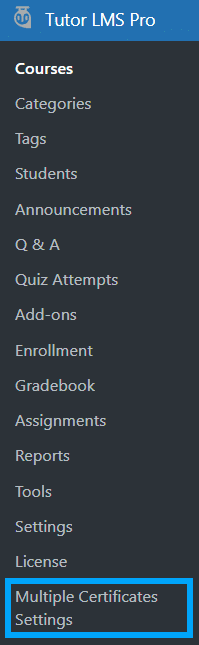
- After activation, the “Multiple Certificate Settings” sub-menu will be added under the Tutor LMS Pro menu.
Activating Your License Key
The license key is configured on the “License Option” tab of the TutorLMS Multi Certificate Settings. License keys are delivered by email after purchasing the add-on.
Enter your license key in the corresponding field and click on Activate.

Enabling The Add-ons
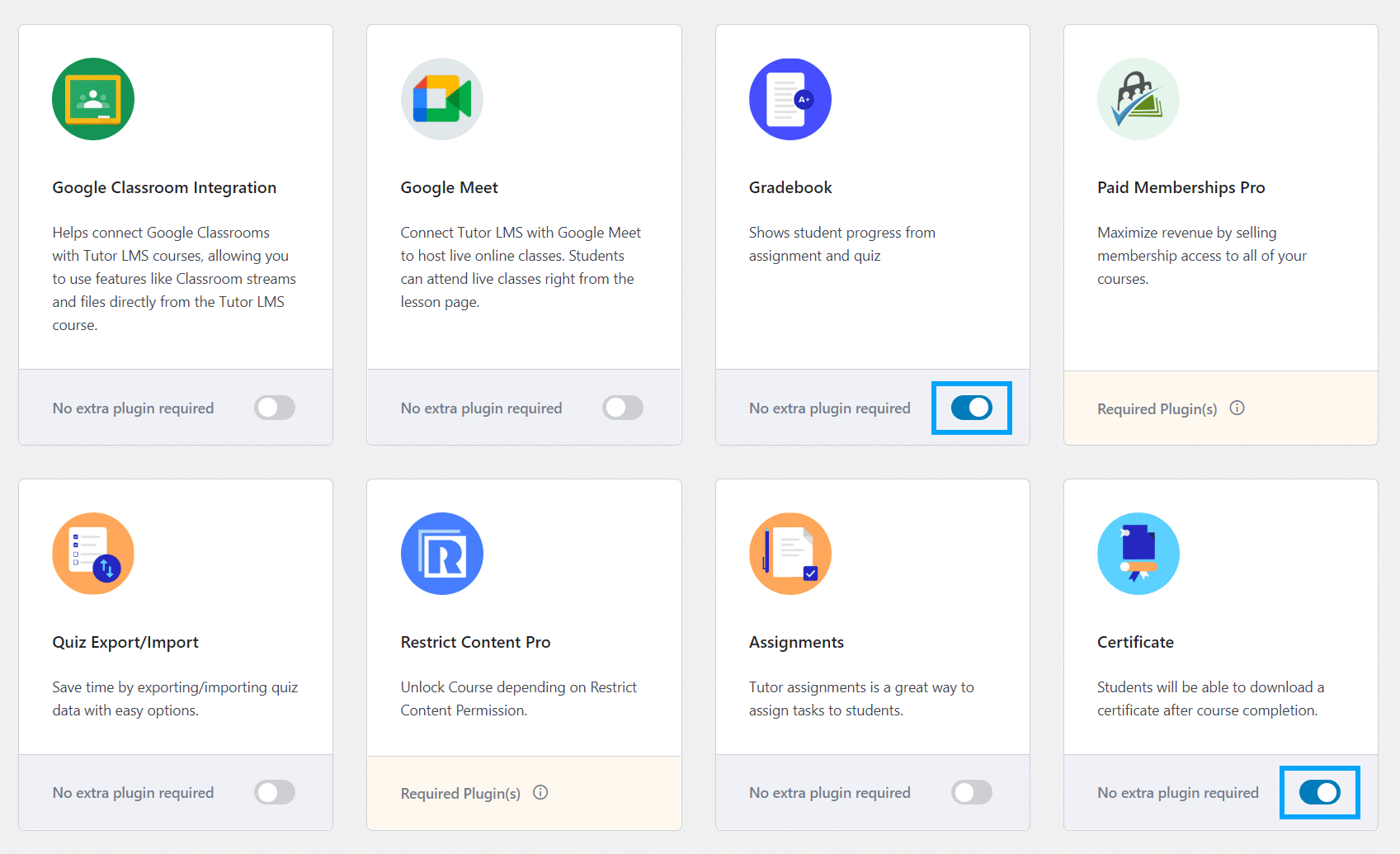
Navigate to Tutor LMS Pro > click on the “Add-ons” sub-menu > enable the “GradeBook” and “Certificate” toggles.
Add Grades
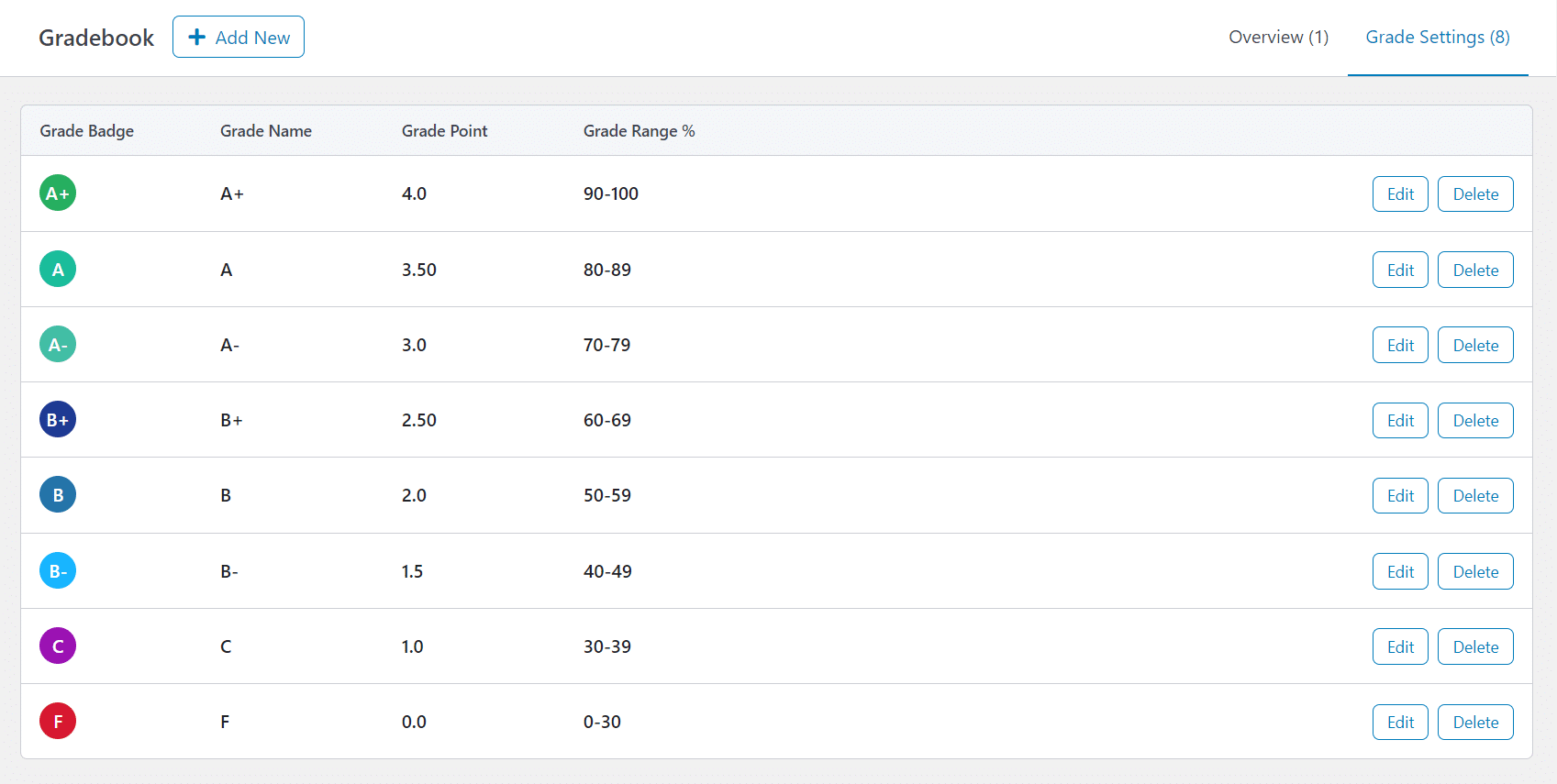
Navigate to Tutor LMS Pro > click on the “GradeBook” sub-menu > click on the “Add New” button, and add the grades as per your requirements.
Grade Settings
Certificate Selection Method
Here, you can choose the grading type to use globally on your site. Whichever grading type you select will show up automatically selected when you try to set the certificates of a course for the first time. You can choose from the following options:
- Grading
To use standard grade-based certificates. - Custom Labels
To define custom names of the certificate that students can select on the frontend after course completion.
Enable Activity Logs
Enable this option to log and view the activity logs related to license activation. When “Yes” is selected in the dropdown, a new “Activity Logs” tab will become visible.


Select Certificates And Conditions
Navigate to Tutor LMS Pro > click on the “Courses” sub-menu > click on the “Multi Certificates” option.


Or go to the “Legacy mode” of the course for which you want to add multiple Certificate variations.

Next, select the “Certificate Selection Method” to determine whether you want to assign a certificate to a course by grading (Grading) or by simple course completion (Custom Labels).
Select a certificate template for each specific grade. For example, you can select the “Abstract Landscape” template for students who obtain an A+ grade. This way, students will receive a unique certificate based on their results.
In case of selecting the “Grading option”, you can also enable/disable the “Enable Multi Certificate Selection” option, whether you want to assign multiple certificates on a course’s completion for a single grade or not. This step is optional. This way, you can assign multiple certificates to a single grade, and users can choose which certificate they want on the frontend.
When selecting the “Custom Labels” option, select the certificate(s) the user can choose from and provide their name, which the user will see on the frontend upon course completion.


You can also preview the template by clicking the Preview button.

Additionally, Tutor Instructors can add multiple Certificate variations for their courses by going to the “Multi Certificates” sub–menu on their dashboard.


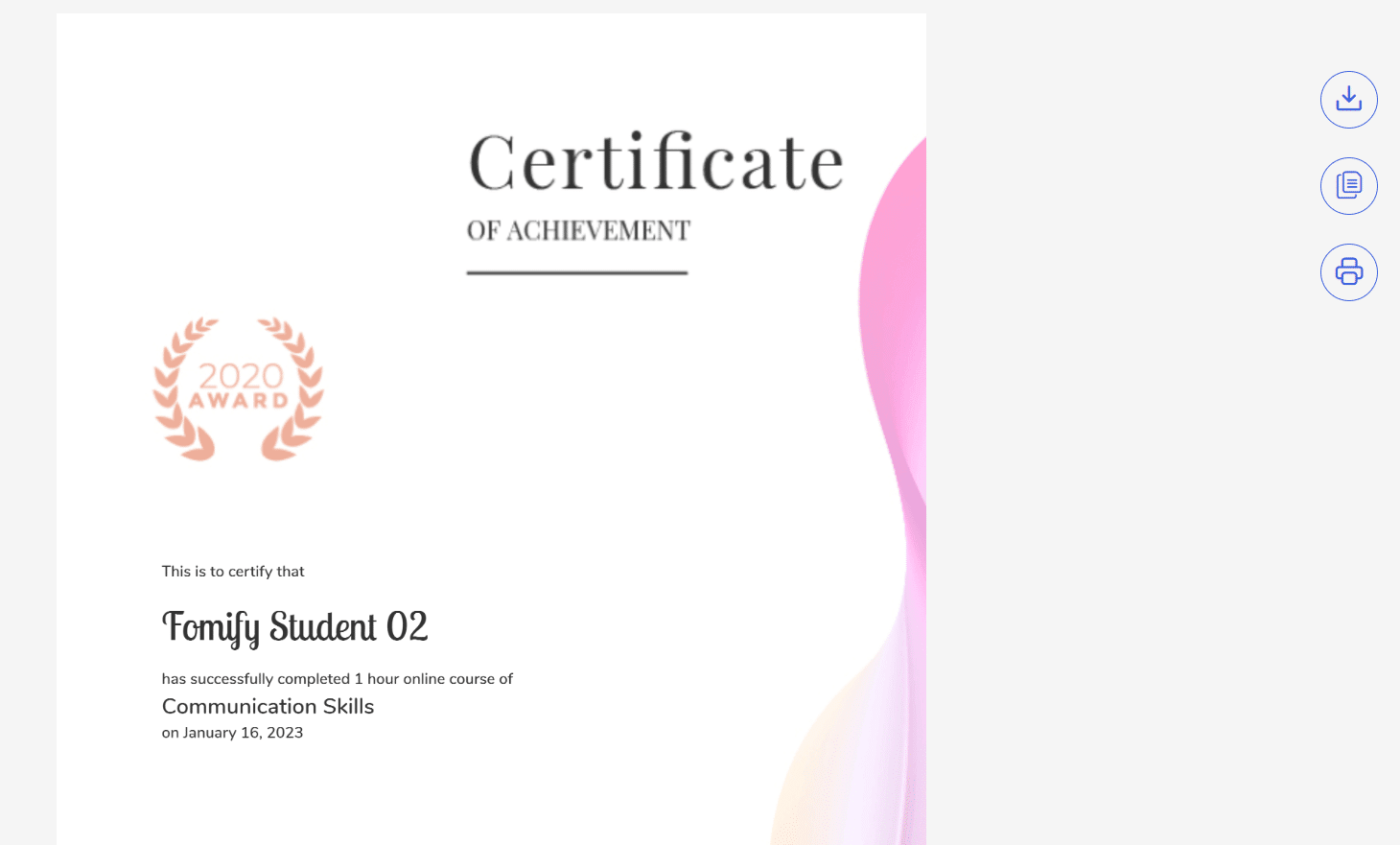
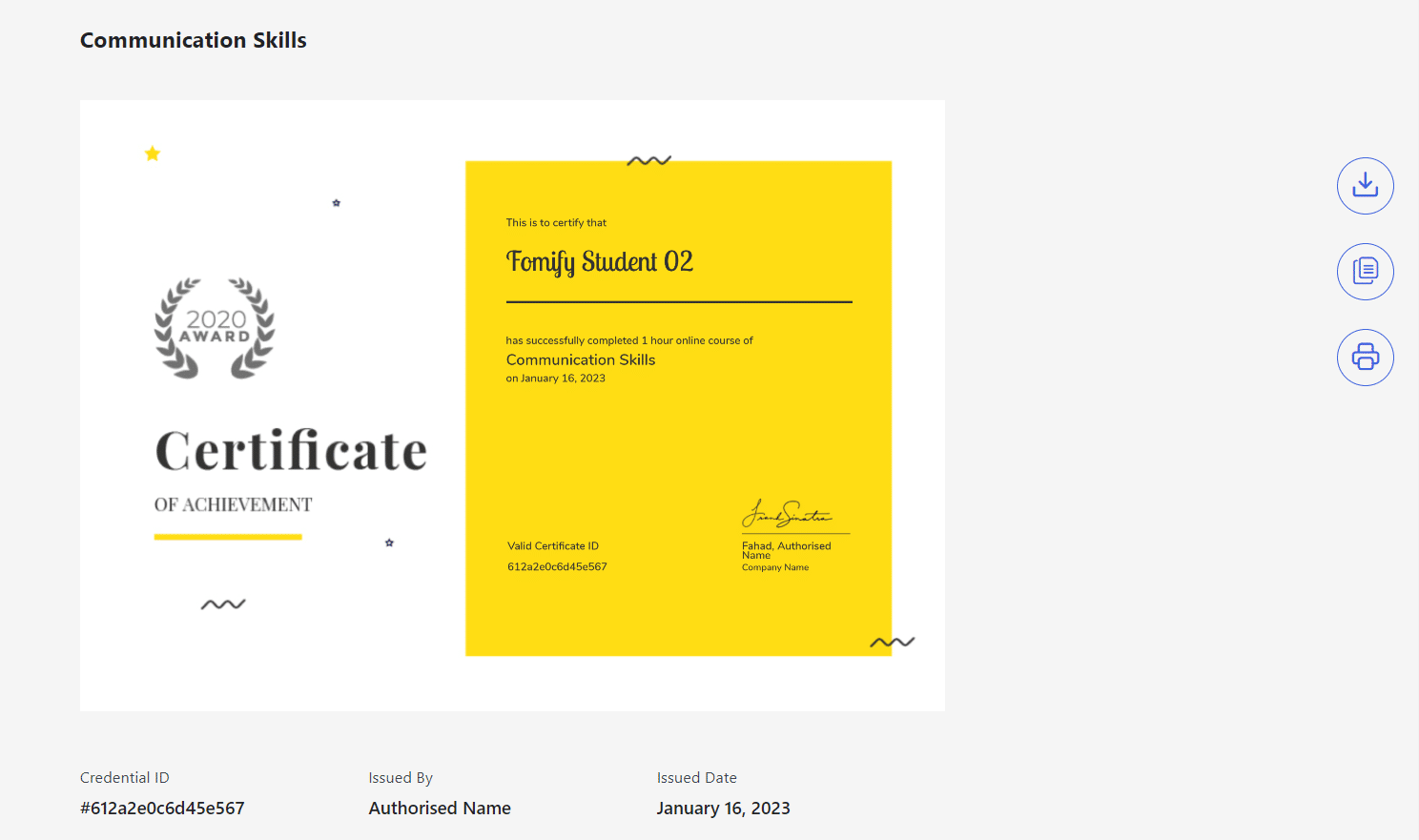
Preview of Certificates for different Grades
When the student achieves a “B+” Grade
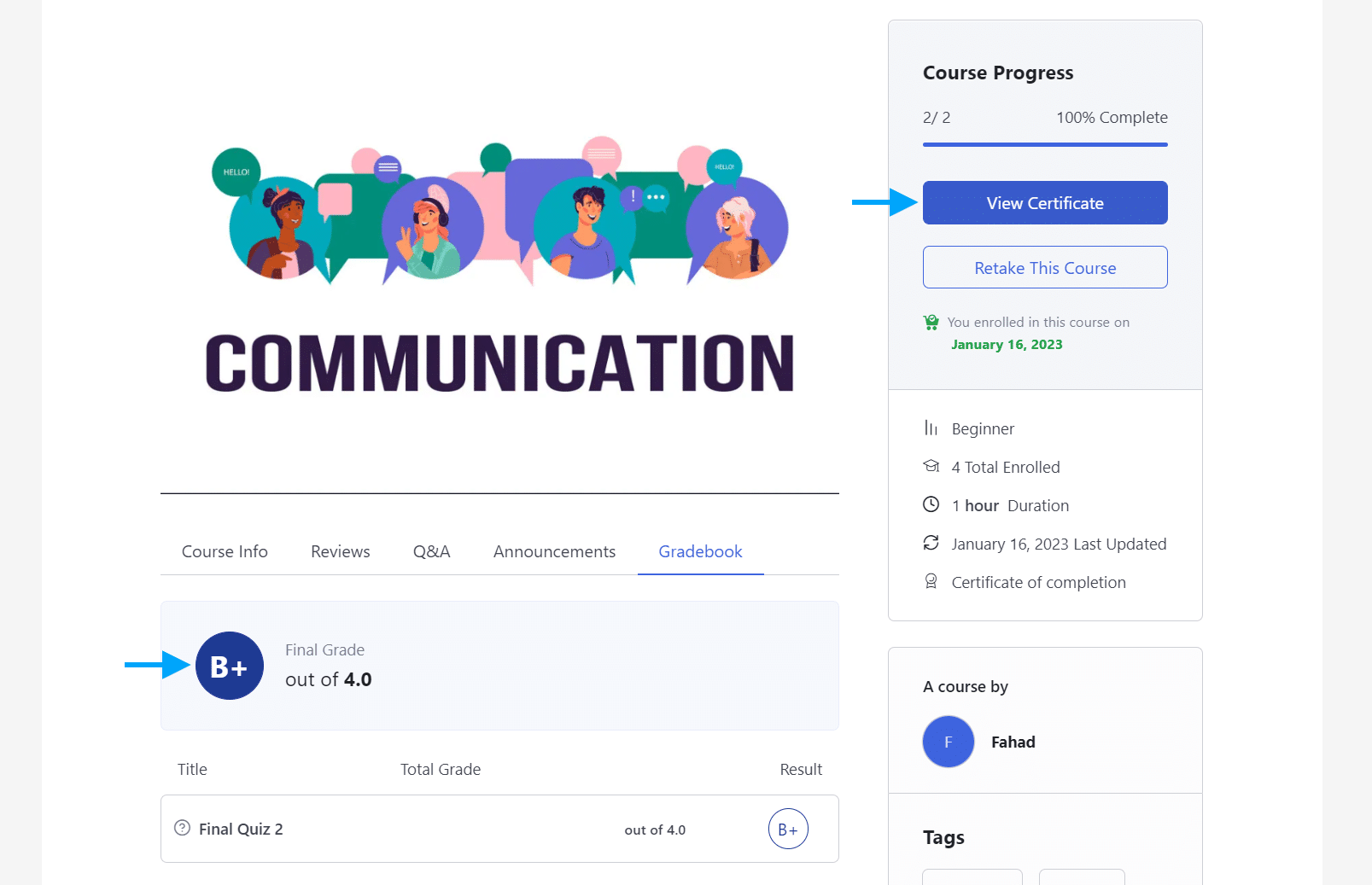
When the student will achieve a “C” Grade

Preview of Certificates for the same Grade
When a student achieves an “A+” grade


FAQ’s
Can I set the same Certificate with multiple Grades?
Yes, you can attach the same certificate with multiple grades.
Is Tutor LMS Pro required to install?
Yes, because you have to enable the Certificate and Grade modules, which are only available in the Tutor LMS Pro.
Where can students find their certificates?
After completing the required course, students can access their certificates from the course main page.
Does your add-on support certificates created with the TutorLMS Certificate Builder add-on?
Currently, it does not support the Certificates created with the TutorLMS Certificate Builder add-on.
Changelogs
1.1.5
- Fix: Fixed an issue where on course update multi-certificates configurations are being reseted.
- Fix: Fixed an issue where on frontend incorrect certificates template is showing.
1.1.4
- Fix – Resolved security and performance issues.
1.1.3
- Fix: Restored compatibility with the latest Tutor LMS version.
- Fix: Restored certificate configuration, grade matching, certificate selection, and modal functionality.
- Fix: Corrected certificate access from course cards, course action buttons, and the instructor dashboard.
1.1.2
- Fix: Improved Licensing Module.
1.1.1
- Fix: Resolved minor issues.
1.1.0
- New: Added support for selecting multiple certificates.
- New: Introduced a global setting to apply certificate selection to all courses.
- New: Added per-course certificate settings to override the global configuration.
- Fix: Redesigned the layout for certificate configuration within the course editor for better usability.
1.0.3
- Fix – Resolved the license activation issue.
1.0.2
- Fix – Resolved certificates and conditions and logic issues.
- Fix – Resolved security and performance issues.
1.0.1
- Fix – Resolved compatibility issue with the React-based course builder in Tutor LMS.
- New – Added Multi Certificates in course list dropdown for admin.
- New – Added a Multi Certificates page for Tutor instructors to manage Multiple Certificates Based on Grades.
- New – Added a Preview template functionality.
1.0.0
- Initial Release.
