The LearnDash Facial Recognition add-on empowers administrators to safeguard course access and maintain academic integrity. This add-on employs cutting-edge AI technology to authenticate student identity by requiring students to upload their images for facial verification. Now, you can be confident that only authorized individuals can access your valuable course content.
Video Tutorial
Watch the tutorial video below for a quick walkthrough of the add-on’s features and setup process.
For detailed instructions, please continue reading the full documentation. If you still have any questions, feel free to submit a support ticket.
Installation
- Install and activate the LearnDash plugin.
- Install and activate the LearnDash Facial Recognition addon.
- A new “LearnDash Facial Recognition” menu will be added to the LearnDash menu.

- Install and activate the LearnDash Facial Recognition extension.
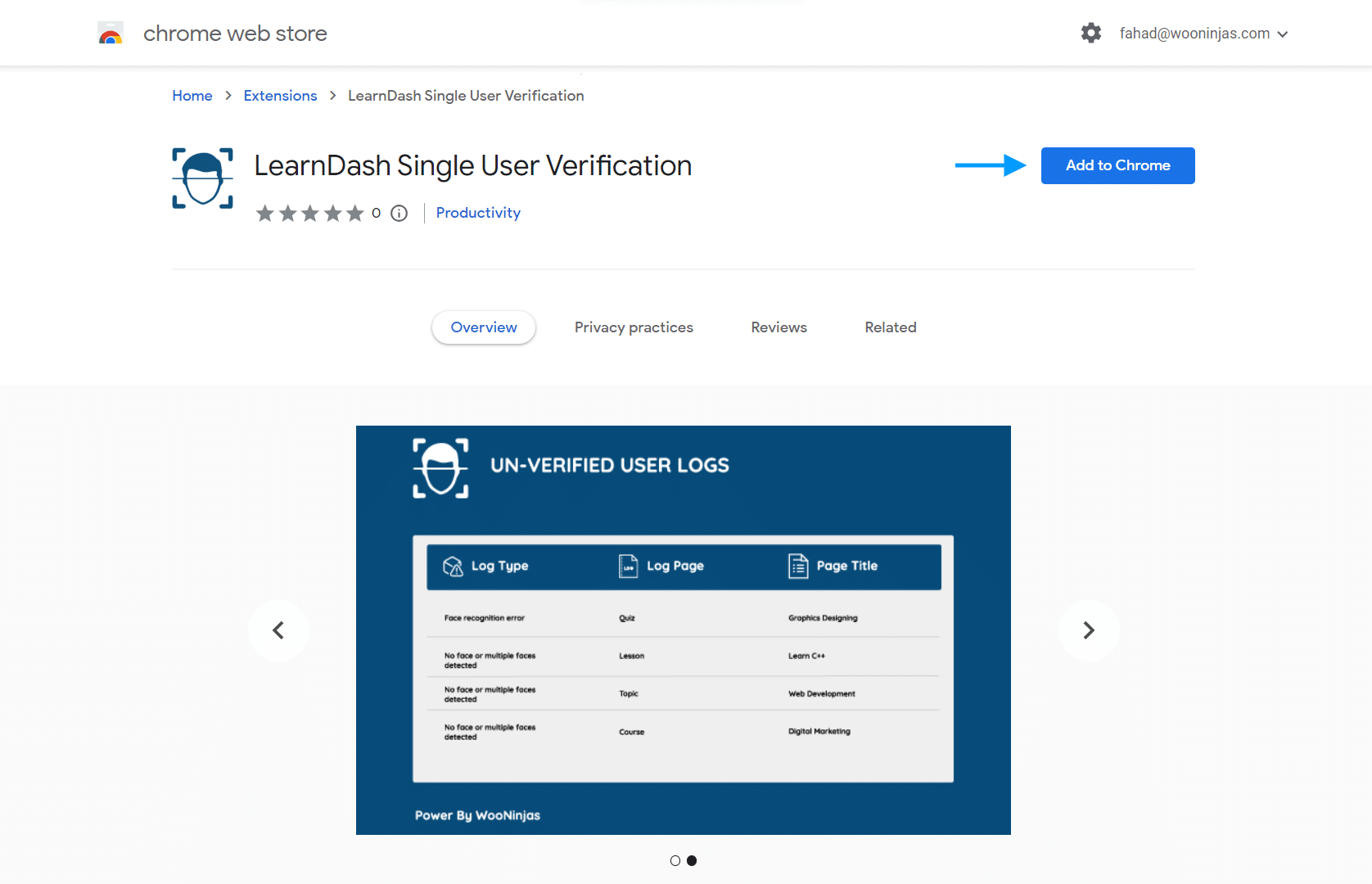
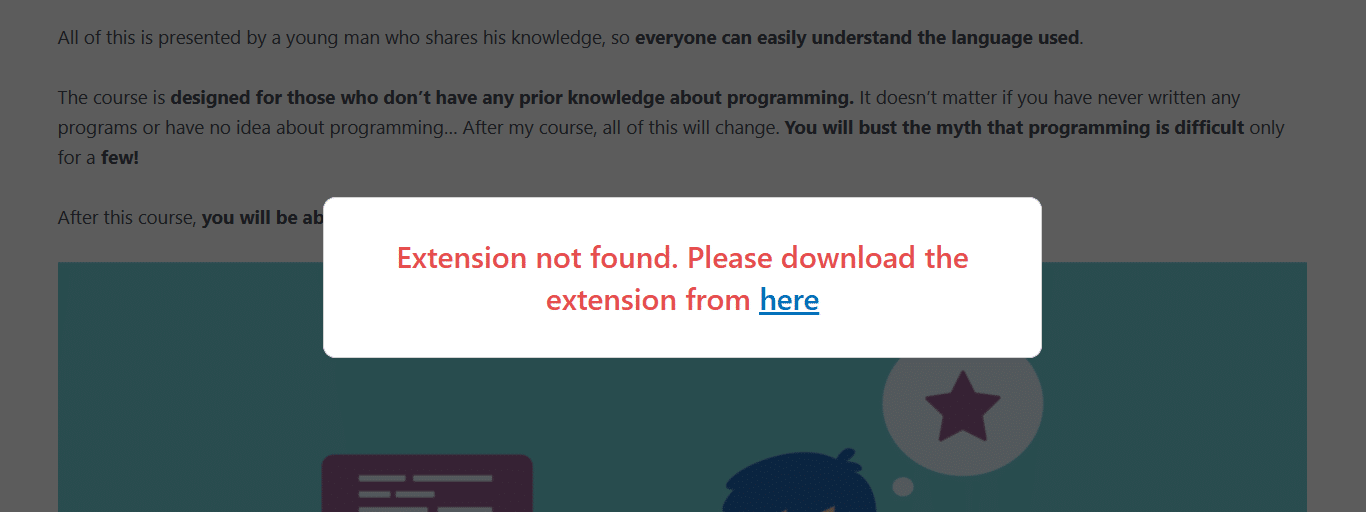
Note: Every student must install the required browser extension. If the extension is not detected, a popup notification will prompt the student to install it via a provided link easily. This essential installation ensures a seamless and robust verification process for each user.
License
To insert your product license key, you must navigate to the License tab located in the LearnDash Facial Recognition add-on. By entering a valid license key for this product, you will get automatic product updates.

Settings

Admin Approval on Registration
Once this option is enabled, two new tabs will appear: “Facial Images” and “Emails”. By Enabling this option, In the “Facial Images” tab, admin can approve whether or not the pictures uploaded by the student are actually his/her’s or not. He can also search for the picture record of a specific user by searching the text related to the Full name, Email and Course columns.

Meanwhile, the students on the frontend will see the following message.

If the Pictures submitted are rejected then the student will be asked to upload pictures again on the frontend of the course page and the tab will look like the below:


Reset On Deactivate
Once this option is enabled, all the records of all the users’ pictures will be deleted when the addon is deactivated. If this option is disabled, then all the records of all the users’ pictures will not be deleted when the addon is deactivated. You can view the records of all the users’ pictures in the “Facial Images” tab when you reactivate the plugin.
Camera Absence Redirection Page
From this dropdown, you can select the page where you want to redirect the student if their real-time image is mismatched with the images they submitted. If no page is selected, then the user will be redirected to the home page of the site.
Photo Upload Labels
The admin can use this option to customize the labels displayed for each photo upload field.

Exclude Users
The administrators can exclude specific users from the facial recognition process. This feature allows for exceptions to be made, accommodating users who may have difficulties with facial recognition, thus ensuring they can access their courses without issues.
Verification Interval
The admin can use this option to set the system Duration to check the user’s facial.
- Continuous (Default)
When this option is selected the Facial Recognition/Image Comparison process will continuously be running for every student. The moment the students’ facial features are not recognized, it will stop showing the course to the students.
- One Time
When this option is selected the Facial Recognition/Image Comparison process will run only One Time in the beginning, when the student visits the course page, for every student. The moment the students’ facial features are not recognized, it will stop showing the course to the students.
- Custom
When this option is selected the Facial Recognition/Image Comparison process will keep running after the specified time duration for every student. The moment the students’ facial features are not recognized, it will stop showing the course to the students.
Enable Debug Logs
Once logs are enabled, three new tabs will appear: “Debug Logs”, “Systems Information” and “Activity Log”. The Debug Logs tab allows you to download the Debug Logs, which could be useable for WooNinja’s support team to identify any issues. The System Information tab showcases your system specifications while the Activity Logs tab displays detailed logs that provide a comprehensive overview of the user activity.


Capture Verified Image Shots
Enable this option to capture and store screenshots of the user when their face is successfully verified. The administrator can review those screenshots in the “Facial Recognition Logs” tab.

If this option is disabled, screenshots of the user when their face is successfully verified will not be stored in the “Facial Recognition Logs” tab. This option will be enabled by default on a new site (when the add-on is installed for the first time).

Capture Unverified Image Shots
Enable this option to capture and store screenshots of the user when face verification fails. You can review those screenshots in the “Facial Recognition Logs” tab for users.

If this option is disabled, screenshots of the user when their face verification fails will not be stored in the “Facial Recognition Logs” tab. This option will be enabled by default on a new site (when the add-on is installed for the first time).

Facial Recognition Logs
This tab provides detailed logs of all facial recognition activities. It includes the log page, page title, and log type, offering valuable insights into user verification activities.The admin can also search the record of a specific user by searching the Learner Name in the table.

Manual allowing users
This tab enables the admin to allow and disallow students access to their courses manually. The admin can also search the record of a specific user by searching the user’s name.

Reset Images
This tab allows administrators to reset the uploaded images for specific users. When an administrator resets the image data for a student, the student will be prompted to upload their images again upon visiting a course where facial recognition is enabled, similar to the initial upload process.
To reset the image data for a particular user, enter their name in the designated field and click the Reset button. This action will reset the user’s image data.

Facial Images
This tab allows administrators to view the records and search the uploaded images for all users if the “Admin Approval on Registration” option is disabled.

If the “Admin Approval on Registration” option is enabled then the administrator will have to accept or reject the pictures of users (uploaded by them) before the users can access the course.

Verification for Specific Courses
To activate user verification for a particular course, access the course settings, and toggle the LearnDash Facial Recognition option to the ON position. This streamlined process empowers administrators to apply user verification selectively.

User Verification Process Overview
- Enroll in the Course: The student enrolls in a course and accesses the course’s main page.
- Image Upload Request: A popup notification prompts the student to upload three images in JPG format.
- Image Selection: Students select pictures in JPG format and initiate the upload process.
- Extension Check: Once the images are successfully uploaded, the system checks if the required browser extension is installed.
- Extension Installation: If the extension is not found, a popup guides the student to install it by providing an installation link.
- Camera Permission: If the extension is installed, the browser requests permission to access the camera. The student grants permission by clicking “Allow.”
- Facial Recognition: With permission granted, the student’s real-time camera footage is compared to the uploaded images.
Admin Approval on Registration Enabled
When the “Admin Approval on Registration” option is enabled, after students upload their pictures and visit the course page, they will see a message instructing them to wait until the admin has approved their uploaded pictures. If the admin disapproves the images, the student will be prompted to upload new images until they are approved. Once the admin approves the student’s images from the backend, the camera will take pictures of the student based on the set “Verification Interval.”
Admin Approval on Registration Disabled
When the “Admin Approval on Registration” option is disabled, after students upload their pictures and visit the course page, the camera will automatically take pictures of the respective student according to the “Verification Interval” set.
- Verification Result: If the images match the real-time footage, the student gains access to the course, and a green border surrounds their real-time image.

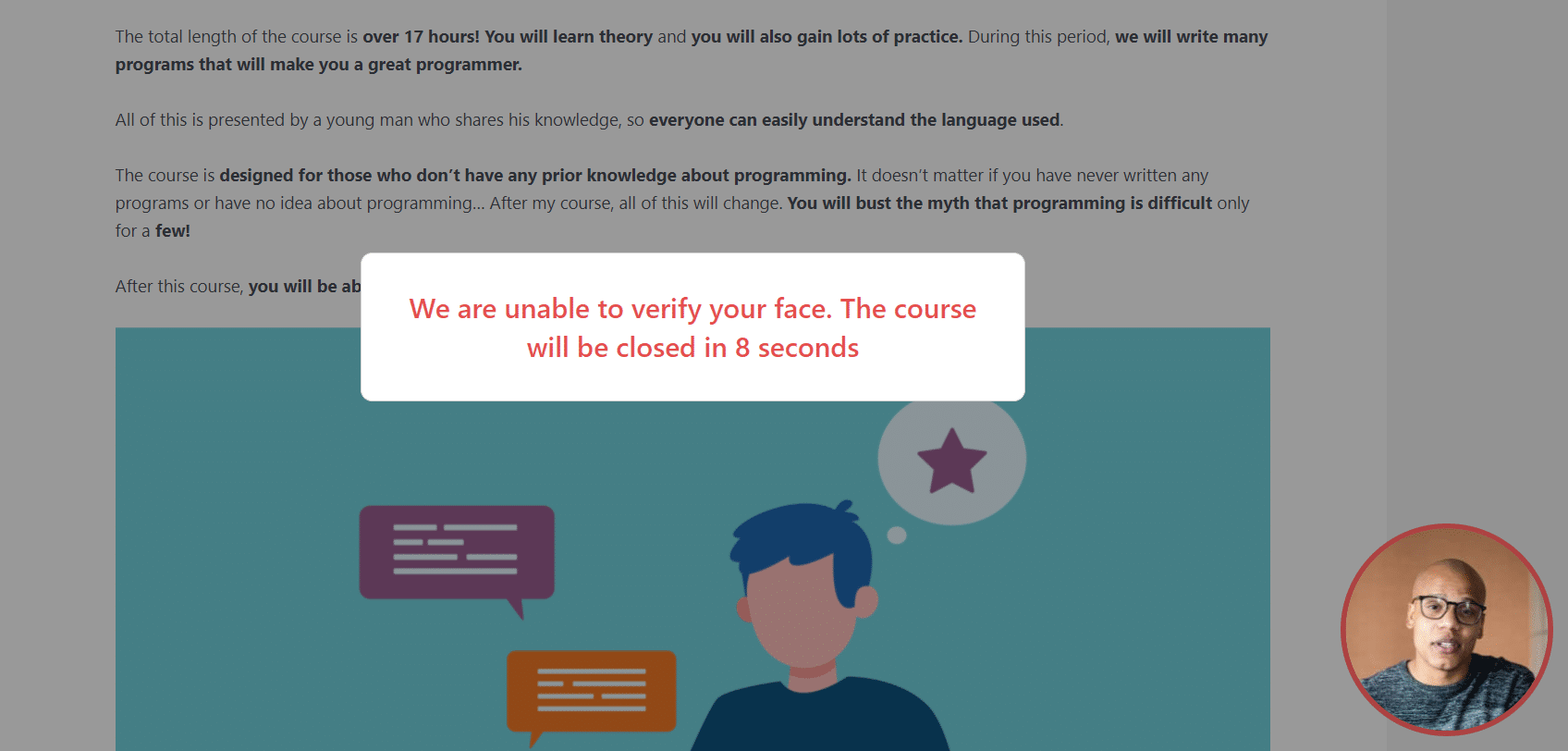
- Non-Matching Images: In the event of a mismatch, a red border appears around the real-time image. After a brief period, the student is redirected to the page configured in the add-on settings.
FAQ’s
Can students upload their images multiple times?
No, students can only upload their images once unless one of the following conditions is met: the admin resets the student’s images from the backend, or the admin rejects the images during manual approval.
What happens if the camera does not detect a face?
If the camera does not detect a face, it redirects the learner to the page specified by the administrator in the add-on settings or to the home page (by default).
Do students need to be present in real time during the course?
Yes, students must be in front of the camera in real time. However, if the admin manually grants permission using the “Manual Allowing Users” tab, or if the student is excluded via the “Exclude Users” option in the Settings tab, the facial recognition functionality will not be required for that specific student.
Can face recognition be enabled for specific students within individual courses?
No, if facial recognition is enabled for multiple courses, it cannot be selectively enabled for specific enrolled users at this time.
Can the admin set the “Verification Interval” option separately for each course or student?
No, this feature is currently applied globally across all courses.
Changelogs
1.1.8
- Fix: Fixed minor UI issues.
1.1.7
- Fix: Corrected the Emails tab slug and email template form redirects.
- Fix: Improved escaping for license support links and license notice output.
1.1.6
- Fix: Improved licensing Module.
1.1.5
- Fix: Fixed Standardize Nanogallery2 initialization for both Facial Images and Logs galleries.
1.1.4
- Fix: Fixed Image uploading issue with cache.
- Fix: Security improvements and performance optimizations.
1.1.3
- Fix: Removed minor warnings.
- Fix: Optimized performance for slower servers.
1.1.2
- New: Added a setting “Photo Upload Labels” to change photo labels on frontend while uploading photos.
- New: Facial Images tab is now visible without any condition.
1.1.1
- Fix: Minor bugs.
1.1.0
- New: Added a search bar in the Facial Recognition Logs Tab.
- New: Added pagination in the Facial Recognition Logs Tab.
- New: Added a setting “Capture Verified Image Shots” to capture a screenshot when the user’s face verifies and show it in the Facial Recognition Logs tab.
- New: Added a setting “Capture Unverified Image Shots” to capture a screenshot when a user’s face fails to verify and show it in the Facial Recognition Logs tab.
- New: Added a timestamp in logs to show in the Facial Recognition Logs tab.
- New: Implemented reverse pagination for efficient log file reading, capable of handling 1GB+ log files without performance issues in the Facial Recognition Logs Tab.
- New: The Facial Recognition Logs tab now displays entries in descending (latest first) order.
- New: Users in logs are now shown in descending order based on activity timestamp.
- New: Added a search bar in the Facial Images Tab.
- New: Added pagination in the Facial Images tab.
- New: Added a lightbox for the Facial Images Tab and a paginated gallery.
- New: Added a lightbox for the Facial Recognition Logs Tab captured images.
- New: Added a search bar in the Manual Allowing Users Tab.
- New: Added pagination in the Manual Allowing Users tab.
- Fix: Improved face verification.
- Fix: Exclude User Setting selection not being saved.
- Fix: Minor bugs.
- Fix: Security bugs.
1.0.8
- Fix: Minor bug fixed.
1.0.7
- Fix: Minor issues.
1.0.6
- Fix: Minor bug fixed.
- Fix: Log issues fixed.
1.0.5
- New: Admin Approval on Registration.
- New: Reset on Deactivate automatically reset all stored images when the plugin is deactivated.
- New: Verification interval for how often the system checks for user facial recognition.
1.0.4
- New: Adding interval duration for capture image, separate image files.
1.0.3
- New: Admin minor fixing, Facial success logs.
1.0.2
- New: Added option to approve Facial images.
- New: Added option to Exclude users.
- Fix: Fixed Facial images.
1.0.1
- New: Added option to Reset The images.
1.0.0
- Initial Release.
