The LearnDash Monetization add-on allows you to sell individual LearnDash lessons and topics. The add-on supports WooCommerce and PayPal as payment gateways.
Video Tutorial
Watch the tutorial video below for a quick walkthrough of the add-on’s features and setup process.
For detailed instructions, please continue reading the full documentation. If you still have any questions, feel free to submit a support ticket.
Installation
- Install and activate the LearnDash LMS plugin.
- Install and activate the WooCommerce plugin.
- Install and activate the LearnDash Monetization Addon.
- You will see a new sub-menu titled “LearnDash Monetization” under the LearnDash LMS menu on the WP Dashboard.

License Configuration
Go to the License Settings tab to add and activate the product’s License Key. The License Key can be found in the email you received when you purchased the add-on. Add your license key in the corresponding field and click on Activate License.

General Settings
Before you continue to configure this add-on, make sure your PayPal business account is configured correctly with LearnDash LMS. To do this, follow LearnDash LMS’s official documentation on PayPal settings.
Once your PayPal account is configured, navigate to LearnDash LMS > LearnDash Monetization > General Settings to configure the setting options for this add-on.

- Payment Method:
- Select LearnDash PayPal if you want to use LearnDash PayPal’s payment gateway.
- Select WooCommerce if you want to accept payments through WooCommerce Checkouts using all the payment gateways configured with WooCommerce.
- Allow Selling Lesson:
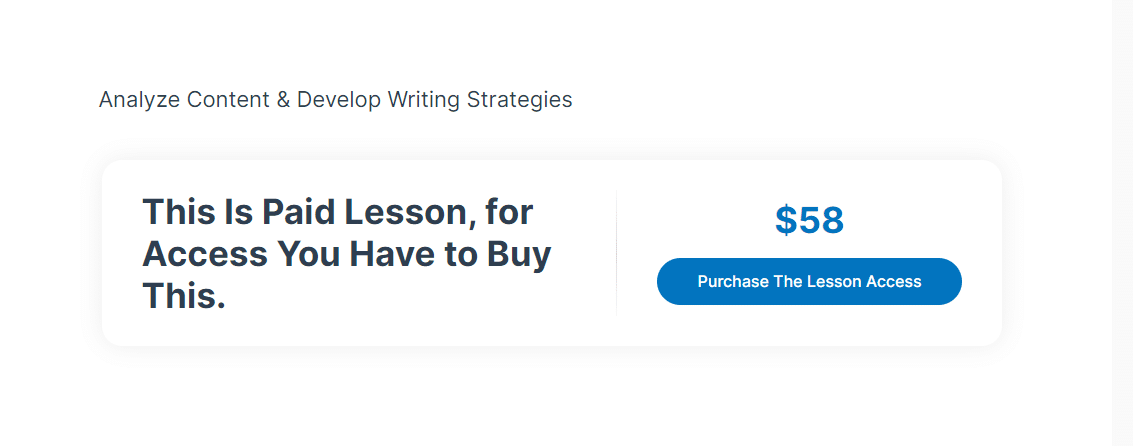
If this option is enabled, lesson access will be restricted and available for purchase. A payment button will be displayed on the front end.
- Lesson Message:
This text will be displayed on the lesson page when a user has yet to purchase access to the respective lesson.
- Allow Selling Topic:
If this option is enabled, topic access will be restricted and available for purchase. A payment button will be displayed on the front end.
- Topic Message:
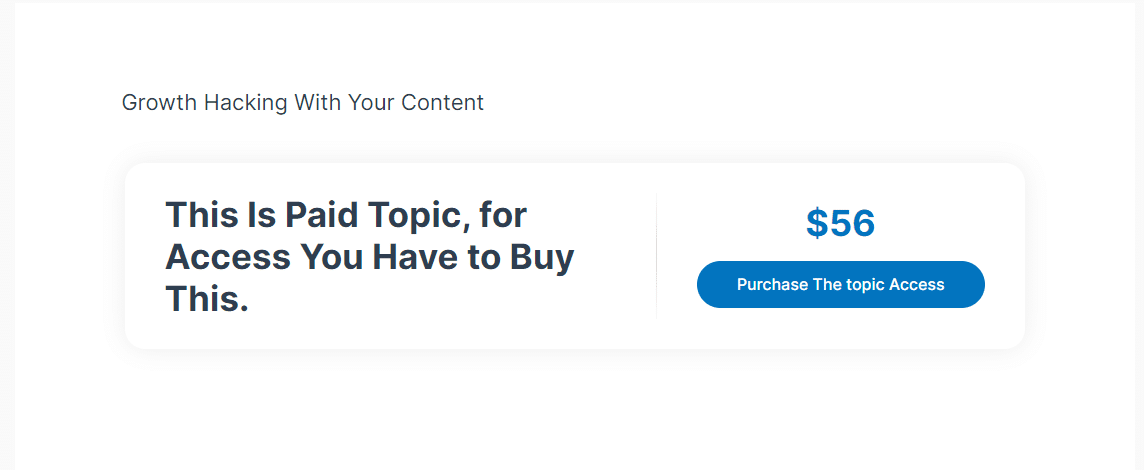
This text will be displayed on the topic page when a user has yet to purchase access to the respective topic.
- Enable Activity Logs:
Enable this option to generate activity logs. When enabled a new “Activity Logs” tab will be added. If this option is disabled then activity logs will not be generated.

- Enable Debug Logs:
Enable this option to generate debug logs. When enabled a new “Debug Logs” tab will be added. If this option is disabled then debug logs will not be generated.

Lesson Settings
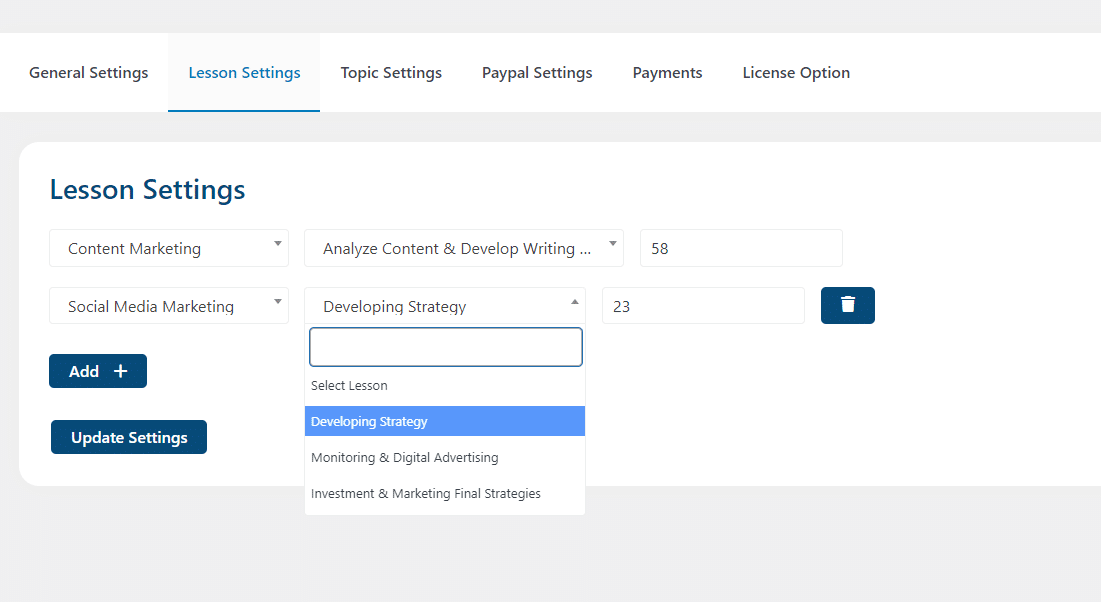
Go to the Lesson Settings tab from the settings page to view the lesson settings options for the add-on.
- Select Courses:
Here you can select the courses for which you want to accept payments for lessons.
- Select Lessons:
To accept payments for a lesson, select the specific lessons you want to sell in this field.
- Price(s) for selected Lessons:
Here you can configure the price you will charge for each lesson.
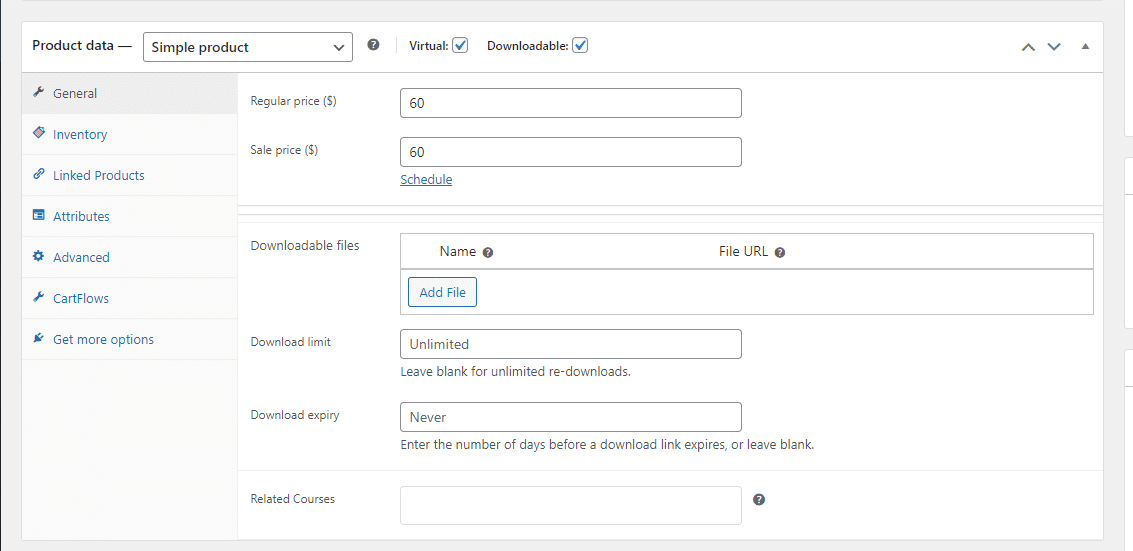
Note: Configuring payments for lesson access will automatically generate a WooCommerce product linked with the respective lesson access.
Frontend
Topic Settings
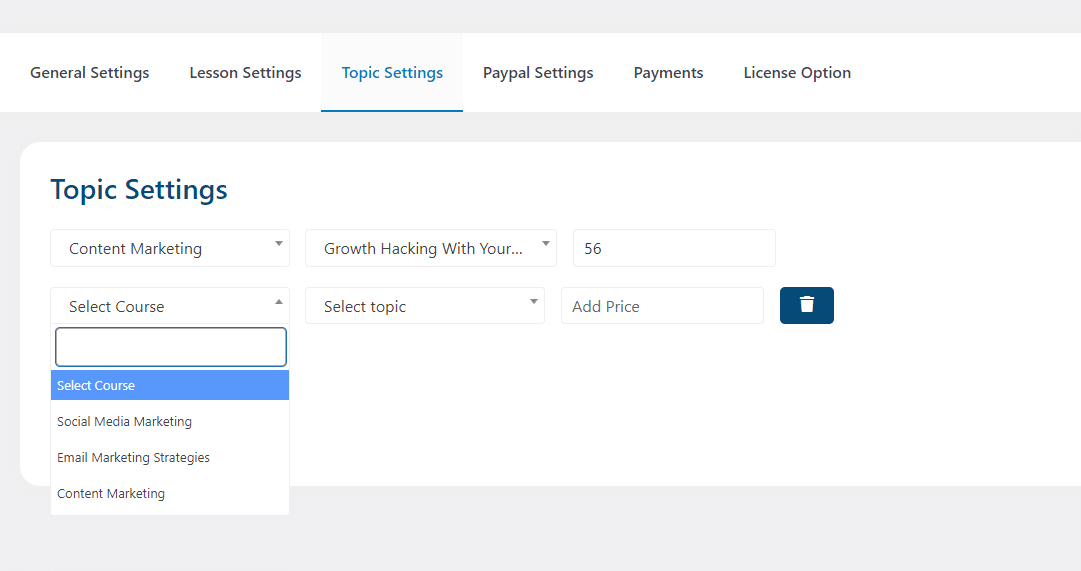
Go to the Topic Settings tab from the settings page to view the topic settings options for the add-on.
- Select Courses:
Here you can select the courses for which you want to accept payments for topics.
- Select Topics:
To accept payments for a topic, select the specific topic you want to sell in this field.
- Price(s) for selected Topic:
Here you can configure the price you will charge for each topic.
Note: Configuring payments for topic downloads will automatically generate a WooCommerce product linked with the respective topic download access.
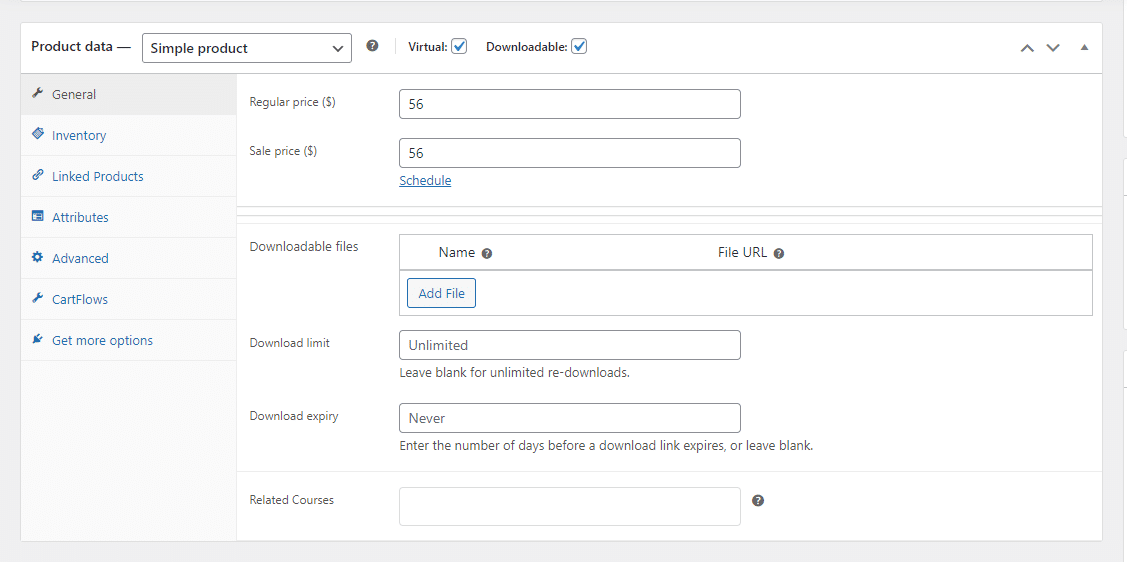
Frontend
PayPal Settings
In this tab, you can configure the PayPal settings required to manage payments.
Identity Token
Here you can insert the Identity Token for your PayPal account.
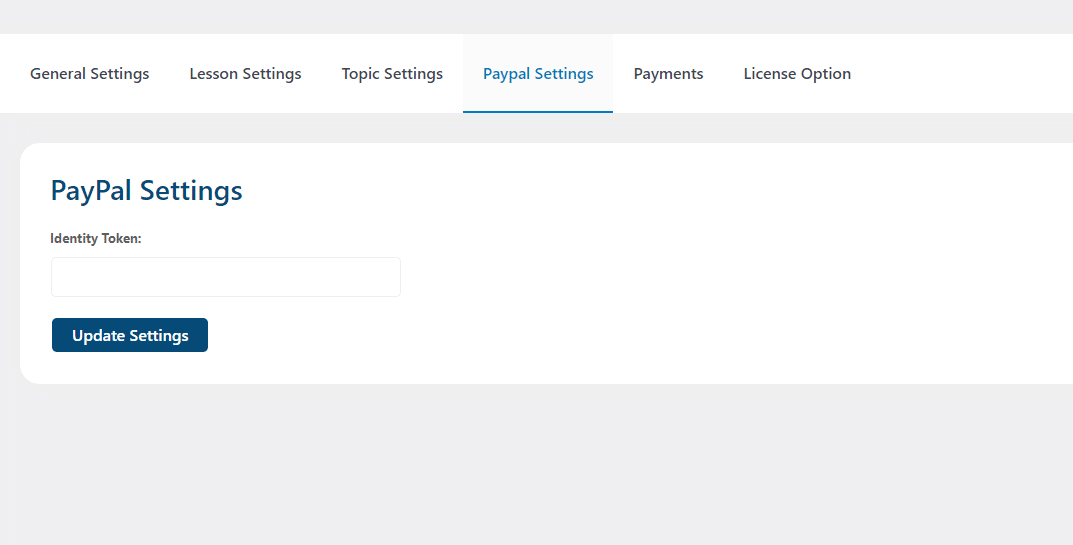
To get your PayPal Identity Token, follow these steps:
- Log into your PayPal Business account.
- Navigate to Account Settings > Website Payments from the top-right icon.
- Click on Update in front of the Website Preferences.
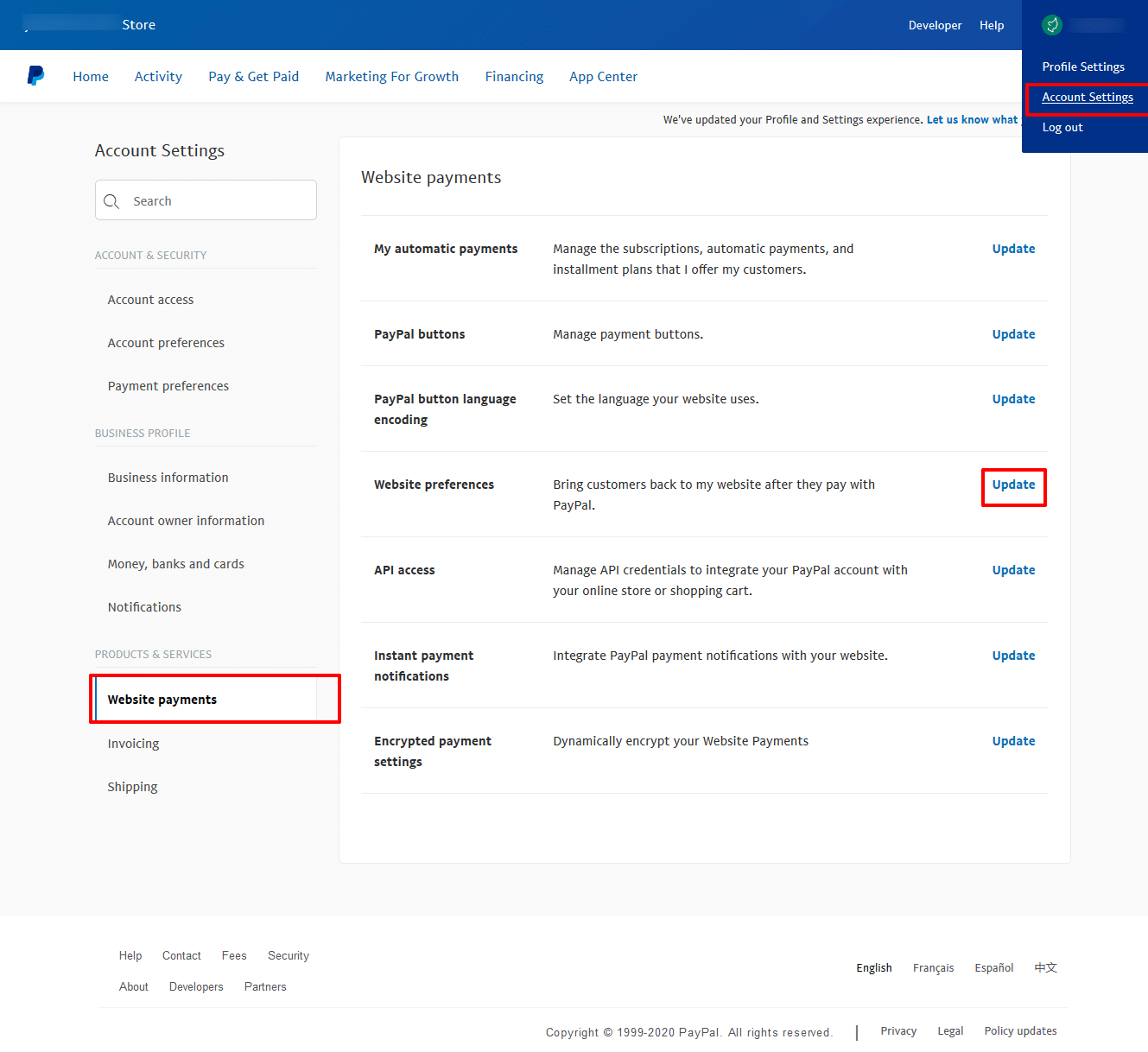
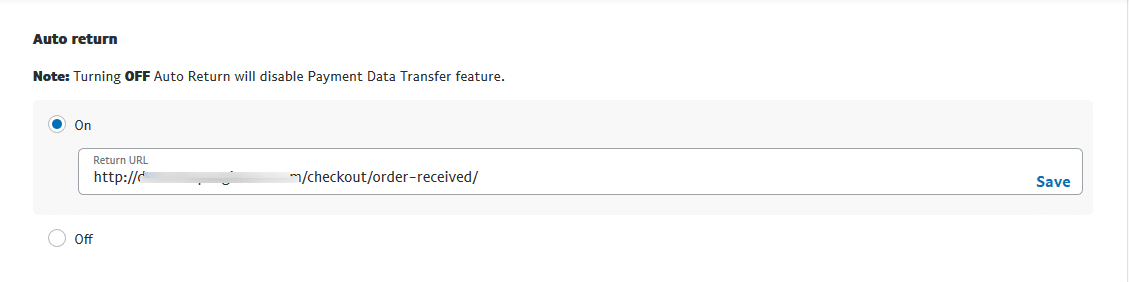
- Turn on the auto-return to enable PDT (Payment data transfer) and enter your site’s URL on which you want your student to redirect after purchasing the lesson or topic.
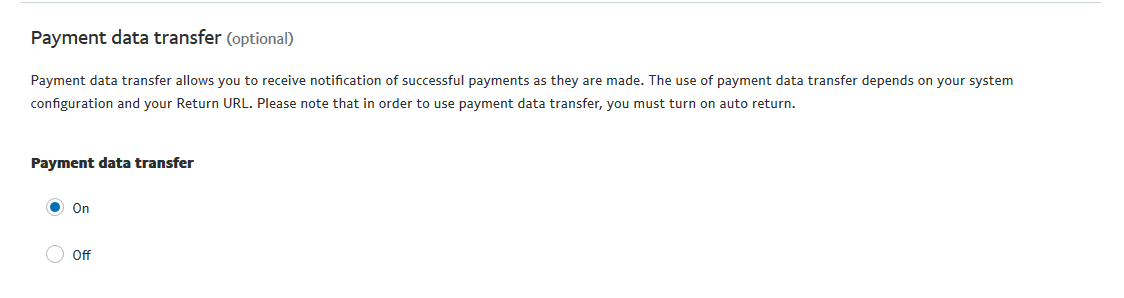
- Turn On the Payment Data Transfer.
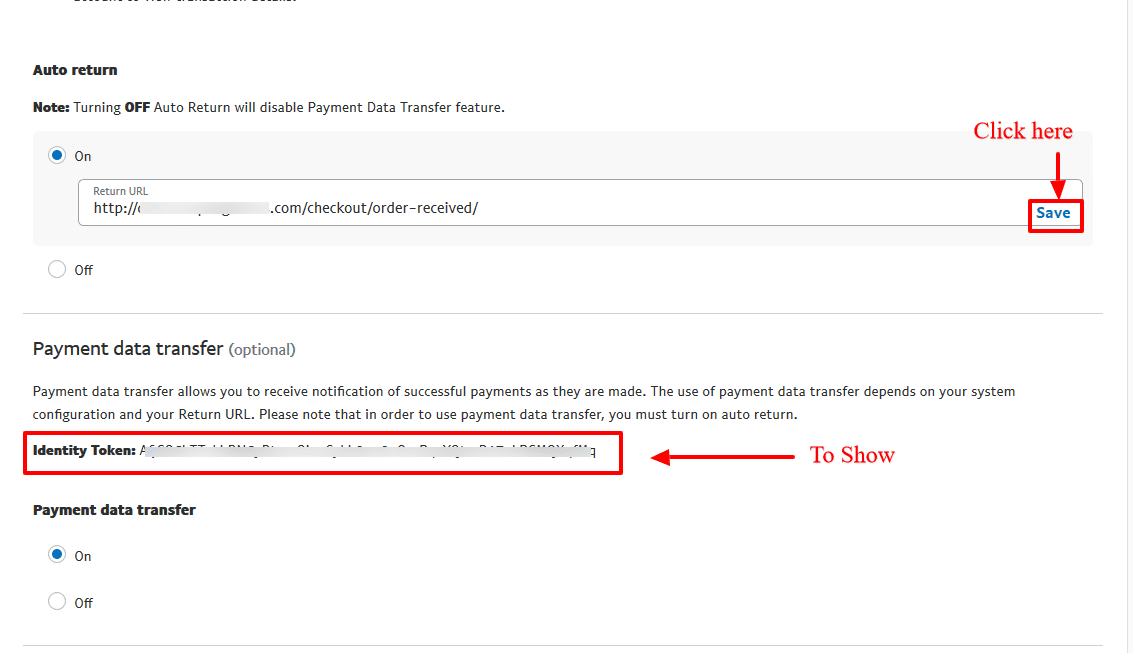
- Pressing the save button in the one step above will display the identity token here.
- Set up the rest of the options as per your will.
- Copy the Identity token to use it further.
Payments
The Payments tab will contain the transaction history of all your lessons and topics sales.

Note: If the payment status is not updated, you can simply hover over the transaction and click on the “Verify Payment” link to refresh the status.
FAQ’s
Does the add-on support any payment gateways other than PayPal?
Yes, other than PayPal, WooCommerce is supported.
The Payment tab on the Settings page is not showing the transaction records.
Make sure you have correctly configured PayPal’s identity token, as described in the official documentation.
If I have purchased Lesson access, do students have to repurchase it to retake the lesson?
No, students don’t have to purchase access again. They can revise the lesson multiple times with a single payment.
Is it possible to purchase a LearnDash lesson and its relevant topic at the same time through the WooCommerce store?
Yes, if the LearnDash course is configured to be sold as a WooCommerce product within a WooCommerce shop, the user can buy the lesson and corresponding topic together.
Will the “Payment” tab within the add-on settings list payments made through both LearnDash’s PayPal and the WooCommerce payment gateways?
No, the add-on will only list payments made through LearnDash’s PayPal, whereas the payments handled through WooCommerce gateways will be tracked in the “orders” sub-menu of the WooCommerce section on the WordPress dashboard.
Is access to all of a Lesson’s topics automatically granted when a Lesson is purchased or do topics have to be purchased additionally to the lesson?
If you set the payment only for a lesson then access to all the lesson’s topics will automatically be granted once you purchase the lesson. But, if you set a separate payment for both lessons and their topics then you have to purchase them separately.
Changelogs
1.0.11
- Fix: Resolved minor security issues.
1.0.10
- Fix: Fixed minor UI issues.
1.0.9
- Fix: Improved Licensing Module.
1.0.8
- Fix: Resolved a fatal error that occurred during license deactivation.
- Fix: Fixed a frontend fatal error caused by the missing `NumberFormatter` class.
1.0.7
- Fix: Resolved security and performance issues.
1.0.6
- New: Added an option to customize the restrict message for lesson and topic.
- Fix: Resolved minor issues.
1.0.5
- Fix: Fixed currency support for both the WooCommerce and LearnDash PayPal payment gateway.
1.0.4
- Fix: Help text of activity and debug logs in general settings.
1.0.3
- Fix: Fixed issue of too many check license requests.
1.0.2
- Fix: Fixed conflict with ACF plugin.
1.0.1
- Fix: Fixed issue of WooCommerce cart quantity now working.
1.0.0
- Initial release.
