Take LearnDash’s “Focus Mode” to the next level and retain your students’ attention like never before. With LearnDash Focus Mode Pro, you’ll eliminate all distractions standing between the learner and your course content.
Video Tutorial
Watch the tutorial video below for a quick walkthrough of the add-on’s features and setup process.
For detailed instructions, please continue reading the full documentation. If you still have any questions, feel free to submit a support ticket.
Installation
- Install and activate the LearnDash plugin.
- Install and activate LearnDash Focus Mode Pro.
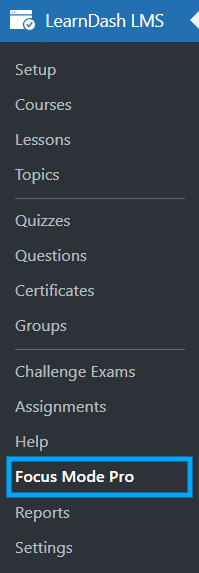
- A new “Focus Mode Pro” menu will be added to the LearnDash menu.
Note: To configure all of the add-ons’ settings, you’ll need to download, install and activate the Instructors Tab add-on and Feedback add-on (available for free).
License Key
- Select the “Focus Mode Pro” menu, located under the main LearnDash menu.
- From the Focus Mode Pro menu, select the “License Key” tab.
- Enter a valid License Key in the corresponding field.

Settings
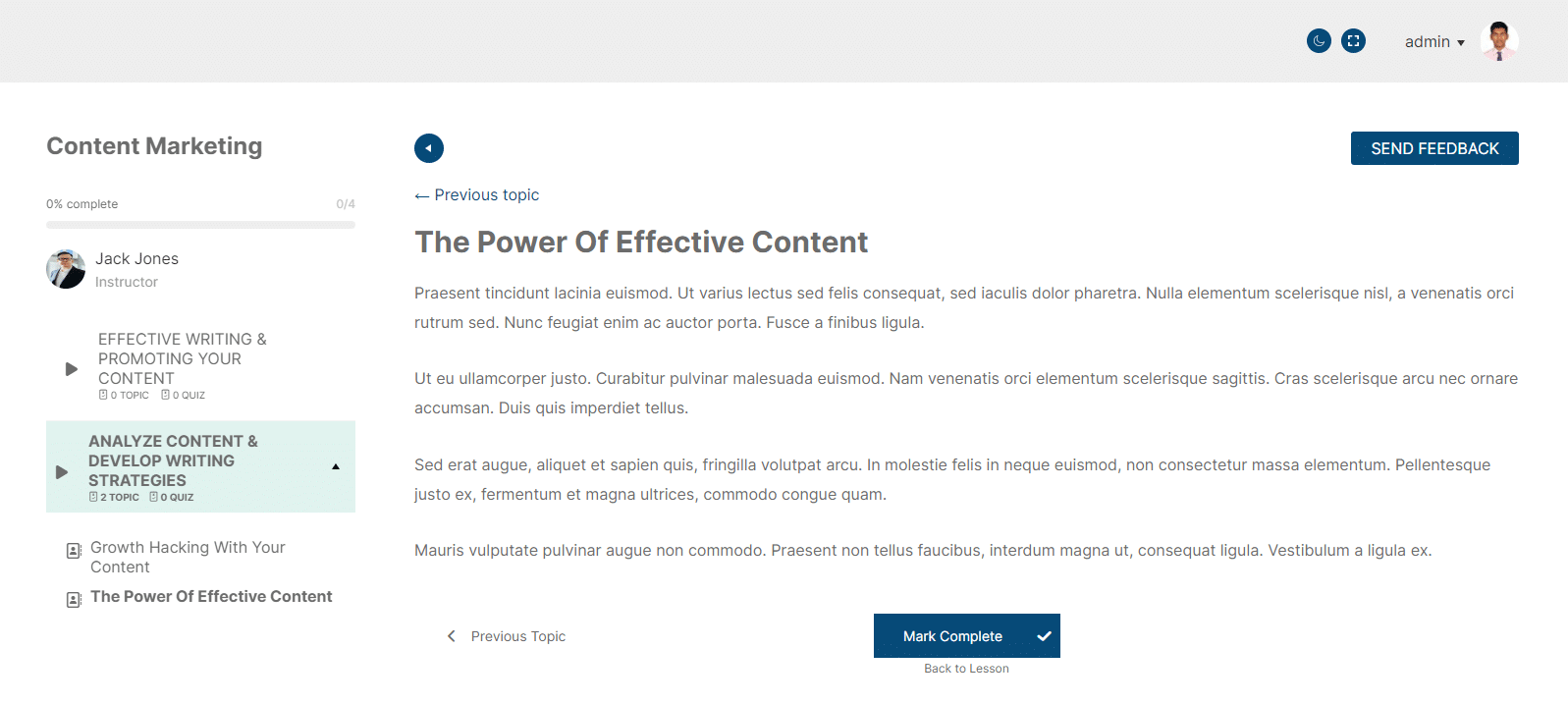
Navigate to the General Settings tab to determine which elements will be visible on the screen when focus mode is enabled.
General Settings

Dark Mode for LearnDash Default Template
Set the toggle “off” if you wish to let users switch to full-screen and dark mode while using our addon’s Focus Mode design. When this option is disabled, other features of our addon will be enabled.
Set the toggle “on” if you wish to let users switch to full-screen and dark mode while using LearnDash’s default Focus Mode design. When this option is enabled, other features of our addon will be disabled.
Upload Image (Dark Mode)
Here you can upload the logo that will be displayed when dark mode is enabled. You can upload the logo in the following picture formats:
- png
- jpg
- jpeg
- gif
- svg
- webp
Note: When the “Enable Dark Mode for LD Default Template” option is disabled, this same option is also visible and available as a sub-option of the “Header logo” option. If the “Header logo” option is disabled, then this option will not be visible on the frontend.

Dark Mode Preview


Header Logo
Set the toggle “off” if you wish to hide the Header Logo. Alternatively, set the toggle “on” to display it. When this option is enabled, you will see another sub-option under it as “Upload Image (Dark Mode)”.
Upload Image (Dark Mode)
Here you can upload the logo that will be displayed when dark mode is enabled. You can upload the logo in the following picture formats:
- png
- jpg
- jpeg
- gif
- svg
- webp

Course Progress Bar
Set the toggle “off” if you wish to hide the Course Progress Bar. Alternatively, set the toggle “on” to display it.
Instructor Information
Set the toggle “off” if you wish to hide the course Instructor’s information from the LearnDash Instructor’s Tab add-on. Alternatively, set the toggle “on” to display it.
Note: This option is only available if the LearnDash Instructor’s Tab add-on is installed and active.
Feedback Button
Set the toggle “off” if you wish to hide the feedback button from the LearnDash Feedback add-on. Alternatively, set the toggle “on” to display it.
Note: This option is only available if the LearnDash Feedback add-on is installed and active.
Sidebar Position
Customize the look of the lesson, topic, and quiz pages and select whether you want to display the course navigation menu on the left or right side of the screen.
Sidebar Background Color
Set the color to customize the appearance of the sidebar for a tailored user interface experience.
Sidebar Text Color
Set the color to adjust the color of text displayed in the sidebar for a personalized user interface look.
Main Content Background Color
Set the color of the background for the main content area of the interface.
Link Background color
Specify the background color for clickable links in the interface.
Link Text Color
Define the color of the text for clickable links in the interface.
General Text Color
Set the color to customize the text elements throughout the interface.
Button Text Color
Set the color to customize the text on buttons within the interface.
Button Background Color
Set the background color for buttons in the interface.
Debug Logs
Enable this option to record debug logs and display activity logs. When this option is enabled, 2 new tabs will become available: “Activity Log” and “Debug Log”.


Lesson Settings
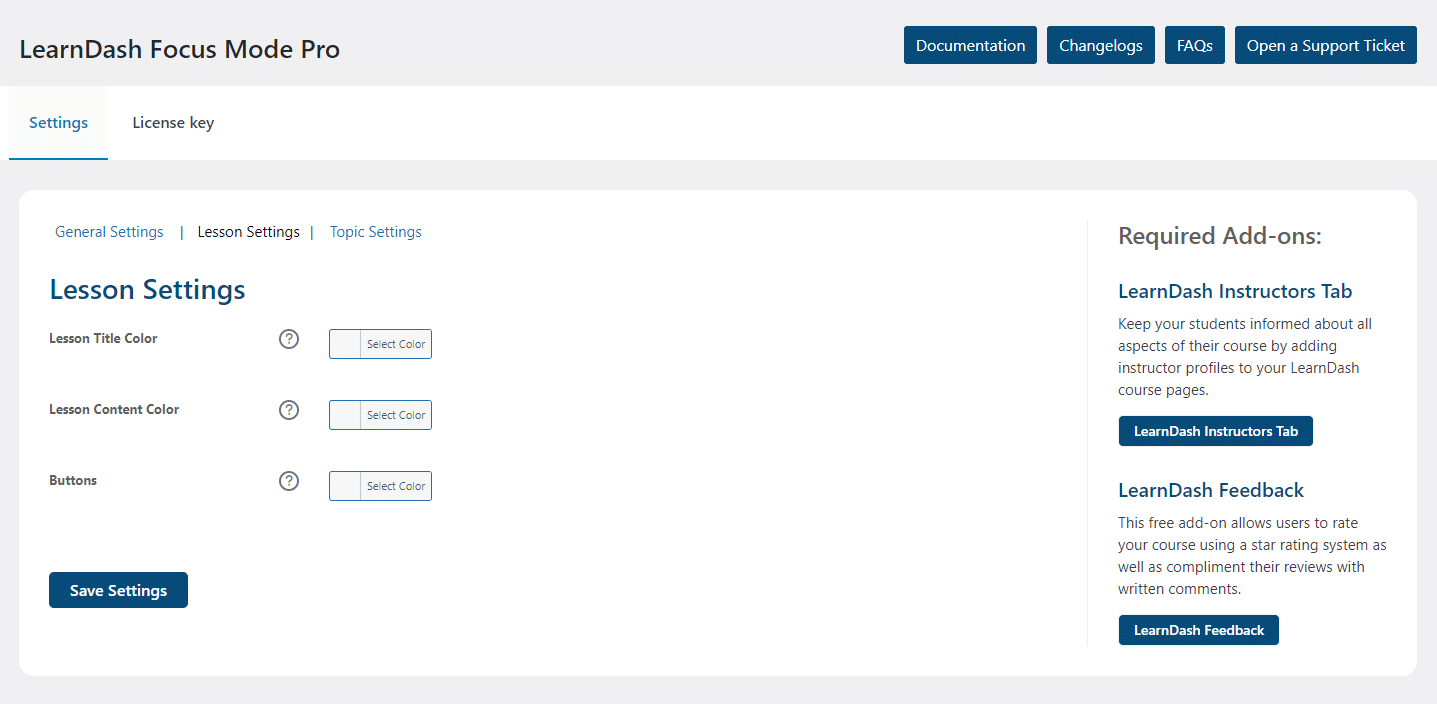
Lesson Title Color
Set the color for the text of the Lesson Title.
Lesson Content Color
Set the color for the text of the Lesson Content.
Button Background Color
Set the background color for buttons in the interface.
Topic Settings
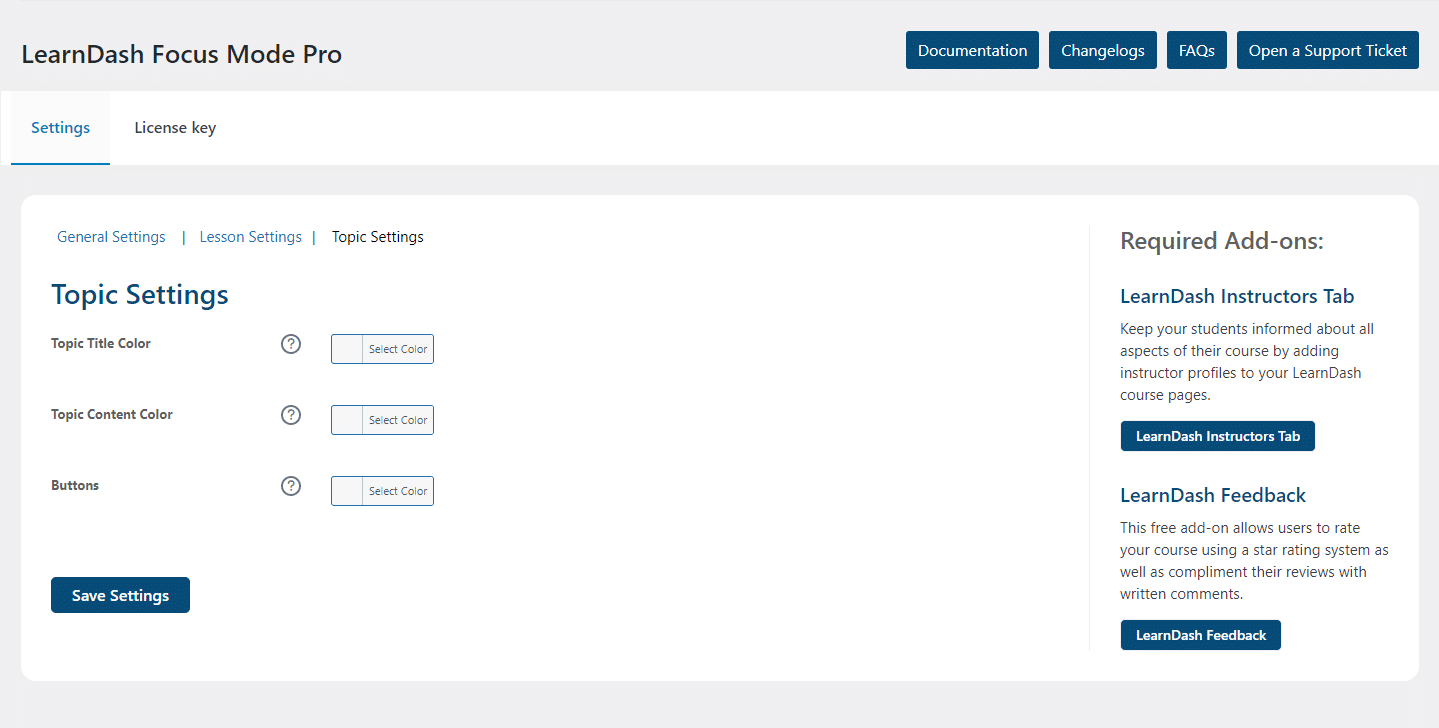
Topic Title Color
Set the color for the text of the Topic Title.
Topic Content Color
Set the color for the text of the Topic Content.
Button Background Color
Set the background color for buttons in the interface.
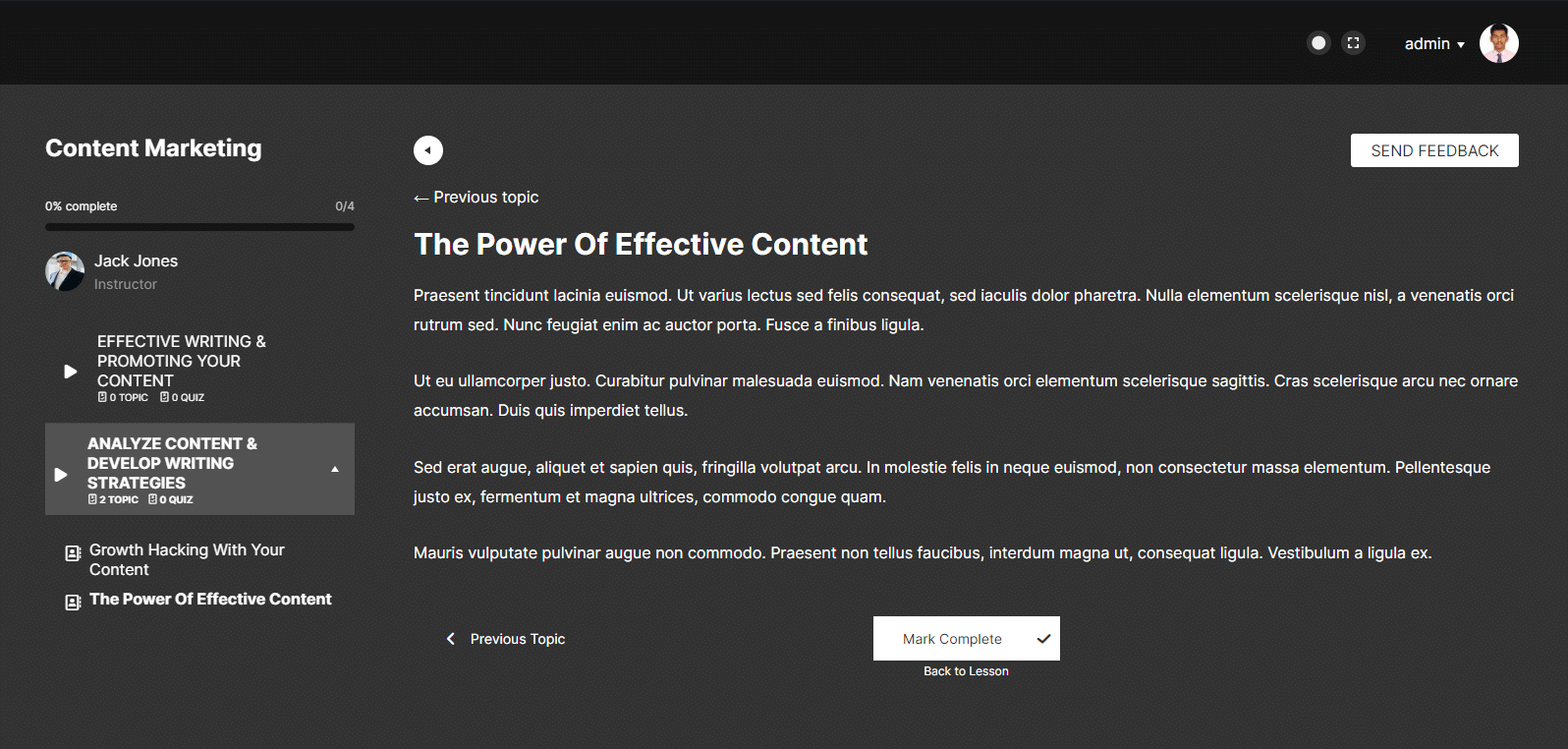
Preview
FAQ’s
1. Are there any requirements to use LearnDash Focus Mode Pro?
To use all the options available with this add-on, you’ll need to install two free add-ons, LearnDash Instructor’s Tab and LearnDash Feedback.
2. What determines whether the Instructor’s Info and Feedback Button options appear in Focus Mode Pro?
These options only appear when their respective add-ons are installed and active. The Instructor’s Info feature requires the Instructor’s Tab add-on, while the Feedback Button depends on the Feedback add-on.
3. How can the position of the course navigation sidebar be adjusted in Focus Mode Pro?
The add-on includes a setting “Sidebar Position” that allows users to select whether the sidebar appears on the left or right side of the screen.
4. What kinds of interface elements can I control visibility of in Focus Mode Pro?
You can toggle visibility of Header Logo, Course Progress Bar, Instructor’s Info, Feedback Button, as well as control where the sidebar appears.
Changelogs
1.1.9
- Fix: Applied configured lesson and topic button colors consistently to LearnDash navigation buttons.
- Fix: Improved styling for the Activity Log copy and debug clear buttons.
1.1.8
- Fix: Fixed minor security issues.
1.1.7
- Fix: Restored the mobile navigation display in the LearnDash Focus Mode header.
- Fix: Improved dark mode styling for LearnDash quiz answer selections and cloze questions.
1.1.6
- Fix: Delayed plugin initialization until `plugins_loaded` to improve load order compatibility.
- Fix: Updated the plugin updater properties for better compatibility with the license and update flow.
1.1.5
- Fix: Improved license module.
- New: Added Activity Logs.
1.1.4
- Fix: Fixed minor issues.
1.1.3
- Fix: Fixed minor UI Issues.
1.1.2
- Fix: Security improvements and performance optimizations.
1.1.1
- Fix: Minor UI issues in dark mode have been corrected.
1.1.0
- New: Added support for a separate logo in dark mode.
1.0.12
- Fix: Fixed an issue where the LearnDash review question feature was not working correctly.
1.0.11
- Fix: Improved Dark Mode UI and fixed related issues in LearnDash Focus Mode Pro.
1.0.10
- Fix: Resolved dark mode UI issues for the LearnDash Focus Mode template.
1.0.9
- New: Added a new feature to use LearnDash Focus Mode template.
- New: Added compatibility with LearnDash Appearance feature.
1.0.8
- Fix: Fixed the review popup not showing on course page.
1.0.7
- Fix: Fixed the file path issue for the Feedback and Instructors Tab plugin.
1.0.6
- Fix: Fixed deprecated warnings.
1.0.5
- Fix: License API call on all admin pages.
1.0.4
- New: Added options to Customize focus mode background, font, and sidebar colors.
- New: Added options to Customize focus mode lesson and topics background, font, and description colors.
- Fix: Fix license key not updating issue.
- Fix: Fix plugin UI.
1.0.3
- New: Added topics and quizzes count under lesson title in focus mode.
- Fix: Fix plugin UI.
1.0.2
- New: Added support commenting in LearnDash topics and lessons in focus mode.
- New: Upgraded the plugin UI.
1.0.1
- Fix: Fixed the License activation bug.
- Fix: Fixed the Addons compatibility with parent LearnDash.
- Fix: Fixed admin side setting UI.
- Fix: Fixed plugin latest updated notify.
- Fix: Fixed the plugin compatibility other’s plugin.
1.0.0
- Initial Release.
