The feedback you receive from your students is the best tool to evaluate teaching effectiveness and make improvements to your courses. The LearnDash Feedback Pro add-on allows you to easily collect feedback from your students and gather valuable insights about their learning experience.
Video Tutorial
Watch the tutorial video below for a quick walkthrough of the add-on’s features and setup process.
For detailed instructions, please continue reading the full documentation. If you still have any questions, feel free to submit a support ticket.
- Video Tutorial
- Installation
- Activate Your License Key
- General Settings
- Display Feedback on the Frontend
- Buttons Text Color
- Buttons Background Color
- Update feedback on import
- Allow Feedback On Course Completion
- Allow Feedback On
- User Email Notification
- Restrict user to add Feedback
- Admin Email Notifications
- Display Feedback when Approved by Admin
- Display Feedback for Non logged in users
- Change Feedback style to grid
- Feedback Limit per User
- Enable Activity Logs
- Enable Debug Logs
- Messages
- Email Template
- Feedback Form
- Shortcodes
- Import Feedback
- Export Feedback
- LearnDash Course Grid Addon
- Enable specific Course Feedback Settings
- Disable Feedback
- Reports
- WordPress Block
- FAQ's
- Changelogs
Installation
- Install the LearnDash plugin & activate it.
- Install the LearnDash Feedback Pro add-on and activate it.
- There will be a new Dashboard entry, “LD Feedbacks Pro” on the backend.
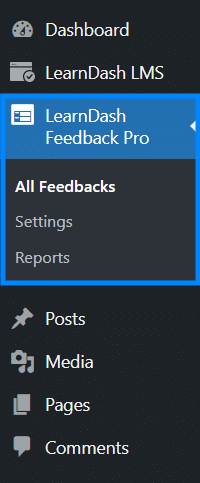
Activate Your License Key
The license key can be configured from the License Settings tab, found on the “Learndash Feedback Pro” menu. License keys will be sent to your email address when you purchase the add-on.
Insert your license key in the field, then click “Activate License”.

General Settings
Navigate to the WordPress dashboard, select Settings from the “LearnDash Feedback Pro” menu, and click on the General Tab.

Display Feedback on the Frontend
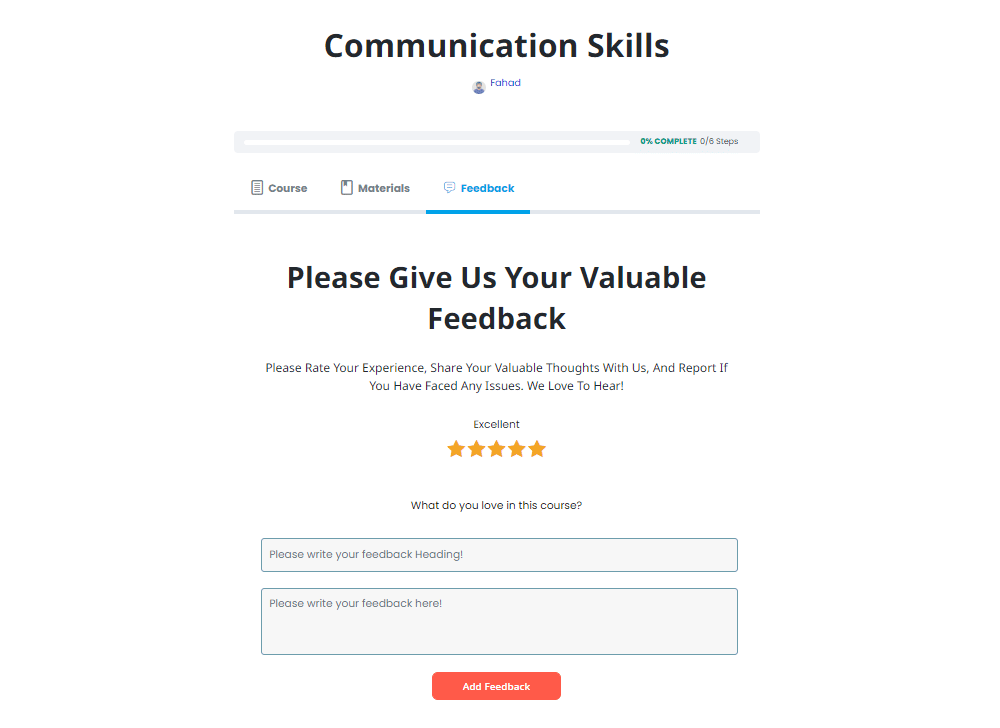
This global setting enables the Feedback Tab to be displayed on the frontend.
This is how the Feedback tab will look on the Frontend:
Buttons Text Color
By clicking on select color, you can select the frontend buttons’ text color from the color picker, or you can also paste your hex color code.
Buttons Background Color
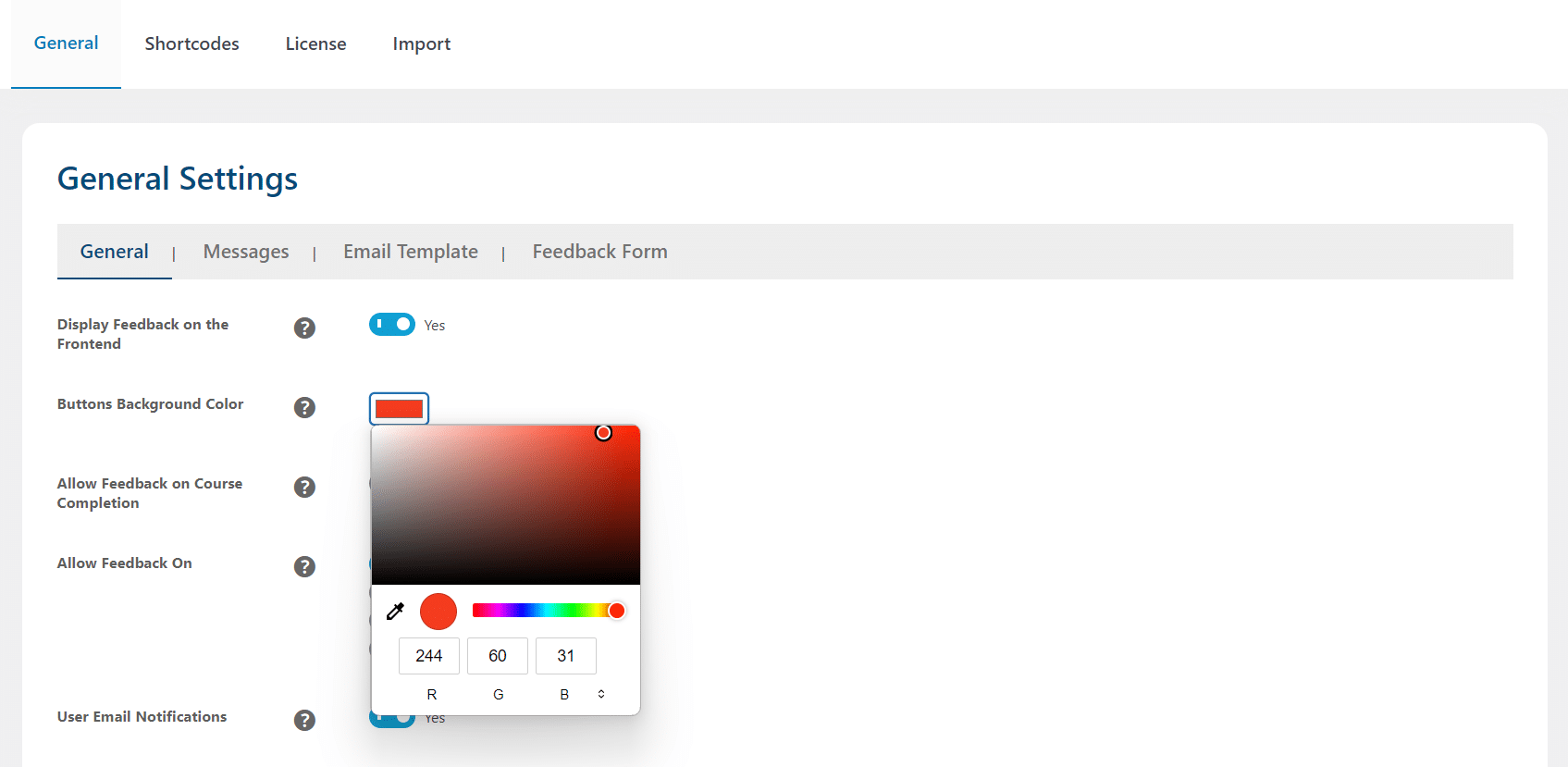
By clicking on select color, you can select the frontend buttons’ color from the color picker, or you can also paste your hex color code.
Backend color picker
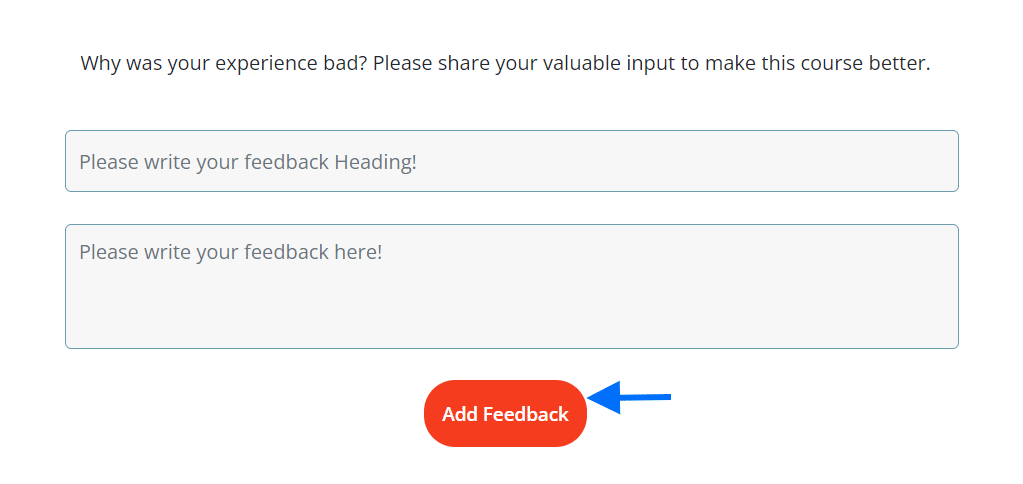
This is how the Button color will look on the Frontend:
Update feedback on import
Enable this option to update existing feedback. If disabled, new feedback will be imported, and a new post will be created.
Allow Feedback On Course Completion
Enabling this option will allow the students to submit their feedback once they completed the course. Without completing the course, students will not be able to give any feedback.
Allow Feedback On
Here you can select which course pages you want to enable feedback:
- All Courses: Mark this checkbox to enable feedback on all course pages.
- All Lessons: Mark this checkbox to enable feedback on all lesson pages.
- All Topics: Mark this checkbox to enable feedback on all topic pages.
- All Quizzes: Mark this checkbox to enable the feedback on all quiz pages.
You can mark all checkboxes to enable feedback across all Courses, Lessons, Topics, and Quizzes.
User Email Notification
With this setting enabled, users will receive a confirmation email when they leave feedback on a course.
Restrict user to add Feedback
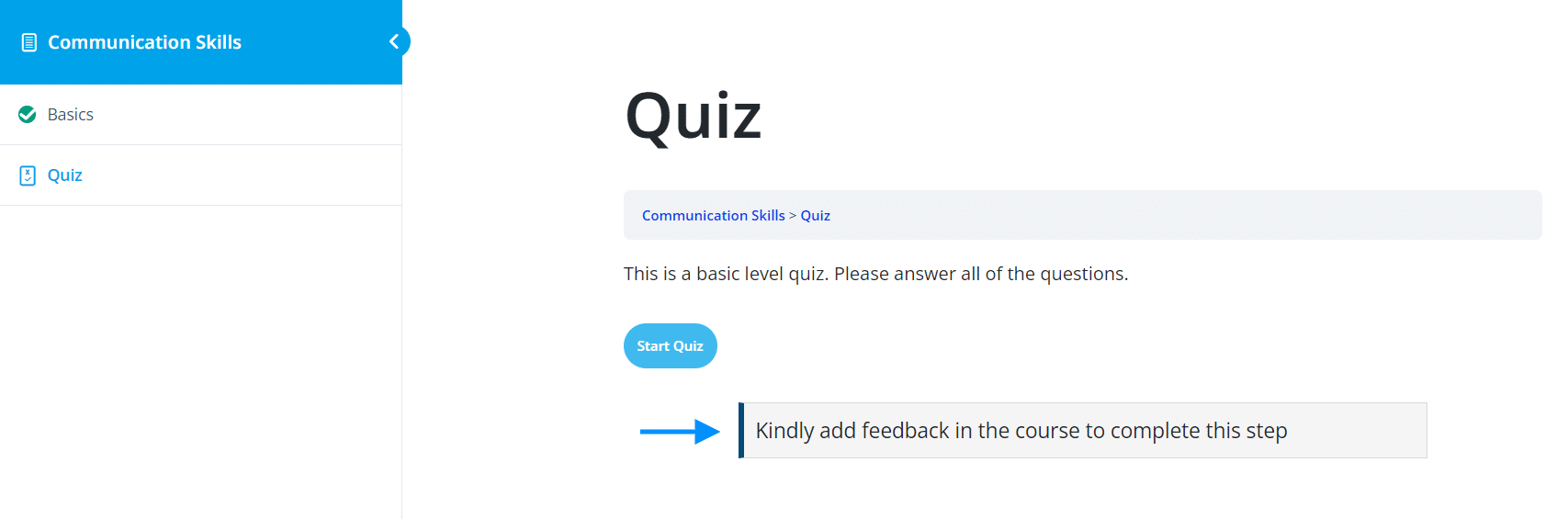
Enabling this toggle prevents the user from completing the course until they add their feedback.
This is how the Notification will look on the Frontend when a user has not submitted their feedback:
Admin Email Notifications
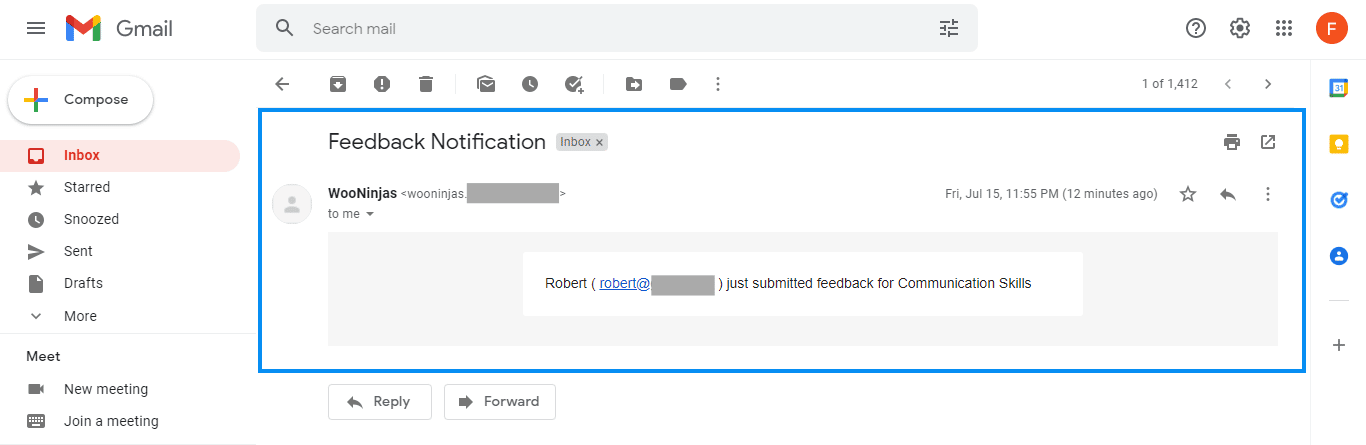
With this setting enabled, admins will receive an email notification when a user leaves feedback on a course.
Display Feedback when Approved by Admin
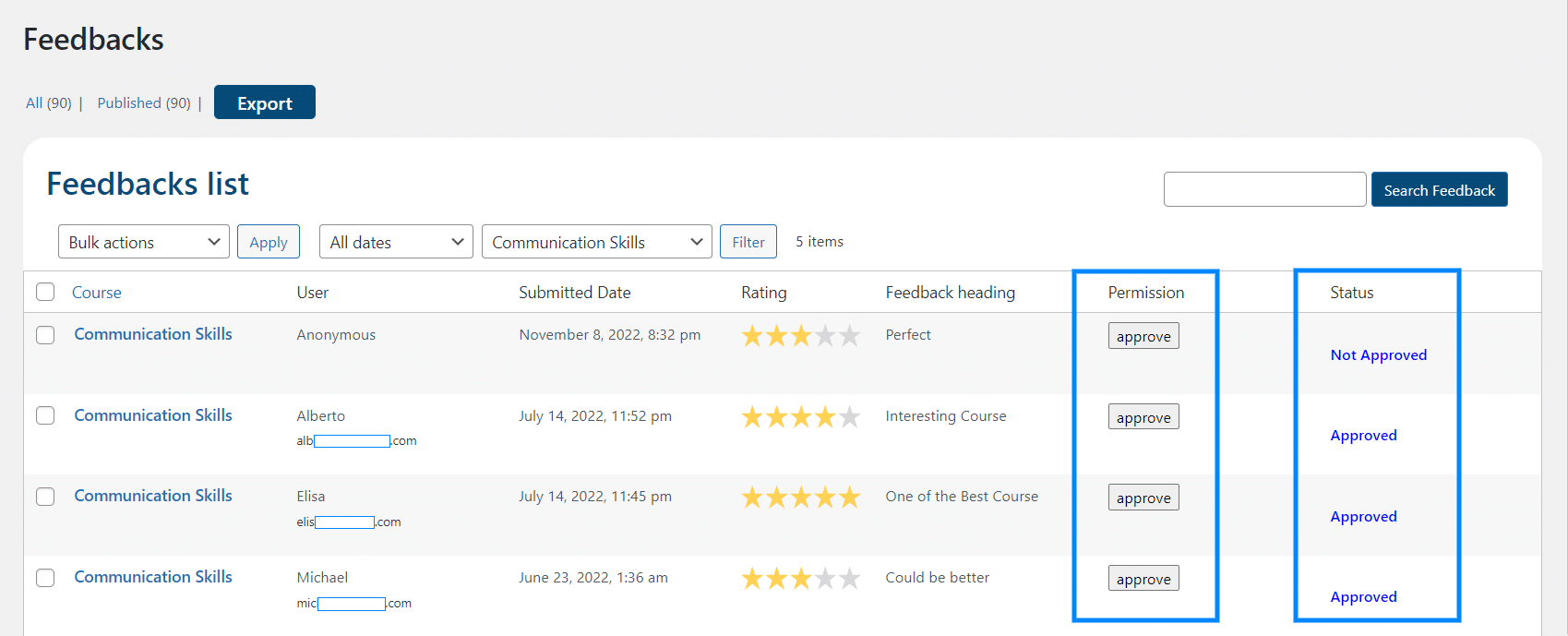
After successful submission, admins can review and edit students’ feedback on the backend. Enabling this option will allow the admin to approve the submitted feedback before publishing. To approve feedback, navigate to the LD Feedbacks Pro > All Feedbacks > Permission column > Click on the “Approve”.
You can also approve feedback in bulk by selecting all the comments you want to approve, then, from the “Bulk Action” dropdown, clicking “Feedback Approve”. Once feedback has been approved, its status will be displayed in the “Status” column.
Backend:
Display Feedback for Non logged in users
Enable this option to show feedback to non-logged-in users.
Change Feedback style to grid
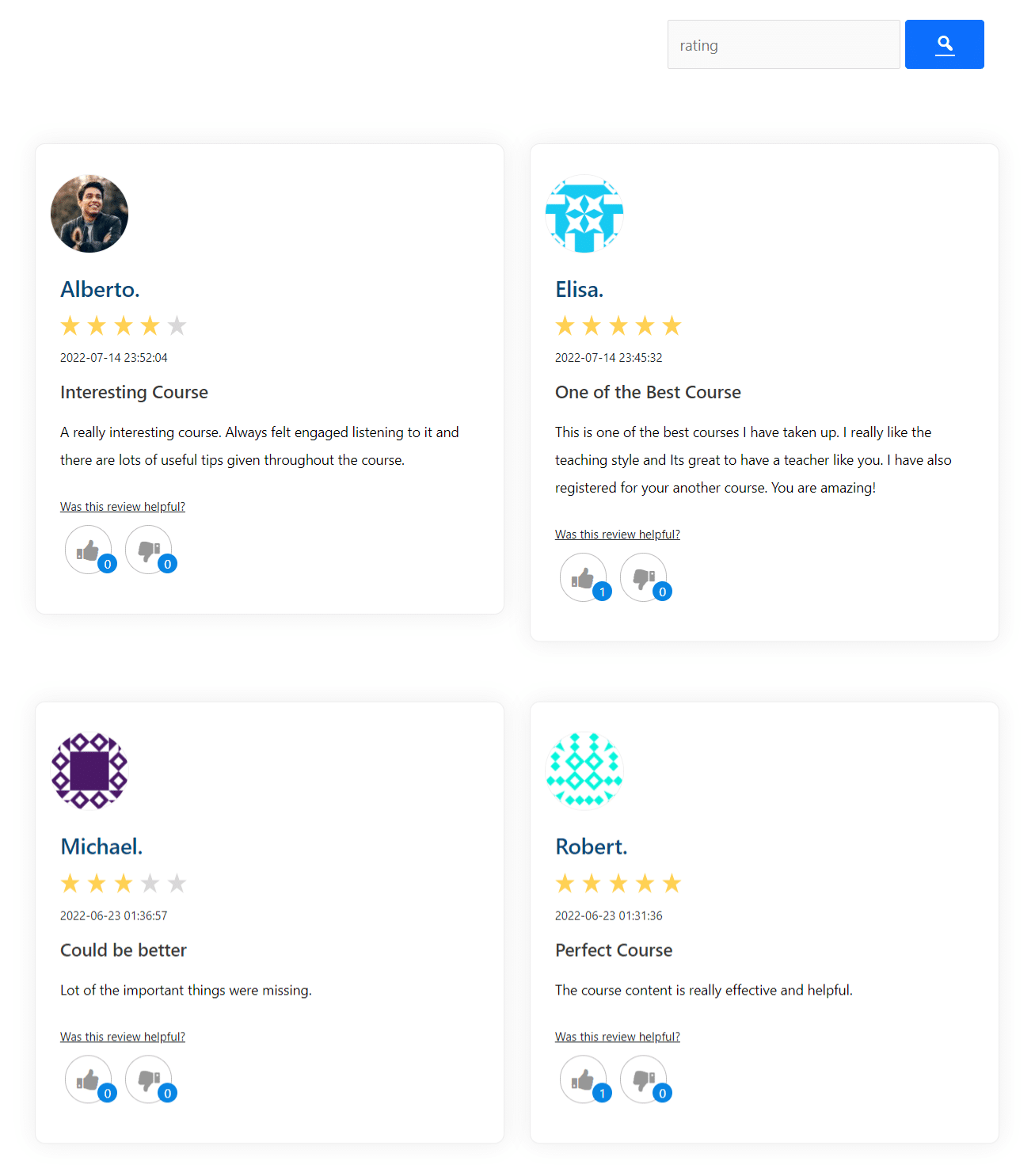
Enabling this option will change the feedback style to a grid on the frontend.
This is how the List view Feedback style will look on the Frontend:
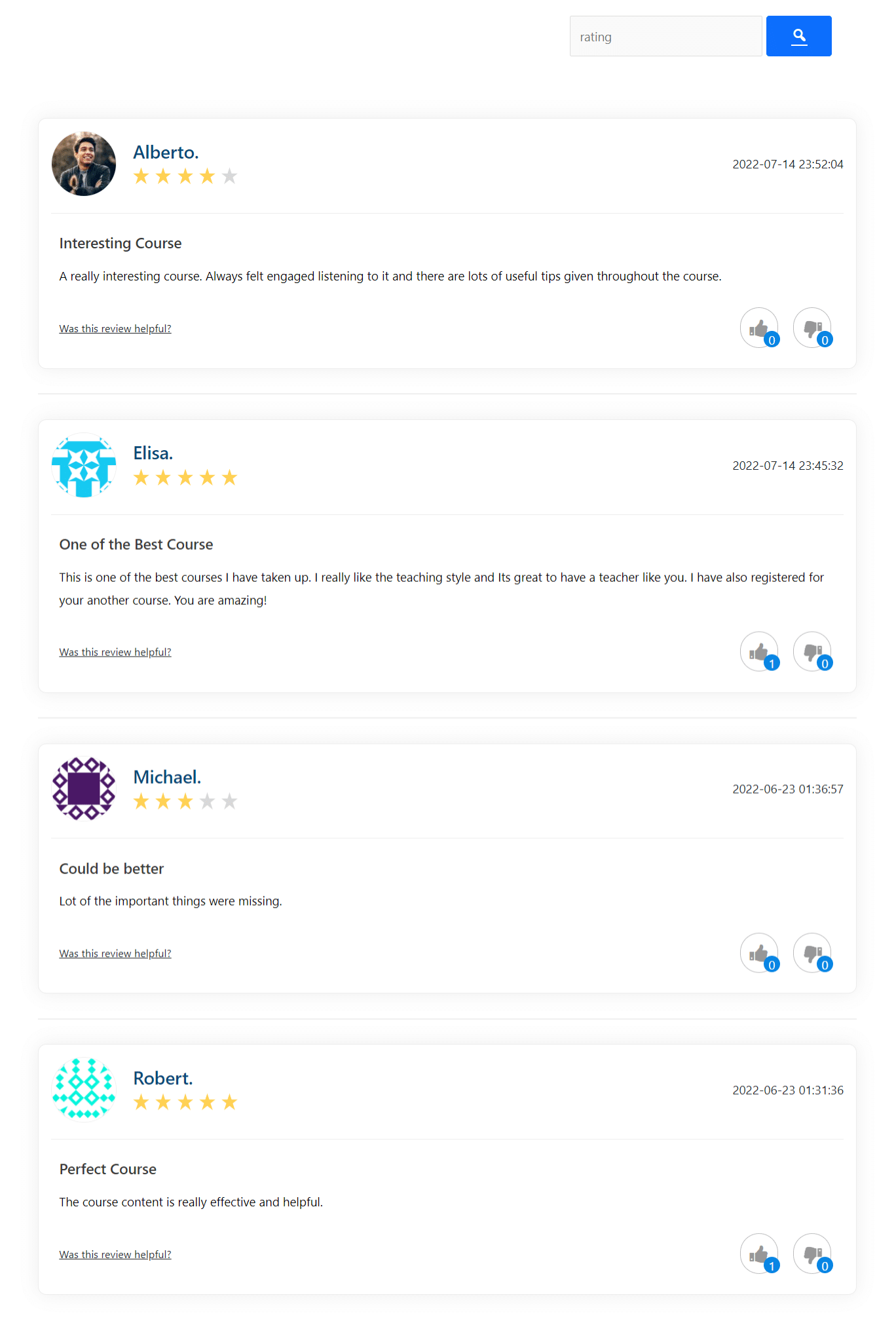
This is how the Grid view Feedback style will look on the Frontend:
Feedback Limit per User
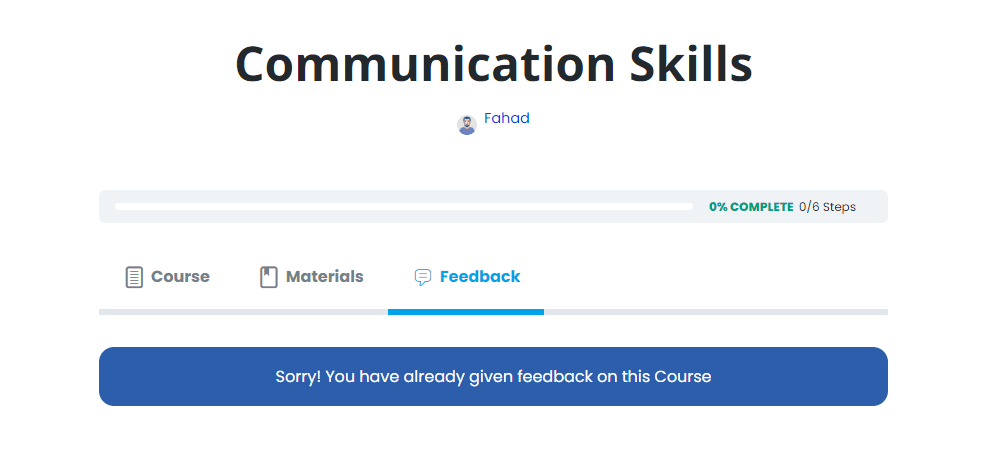
This option lets you set a maximum number of reviews the students can submit.
This is how the Notification will look on the Frontend when the feedback limit has reached:
Enable Activity Logs
Enable this option to generate import activity logs and send them to our support team.

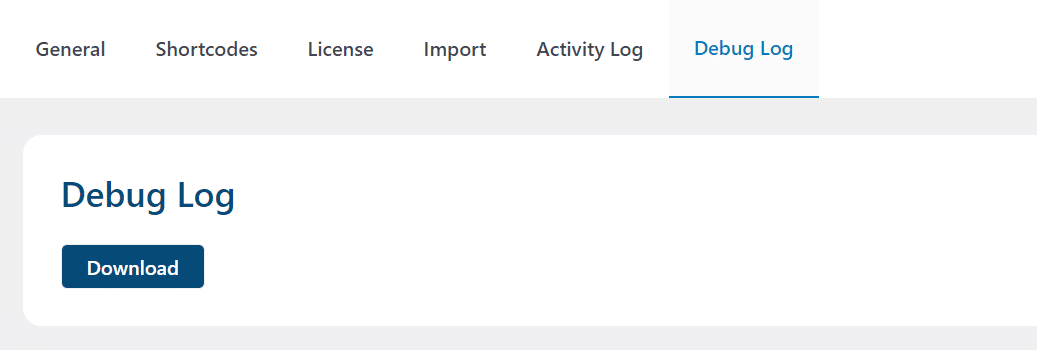
Enable Debug Logs
Enable this option to generate import debug logs and send them to our support team.
Messages

Title of Feedback Form
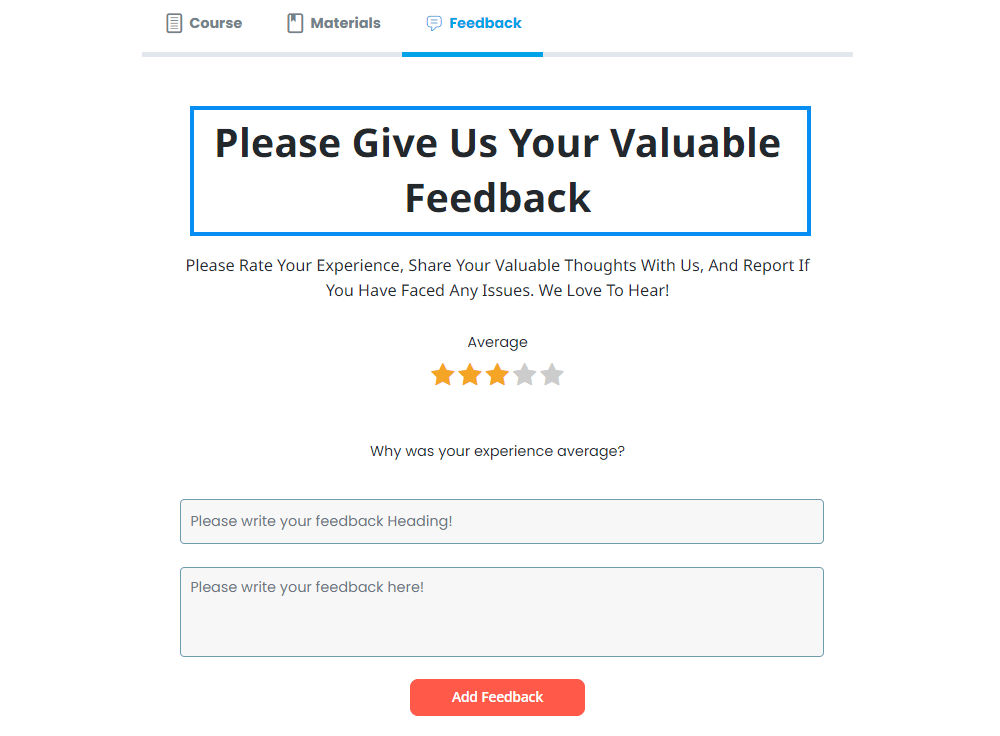
Here you can set the title of the Feedback form.
Frontend:
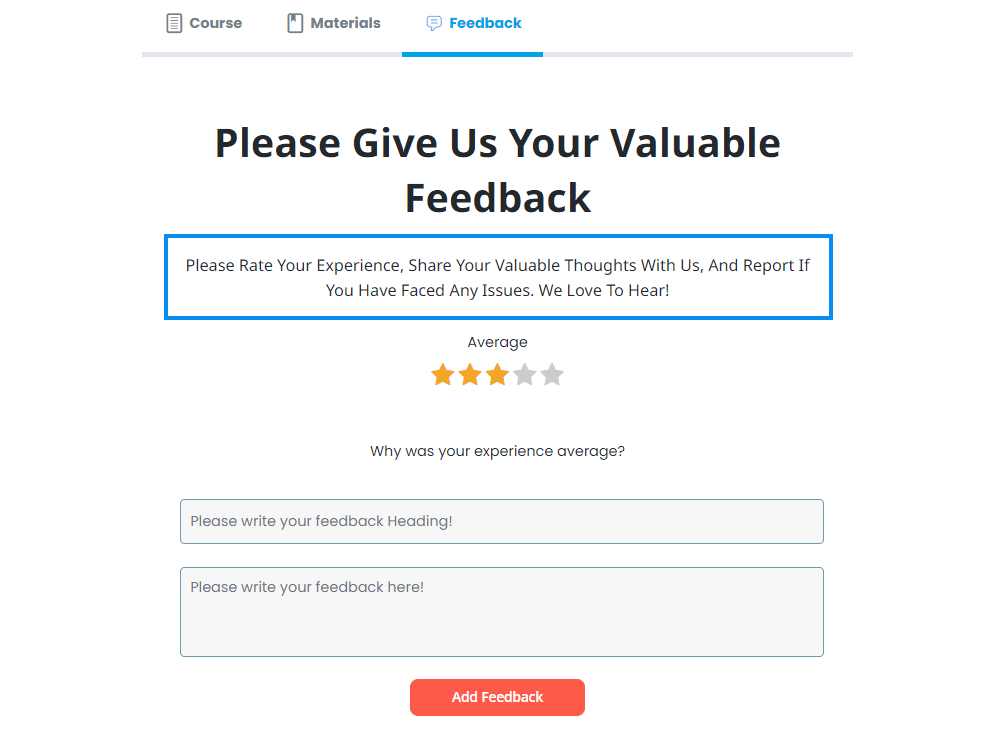
Description of Feedback Form
Here you can configure the description for the Feedback form.
Frontend:
Feedback Limit Message
Here, you can set the feedback limit message that appears when a student reaches the limit.
Frontend:
Course Completion Message
Here, you can set the course completion message that will be displayed when the student has not completed the course and the “Allow Feedback on Course Completion” is enabled.

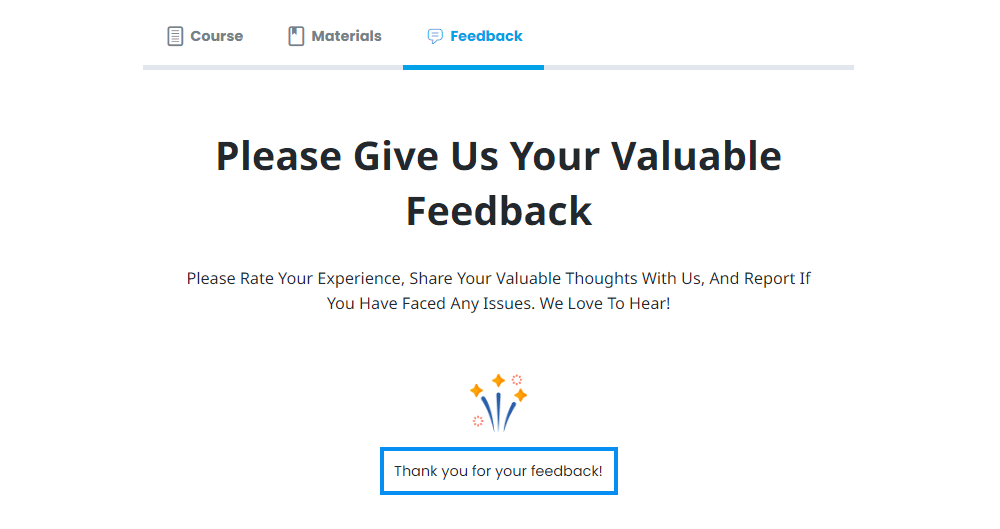
After Submit Feedback Message
Here, you can set the message that will show when the student successfully submits the feedback.
Frontend:
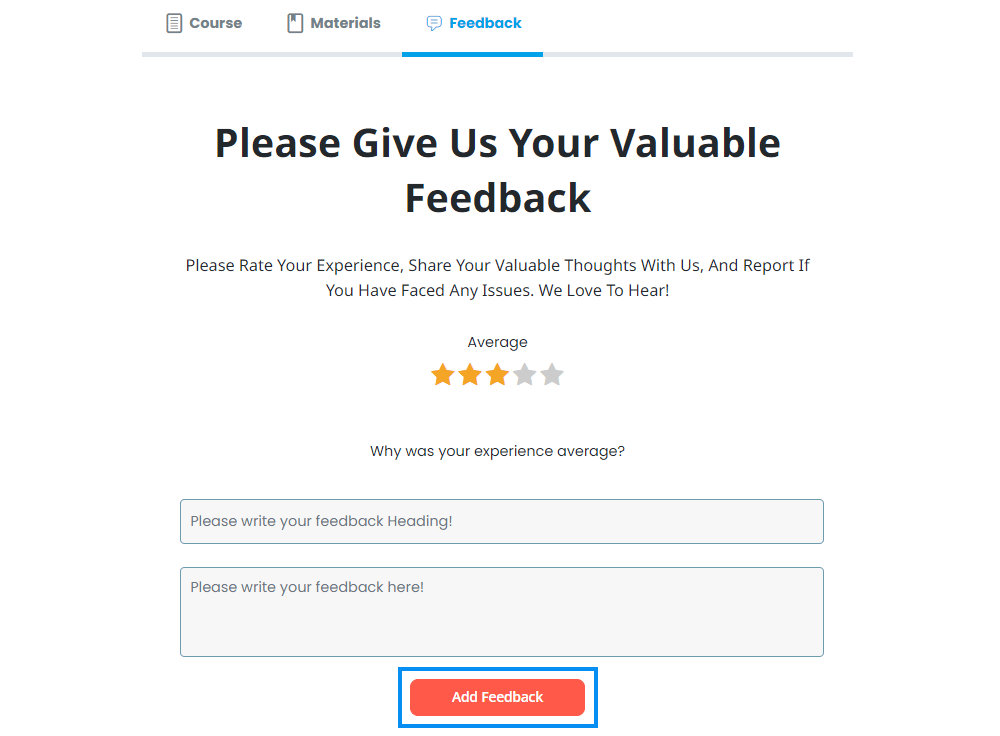
Feedback submit button Text
Here you can edit the text of the feedback submit button.
Frontend:
Email Template
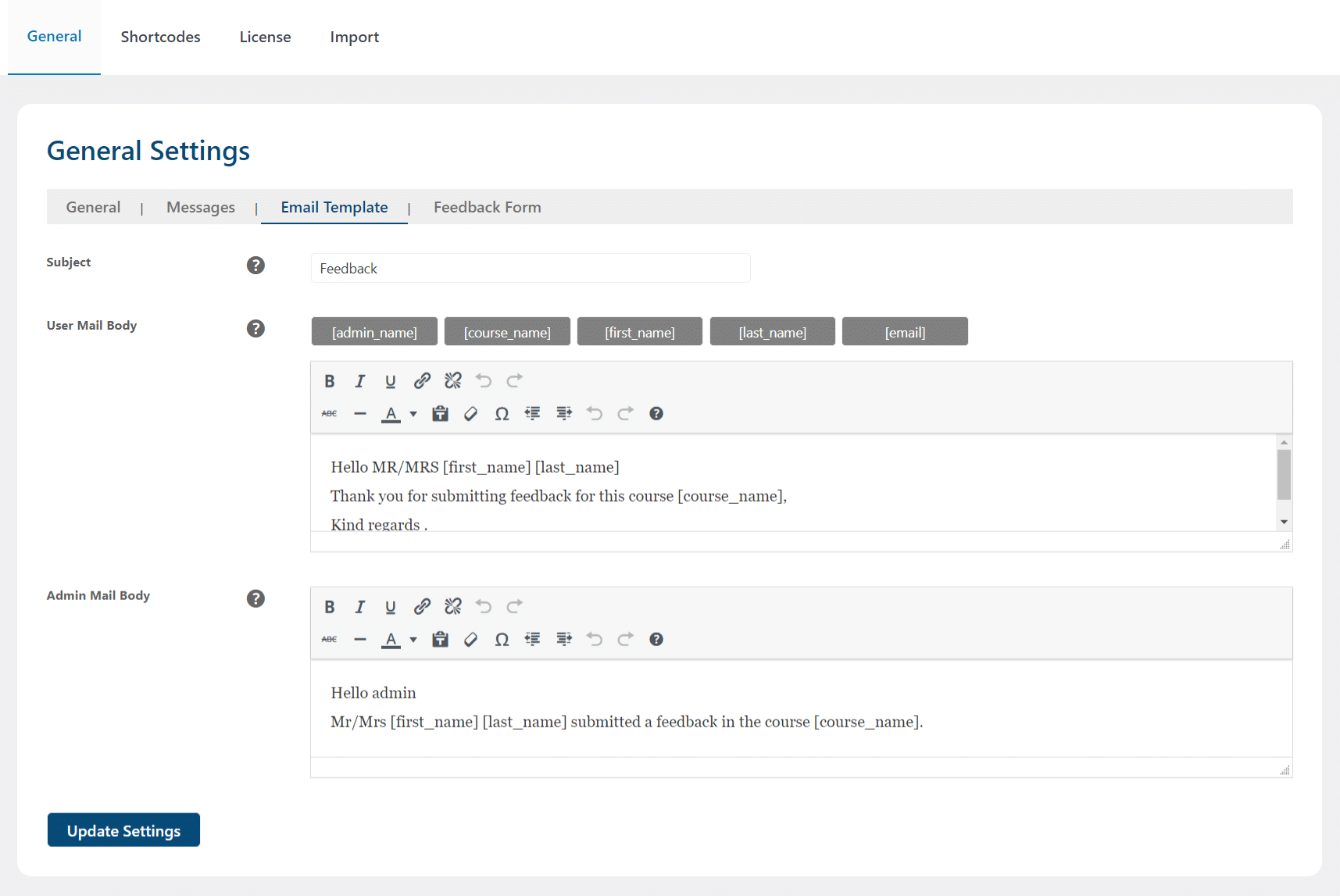
Subject
Here you can add the subject of the email.
User Mail Body
Add the template of the confirmation email that will be sent to the user once they submit their feedback.
Admin Mail Body
Add the template of the email that will be sent to the admin once a user submits the feedback.
Feedback Form
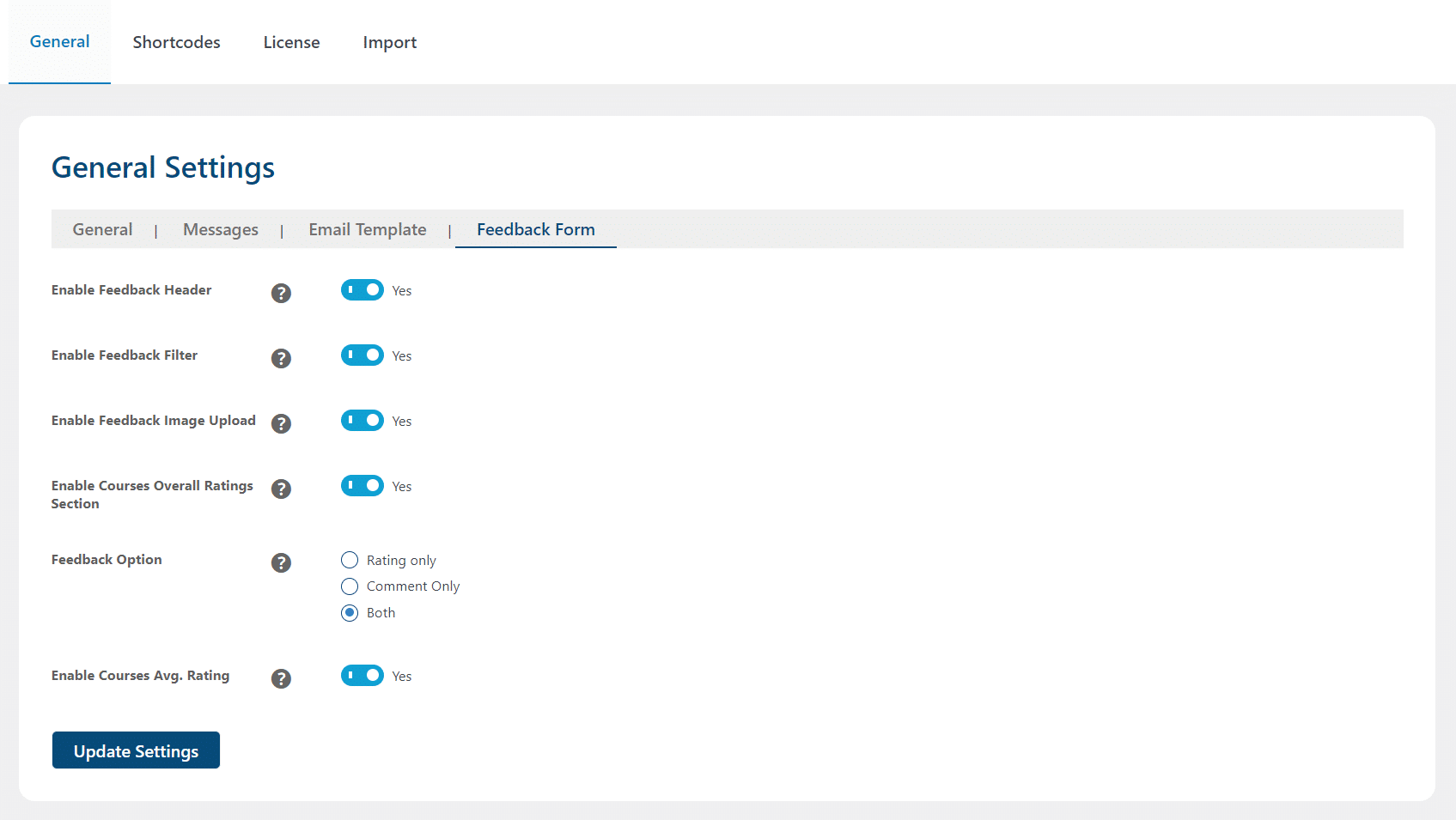
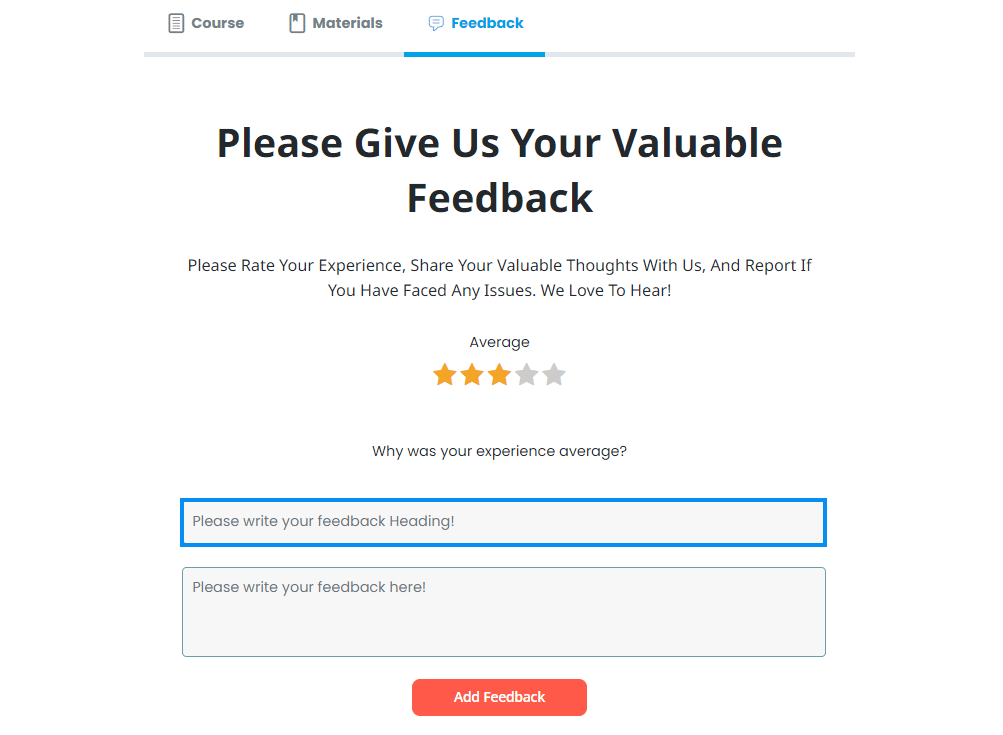
Enable Feedback Header
Enabling this option will add a heading field on the feedback tab and this will allow students to write their feedback along with its heading.
Frontend:
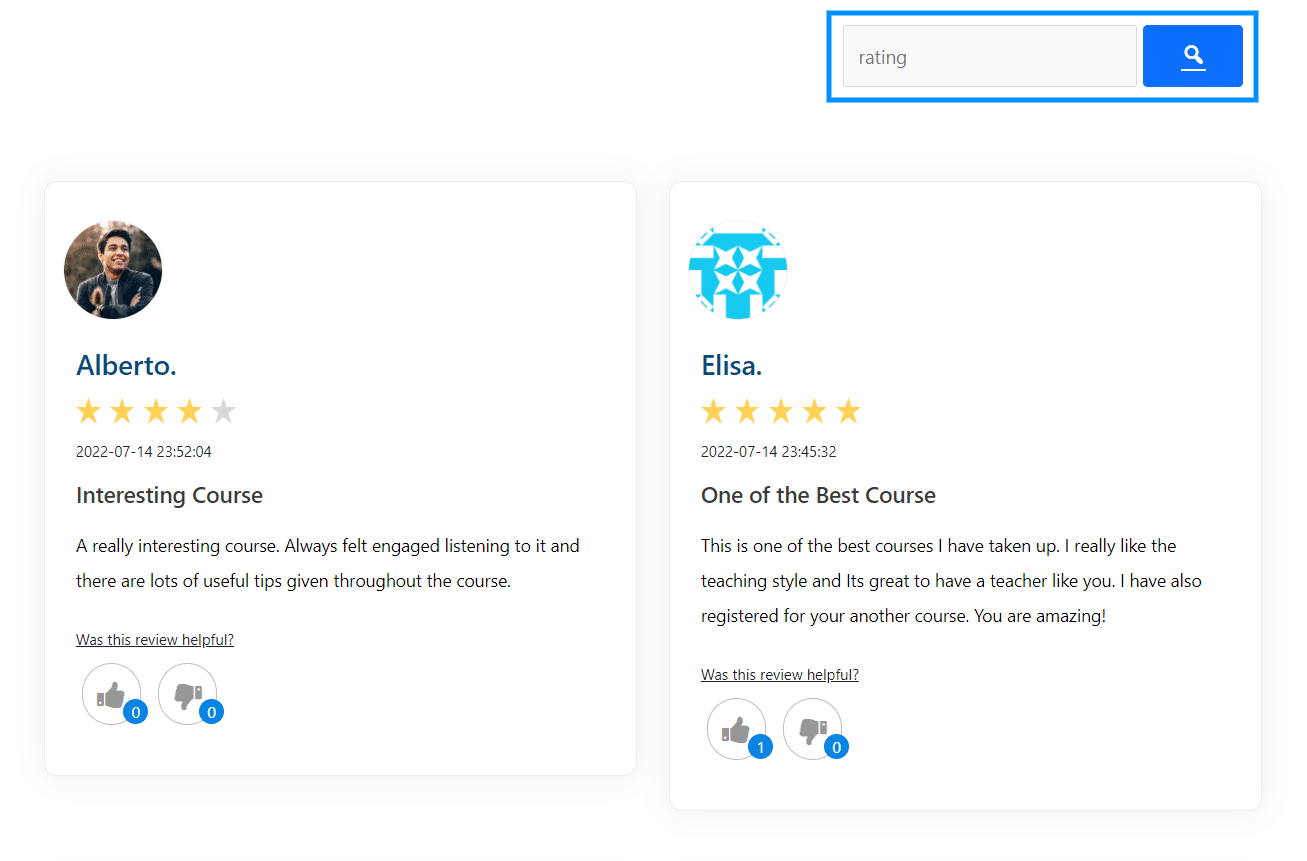
Enable Feedback Filter
Enabling this option will display a filter box on the frontend, allowing the student to filter the feedback by rating. They can place any number between 1 and 5 in the search field.
Frontend:
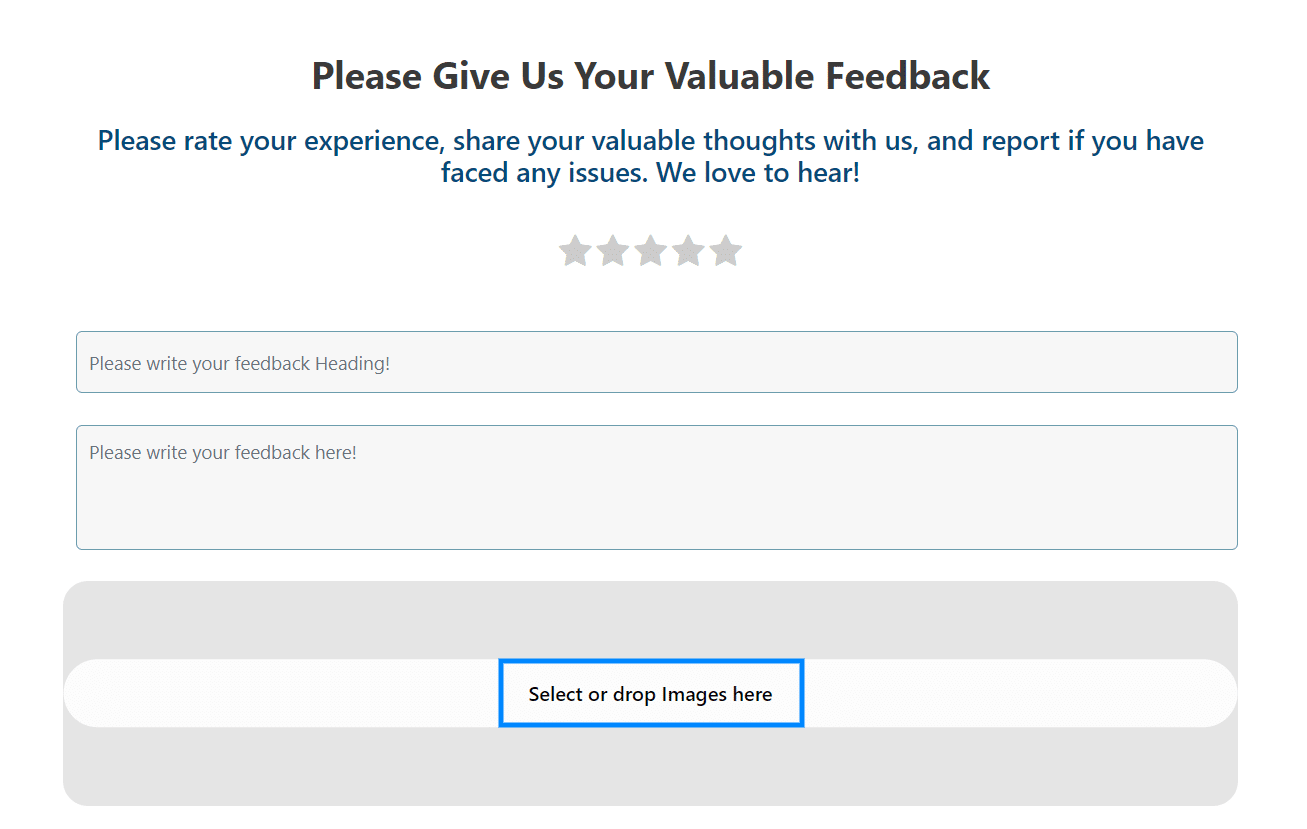
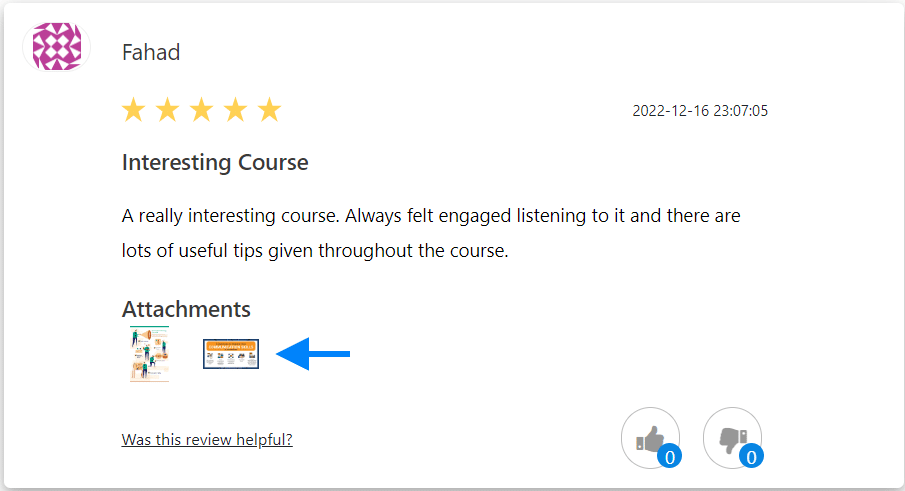
Enable Feedback Image Upload
By enabling this option, the user can upload up to 5 images in their feedback. Users can upload images in JPG, jpeg, and PNG formats.
Once you submit the feedback successfully, you can also view it in full size.
Frontend:
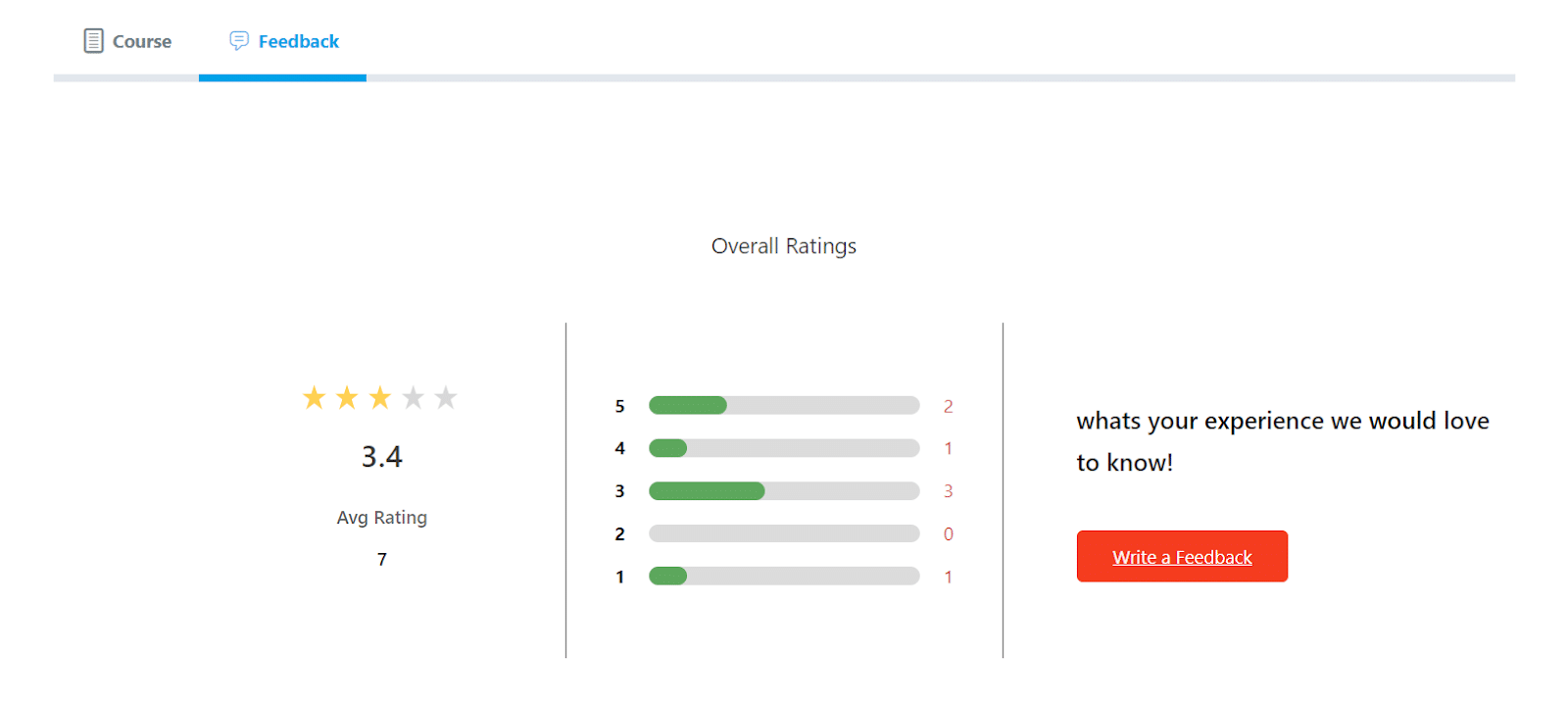
Enable Courses Overall Rating Section
Enabling this option will show the Overall Rating section on the frontend. Non-logged-in users can also see this overall rating.
Frontend:
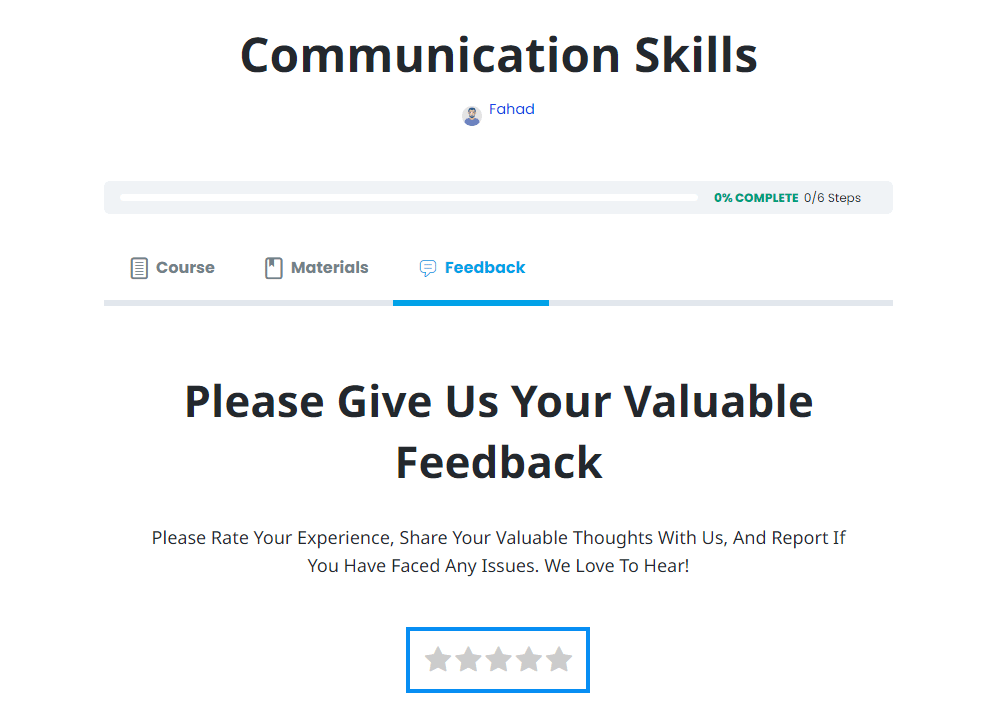
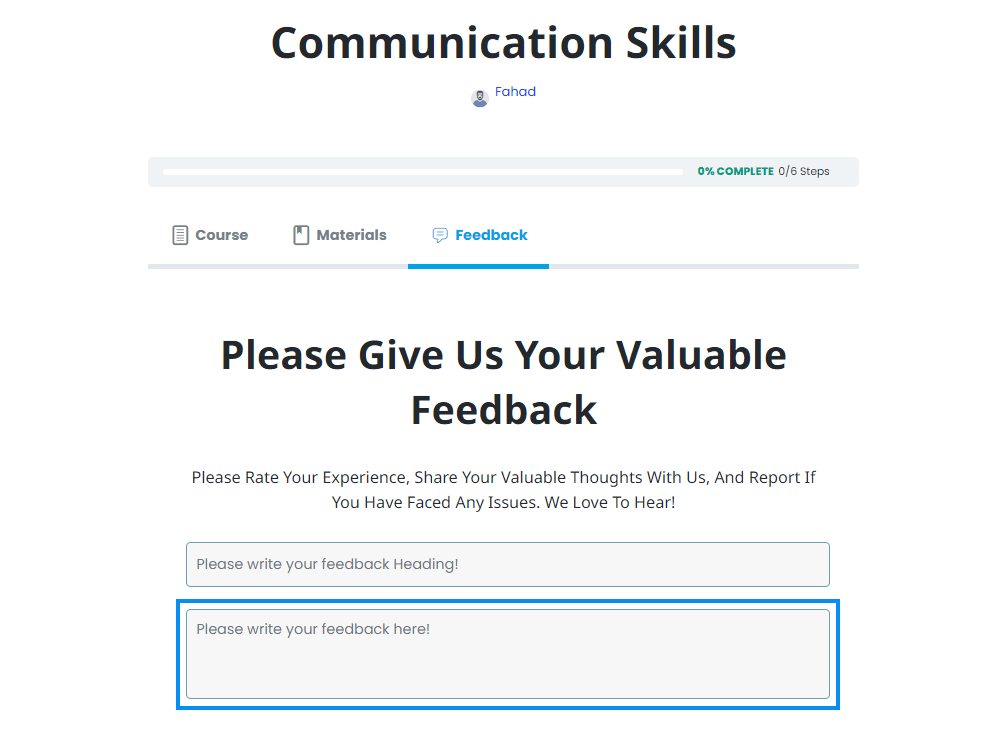
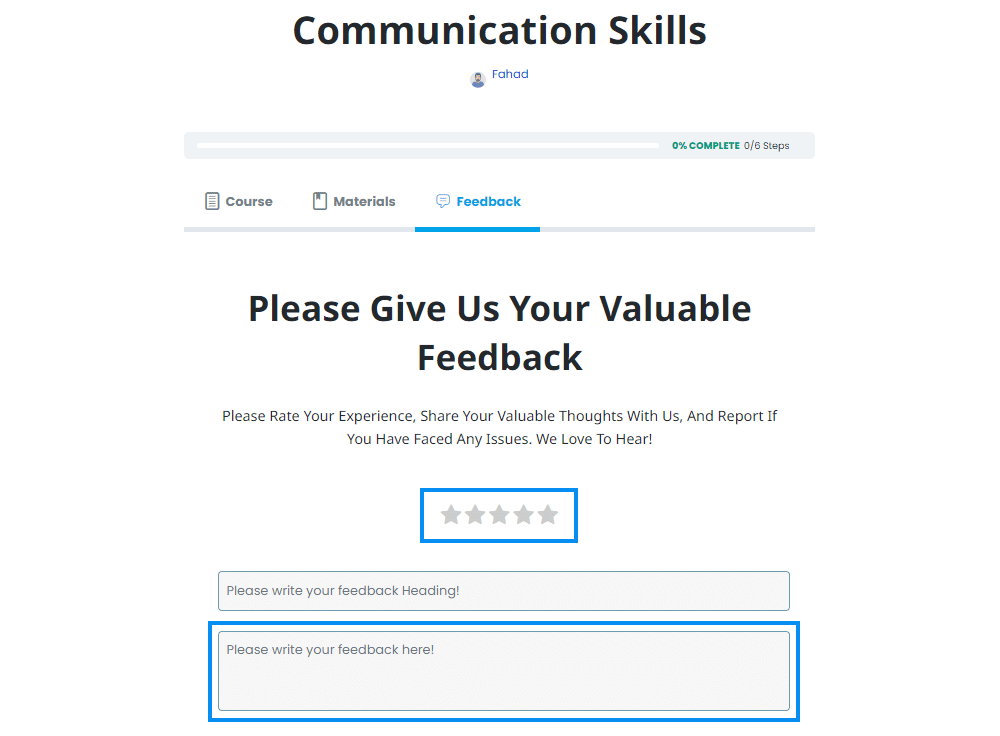
Option to Attempt Feedback
This option lets you choose the feedback style. You can choose “Rating only”, “Comment Only”, or select both of them.
This is how the “Rating Only” option will look on the Frontend:
This is how the “Comment Only” option will look on the Frontend:
This is how the “Both” option will look on the Frontend:
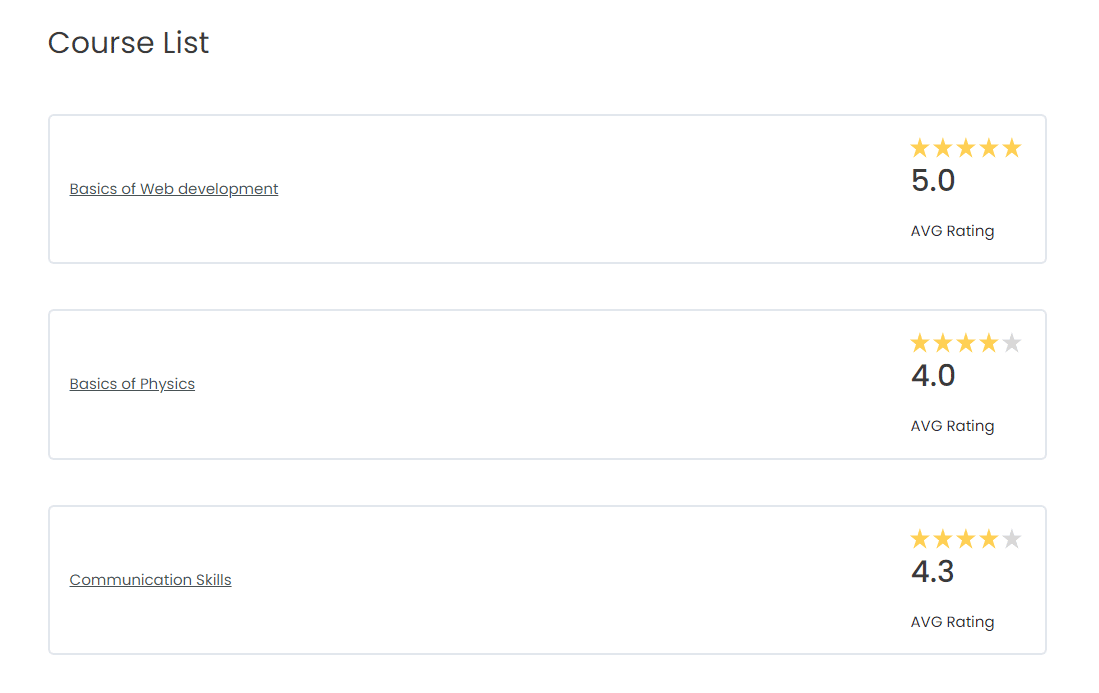
Enable courses Avg. Rating
This option will show the feedback’s average rating on the LearnDash course listing page.
Frontend:
Shortcodes
Navigate to the WordPress dashboard, select Settings from the “LearnDash Feedback Pro” menu, and click on the Shortcodes Tab.
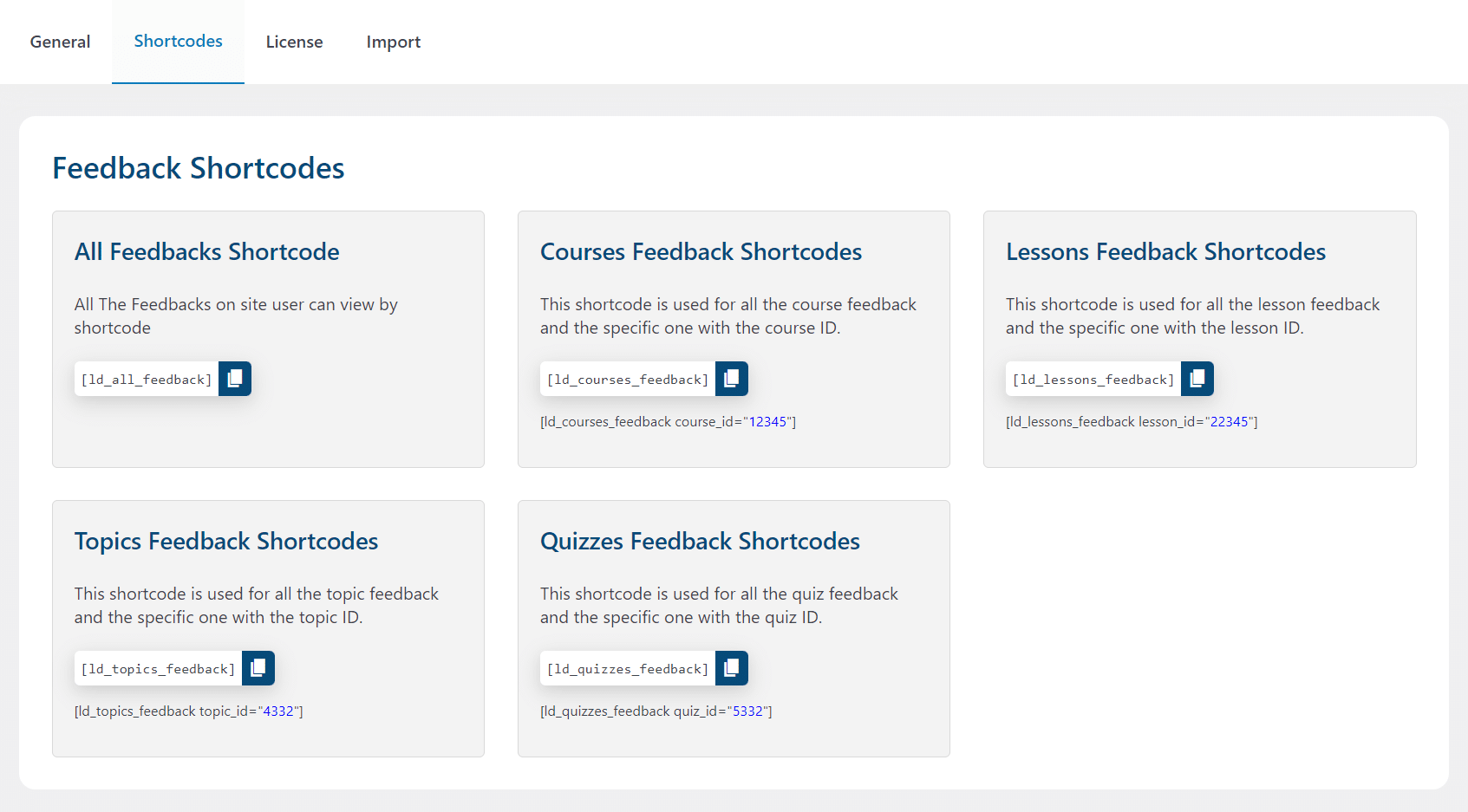
- [ld_all_feedback]: You can display all of the feedback by using this shortcode.
- [ld_courses_feedback]: You can display all of the courses’ feedback by using this shortcode.
- [ld_courses_feedback course_id=”12345″]: You can display any specific course feedback by placing the course ID in the shortcode.
- [ld_lessons_feedback]: You can display all of the lessons’ feedback by using this shortcode.
- [ld_lessons_feedback lesson_id=”22345″]: You can display any specific lesson feedback by placing the lesson ID in the shortcode.
- [ld_topics_feedback]: You can display all of the topics’ feedback by using this shortcode.
- [ld_topics_feedback topic_id=”4332″]: You can display any specific topic feedback by placing the topic ID in the shortcode.
- [ld_quizzes_feedback]: You can display all of the quiz’s feedback by using this shortcode.
- [ld_quizzes_feedback quiz_id=”5332″]: You can display any specific quiz feedback by placing the quiz ID in the shortcode.
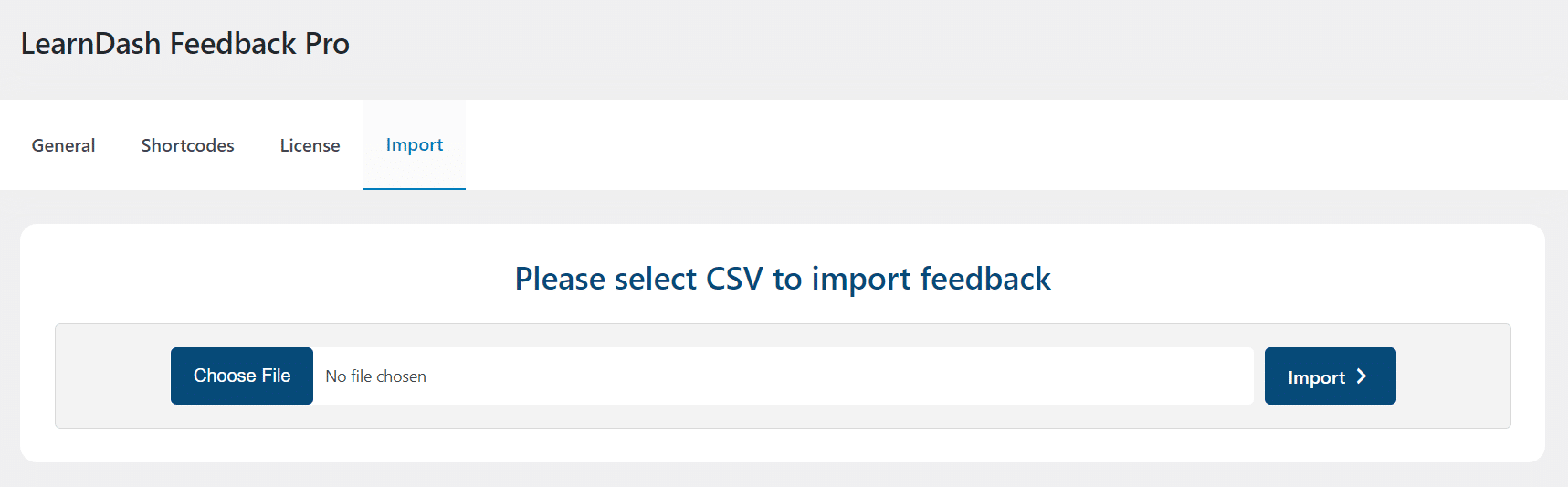
Import Feedback
From this tab, you can import multiple feedbacks, and the sheet should be in CSV format.
Export Feedback
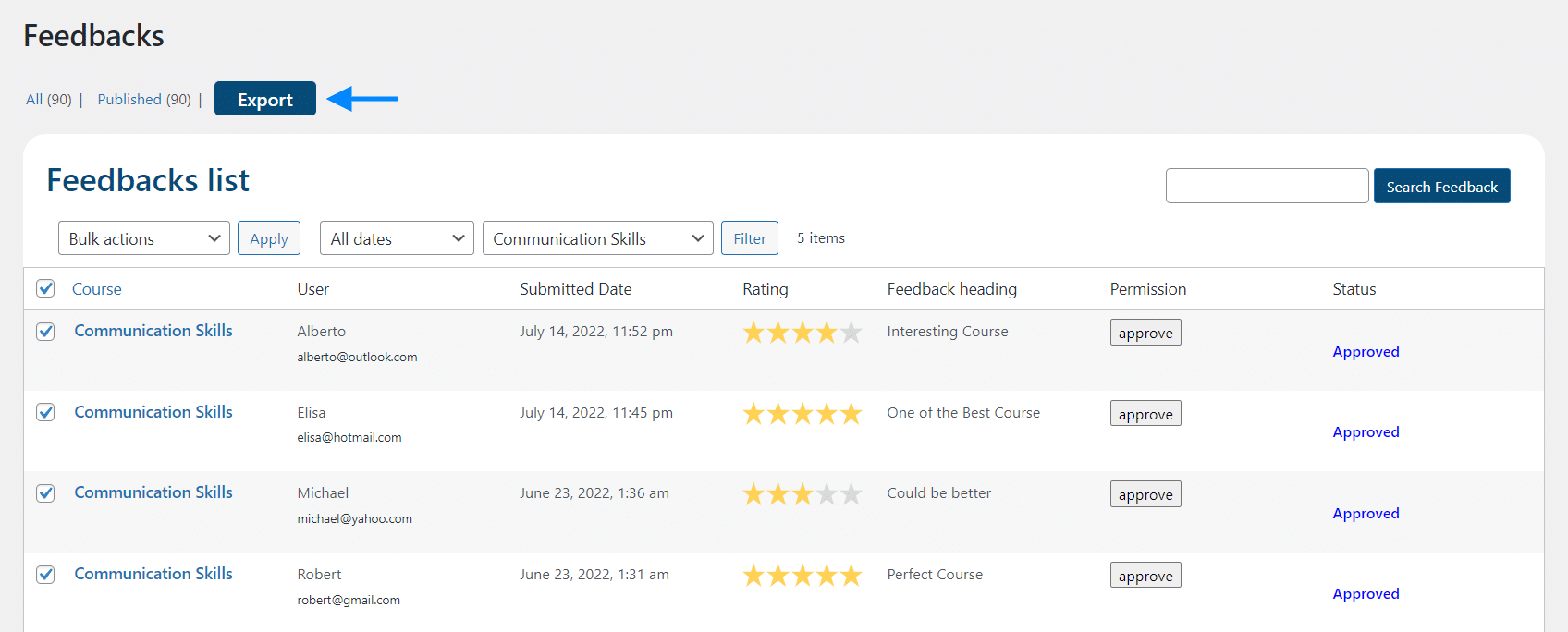
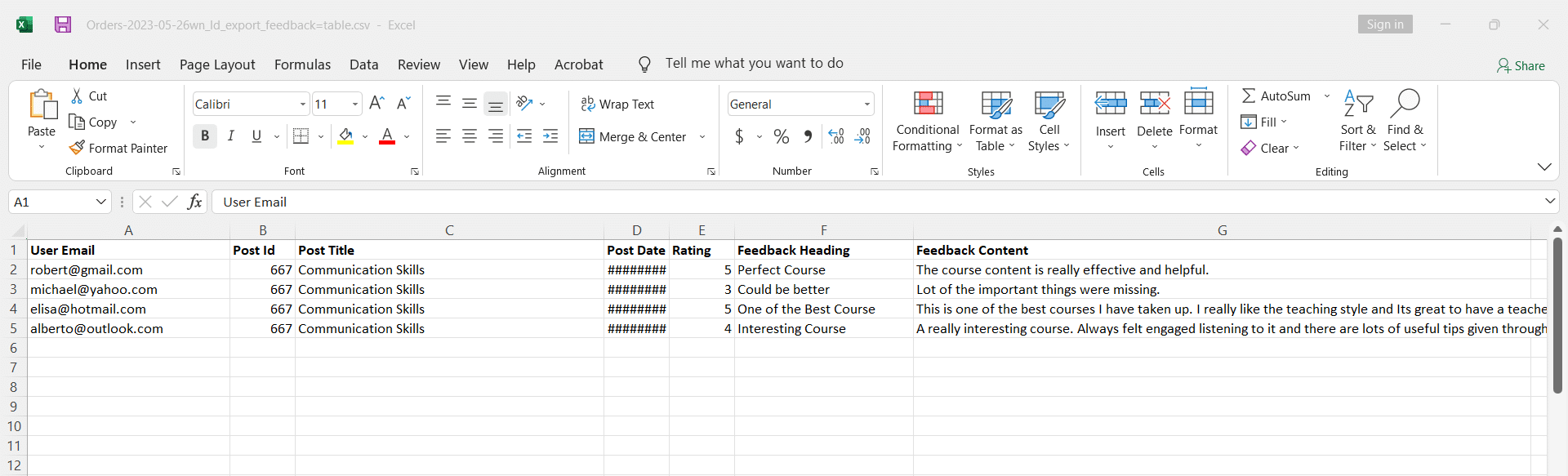
To export the Feedback, select All Feedbacks from the Feedback Pro menu. Here, you can export individual as well as all of the available feedback by clicking on the Export button.
LearnDash Course Grid Addon
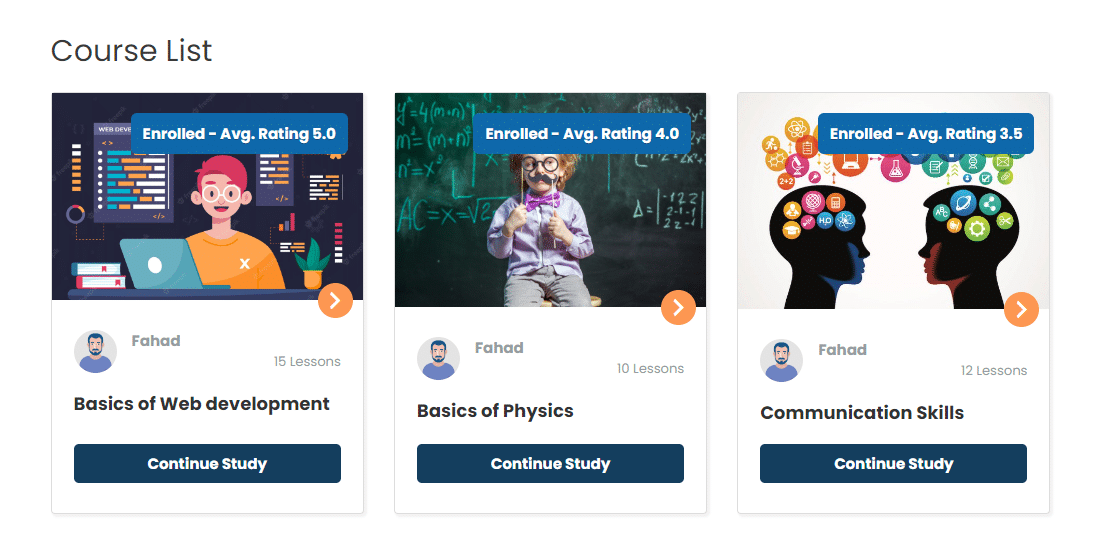
Our addon LearnDash Feedback Pro also works along with the LearnDash Course Grid addon, and you can see the feedback’s average rating on the LearnDash course grid listing page.
Frontend:
Enable specific Course Feedback Settings
Within the course settings, you can override the global settings of feedback for individual courses.

Feedback on Front
Enabling this toggle will override the global setting and display the Feedback Tab on the frontend.
Feedback on course completion
Enabling this option will allow the students to submit their feedback once they completed the course. Without completing the course, students will not be able to give any feedback.
Feedback on admin Approval
After the successful submission of feedback, admins will be able to review and edit the feedback submitted by students on the backend. Enabling this option will allow the admin to approve the submitted feedback before publishing.
Feedback Options
This option lets you choose the feedback style. You can choose “Rating only”, “Comment Only”, or select both of them.
Disable Feedback
Disable feedback for a specific course
You can disable the feedback for a specific course from the course page settings.

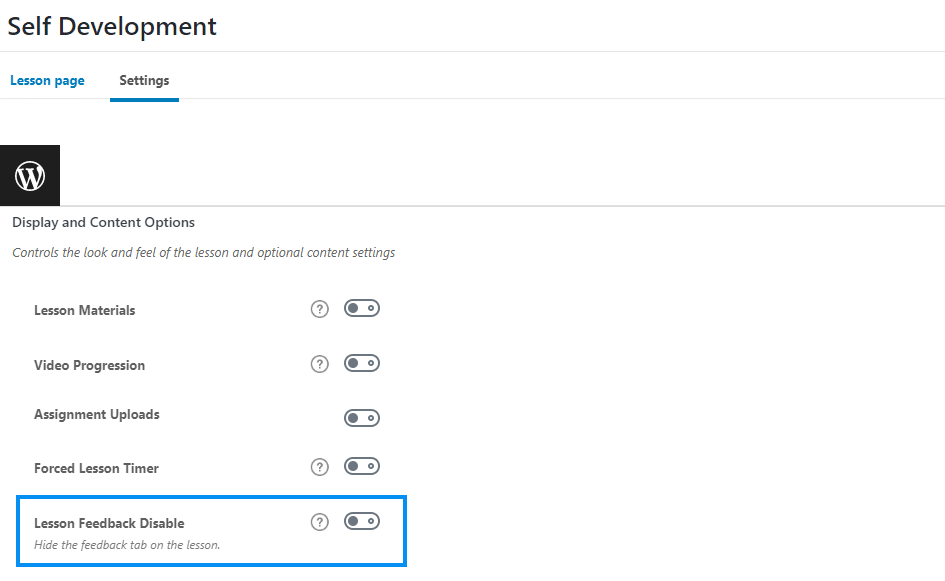
Disable feedback for a specific lesson
You can disable the feedback for a specific lesson from the lesson page settings.
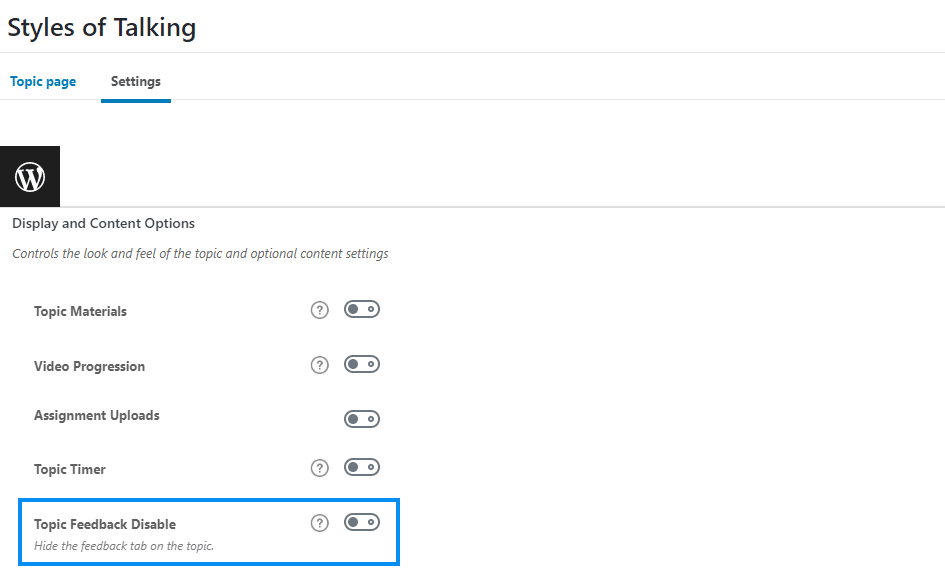
Disable feedback for a specific topic
You can disable the feedback for a specific topic from the topic page settings.
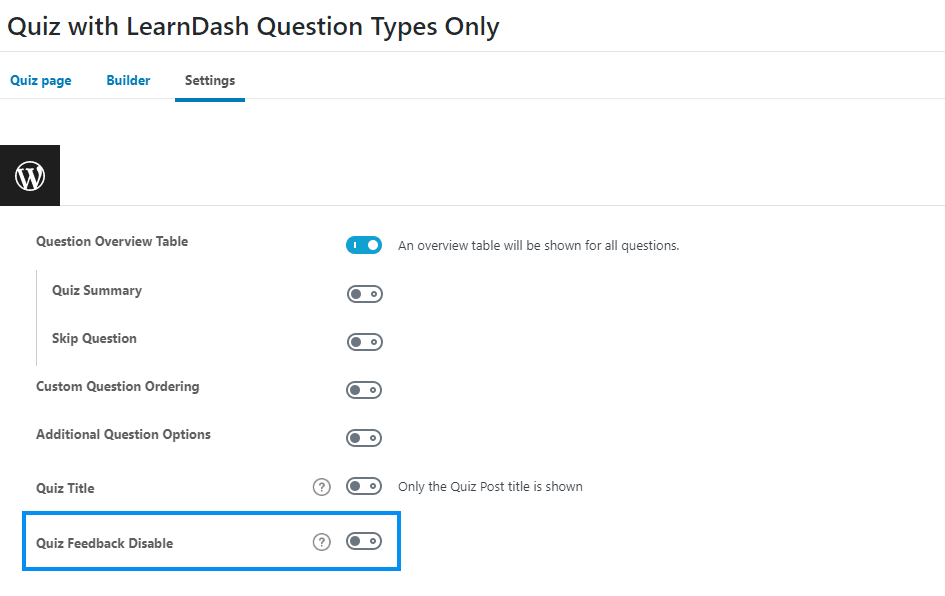
Disable feedback for a specific quiz
You can disable the feedback for a specific quiz from the quiz page settings.
Reports
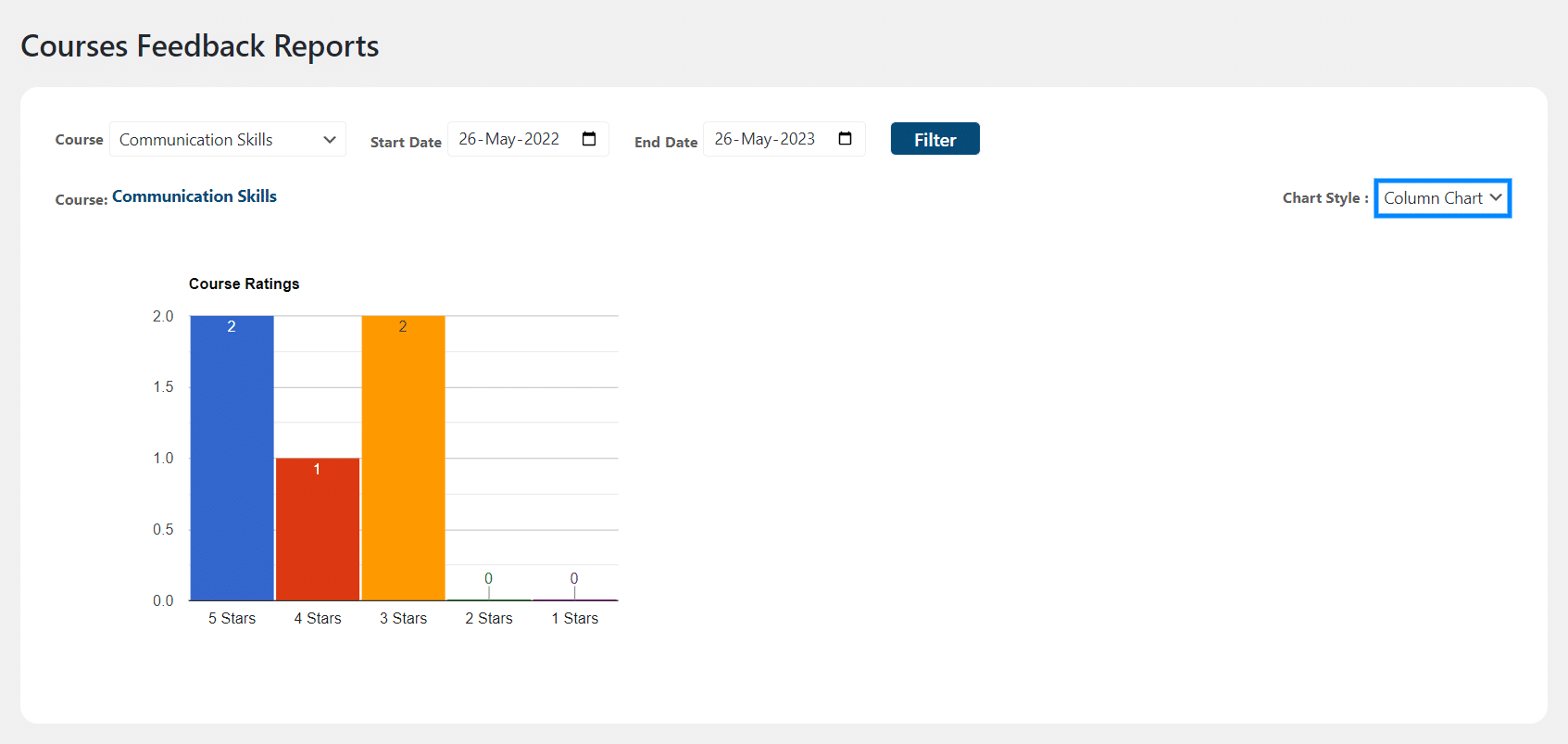
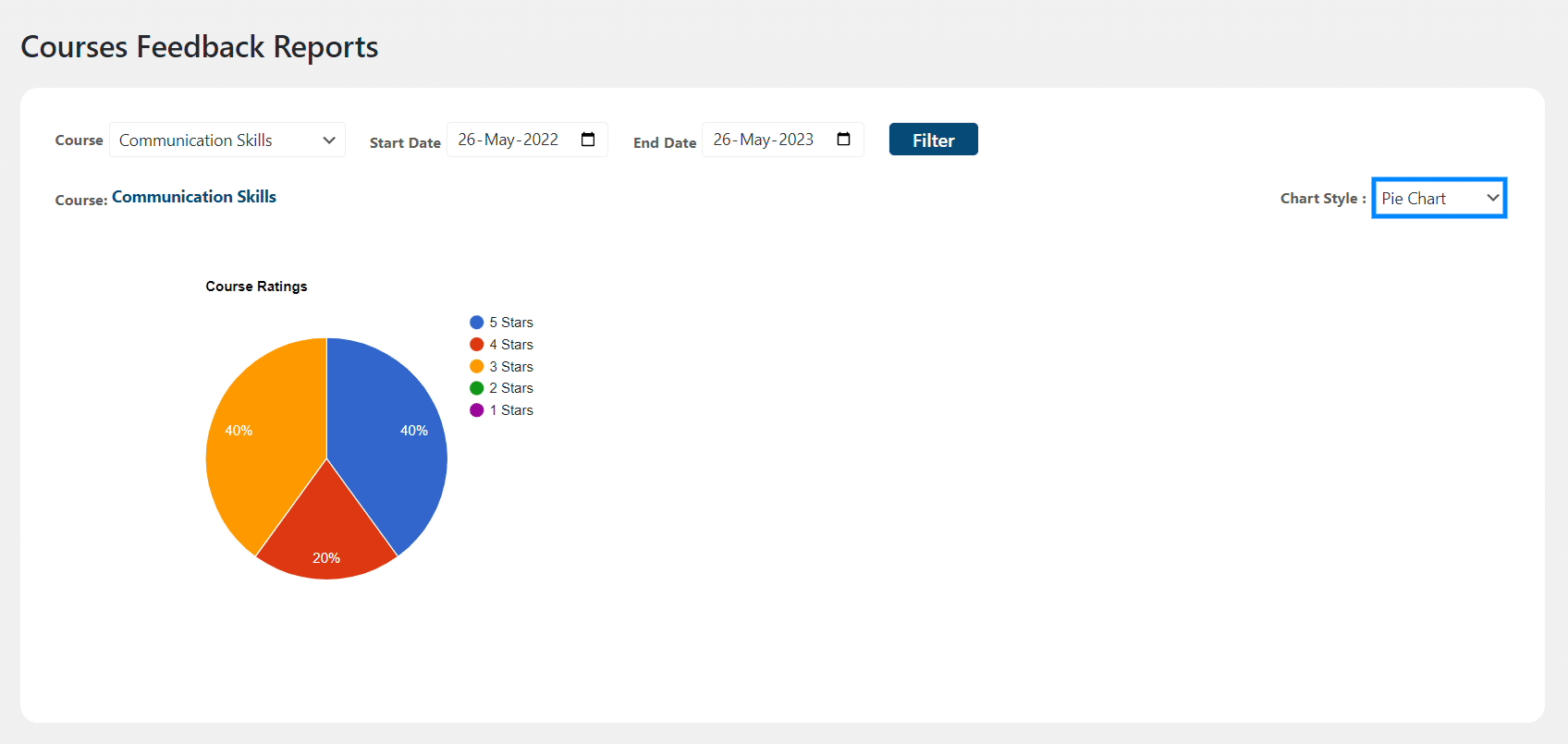
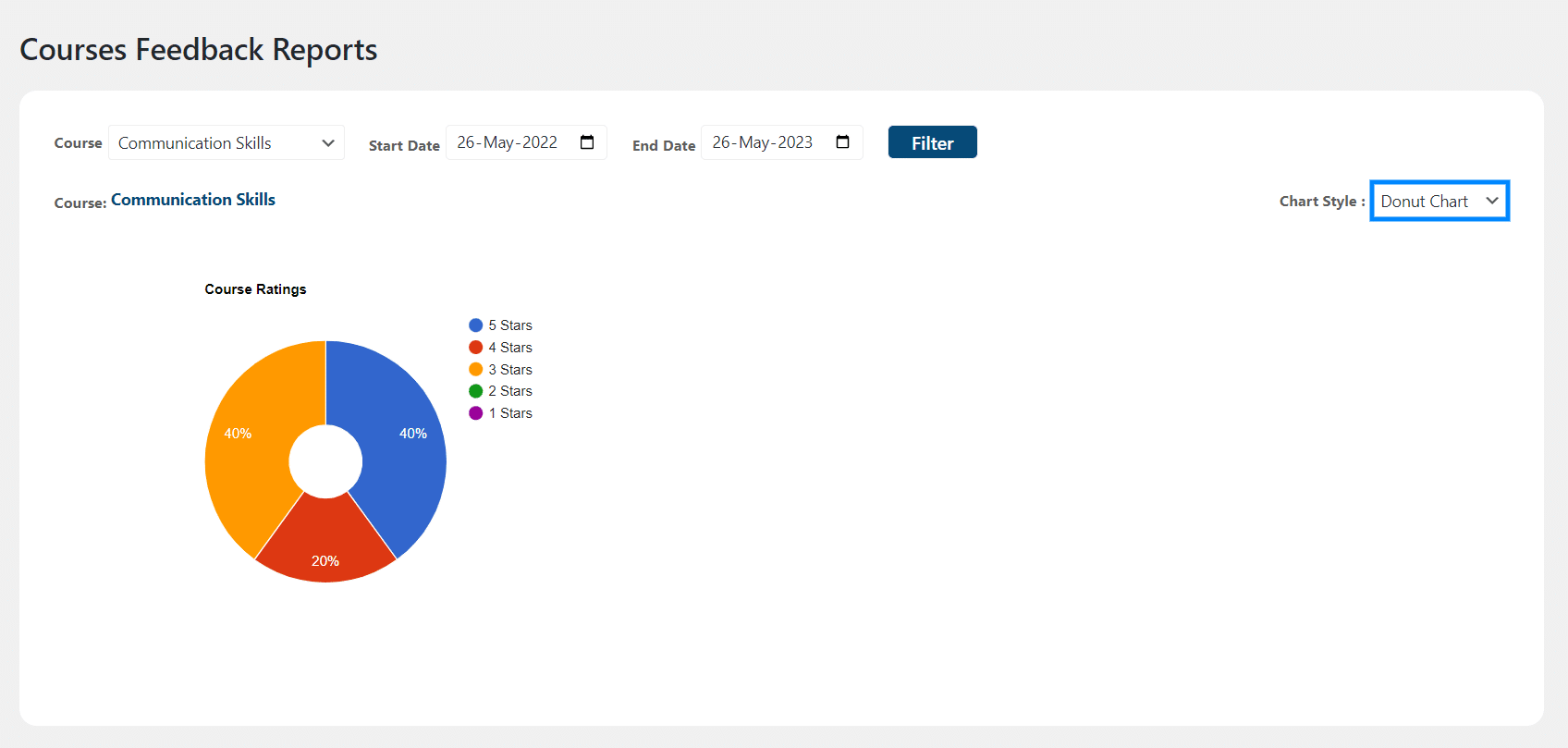
You can also view the Courses Feedback Reports in the form of different charts. To view the reports, navigate to Learndash Feedback Pro Menu > Reports.
From the Courses dropdown, select the course title for which you want to see the chart. Then select the Start Date and End Date, and click Filter.
The last step is to choose the Chart Style from the dropdown. Currently, there are 3 different chart styles available.
WordPress Block
Learndash Feedback Pro
You can also add a WordPress block of our add-on to the course, lesson, topic, and quiz pages (only) to display and collect learners’ feedback on the frontend. It will automatically detect whether it is a course, lesson, topic, or quiz page. However, currently, the block/widget is only compatible with the following options of our addon:
- Display Feedback on the Frontend
- User Email Notifications
- Admin Email Notifications
- Display Feedback when Approved by Admin
- Display Feedback for non-logged-in users
- Feedback Limit Per User


Learndash Feedback
You can add this widget to any page to allow students to view feedback on the frontend.
- When the “All” option is selected, it will work like the “[ld_all_feedback]” shortcode. It will not take the “POST ID” field into consideration in this case.
- When the “Course” option is selected, it will work like the “[ld_courses_feedback]” shortcode. In this case, you can also provide the respective course’s post ID in the “POST ID” field to filter the results.
- When the “Lesson” option is selected, it will work like the “[ld_lessons_feedback]” shortcode. In this case, you can also provide the respective lesson’s post ID in the “POST ID” field to filter the results.
- When the “Topic” option is selected, it will work like the “[ld_topics_feedback]” shortcode. In this case, you can also provide the respective topic’s post ID in the “POST ID” field to filter the results.
- When the “Quiz” option is selected, it will work like the “[ld_quizzes_feedback]” shortcode. In this case, you can also provide the respective quiz’s post ID in the “POST ID” field to filter the results.


FAQ’s
Do we also need to install the LearnDash Feedback Pro for it to work properly?
If you have purchased the LearnDash Feedback Pro, then there is no need to install its free version.
Can I export the free addon Feedbacks to CSV after upgrading to LearnDash Feedbacks Pro?
After upgrading to the LearnDash Feedback Pro, you can export your feedback in CSV format.
Will my free add-on reviews show on the frontend if I upgrade to the LearnDash Feedback Pro?
Yes, all of the free add-on feedback will be visible on the front end.
Is there a character limit for the feedback description form?
No, there is no character limit. All content added to the feedback description field will be displayed.
Can students edit their feedback once published?
No, students cannot change their feedback. Only the admin can edit or delete them.
Changelogs
1.4.14
- Fix: Fixed Minor UI issue.
1.4.13
- Fix: Fixed Debug Log “Download” button not working issue.
- Fix: Resolved multiple UI and styling issues across plugin admin pages and feedback options.
- Fix: Fixed course filter issues on feedback listing pages and improved search/filter functionality.
- Fix: Updated all admin notifications to display above page headings across all tabs.
- Fix: Removed imported file name after successful feedback import.
- Fix: Removed unnecessary line break from the License tab and fixed extra spacing after license deactivation.
- Fix: Resolved PHPCS security and performance warnings/errors.
- Fix: Fixed line break formatting issues in Admin and User Email Notifications.
- Fix: Corrected average rating calculations on All Courses and individual Course, Lesson, Topic, and Quiz pages.
- Fix: Updated rating calculations to respect the “Display Feedback when Approved by Admin” setting.
- Fix: Fixed LearnDash Feedback Pro block displaying incorrect learner counts.
- Fix: Resolved UI issues in the LearnDash Feedback Pro block.
1.4.12
- Fix: Improved Licensing Module.
1.4.11
- New: Added a new block to support block editor “LearnDash Feedback”.
1.4.10
- New: Added new design for Feedback reviews on LearnDash Courses, Lessons, Topics, and Quizzes.
- New: Added block in block editor for Feedback reviews new design.
1.4.9
- Fix: Fixed security and performance issues.
1.4.8
- Fix: Fixed Debug Log button not working issue.
- Fix: Fixed Activity Log “Clear Log” not clearing logs properly.
- Fix: Fixed CSS issue on “Copy to Clipboard” button hover in Activity Log tab.
- Fix: Converted “Clear Log” link into a proper button for better usability.
- Fix: Fixed formatting issues for Feedback Form Title, Description, and Submit Button text on course, lesson, topic, and quiz pages.
- Fix: Removed backend link option from “After Submit Feedback Message” as it was not clickable and appeared briefly on frontend.
- Fix: Fixed underline formatting not being applied correctly.
- Fix: Fixed link escaping issue where URLs were getting slashes on every settings update.
- Fix: Fixed Course Completion Message formatting issues across course, lesson, topic, and quiz pages.
- Fix: Fixed Course Completion Message links not being clickable.
- Fix: Improved Feedback Limit Message UI.
- Fix: Fixed “Enable Feedback Filter” search causing 404 page on course, lesson, topic, and quiz pages.
- Fix: Fixed UI issue on topic page where a column was not displaying correctly.
- Fix: Fixed [ld_lessons_feedback lesson_id] shortcode not working.
- Fix: Fixed all feedback shortcodes to correctly respect “Display Feedback when Approved by Admin” setting.
- Fix: Set default “Buttons Text Color” to white on fresh installation.
- Fix: Fixed security and performance issues.
1.4.7
- Fix: Fixed issue where sample lessons not showing for logged out users.
1.4.6
- Fix: Fixed security and performance issues.
- Fix: Fixed all shortcodes like dislike count issues.
- Fix: Fixed legacy template styling issues.
1.4.5
- Fix: Fixed [ld_all_feedback] shortcode issues.
1.4.4
- Fix: Fixed minor issue.
1.4.3
- Fix: Fixed quiz shortcode issue.
1.4.2
- New: Minor UI changes.
1.4.1
- Fix: Fixed minor issues.
1.4.0
- New: Added new general setting option to update feedback post on import.
- Fix: Import issue after editing the file.
1.3.9
- Fix: Resolved PHP Warning.
1.3.8
- Fix: Resolved Courses Avg. Rating option not working.
- Fix: Resolved Feedback Like and Dislike feature not working.
- Fix: Resolved Feedback Disapprove on backend option not working.
- Fix: Resolved Restrict user to add Feedback option not working.
- Fix: Resolved Displaying Feedbacks on the Frontend.
- Fix: Resolved Shortcodes not working.
- Fix: Resolved Feedback filter option not working.
- Fix: Resolved Rating only option not working.
- Fix: Resolved Feedback Limit Per User option not working.
1.3.7
- New: Display Feedback for Non logged in users.
- New: Added debug and Activity Logs.
- Fix: Fixed the grid display issue of feedbacks.
1.3.6
- Fix: Resolved Shortcode Grid issue.
- Fix: Resolved Course grid ribbon disappearing issue.
1.3.5
- Fix: Resolved the conflict with Enfold theme.
1.3.4
- Added missing strings for translation.
1.3.3
- Fix: UI issues with WPmobile.
1.3.2
- Fix: Fixed minor issues.
1.3.1
- New: Added option to restrict the students to add feedback to complete the course.
1.3.0
- Added option to Import/Export Feedback.
1.2.2
- Fix: Fixed the license request time issue that can affect website speed.
1.2.1
- Fixed the license request time issue that can affect website speed.
1.2.0
- Added new Reviews and Rating section in the front end.
- Added pie and donut chart on the reports page.
- Added option to upload multiple images added (max 5).
- Added option for admin to reply directly to the user in the email.
- Added settings for the admin email template.
- Added Settings to change the color of frontend Buttons.
- Added different messages based on course access mode and user status on the overall rating section.
- Added a setting on the course settings page to display course feedback on the front end.
- Added a setting on the course settings page to display feedback on course completion.
- Added a setting on the course settings page to display feedback on admin approval.
- Added a setting on the course settings page to display feedback options.
- Fixed text updated for the settings field.
1.0.3
- Fixed feedback tab issues.
- Fixed feedback font issues.
1.0.2
- Fixed Minor Issues.
1.0.1
- Added pagination.
- Fixed feedback list.
- Fixed minor issues.
1.0.0
- Initial Release.
